
Overview
This extension dynamically generates a unique Shopify discount code for each user session and ensures it’s reused across multi-step forms by storing it in localStorage. It integrates with a Digioh Pipeline and uses metadata to configure API access and output mapping.
Step 1: Install the Shopify Dynamic Coupon Generation Extension
Before proceeding with the rest of the steps, start by installing the Shopify Dynamic Coupon Generation extension in your account

Step 2: Add a Shopify Connection
Before you can generate any coupons, connect your Shopify store to Digioh:
- Install the Digioh Shopify App
- Go to your Shopify store: Format: https://your-store-name.myshopify.com
- Log in and copy your Shopify Store Name (the subdomain).
- In Digioh, navigate to the New Integrations page.
- From the dropdown, select Shopify and click Add New Connection.
- Enter your Store Name and Admin Access Token.
Step 3: Create the discount in Shopify
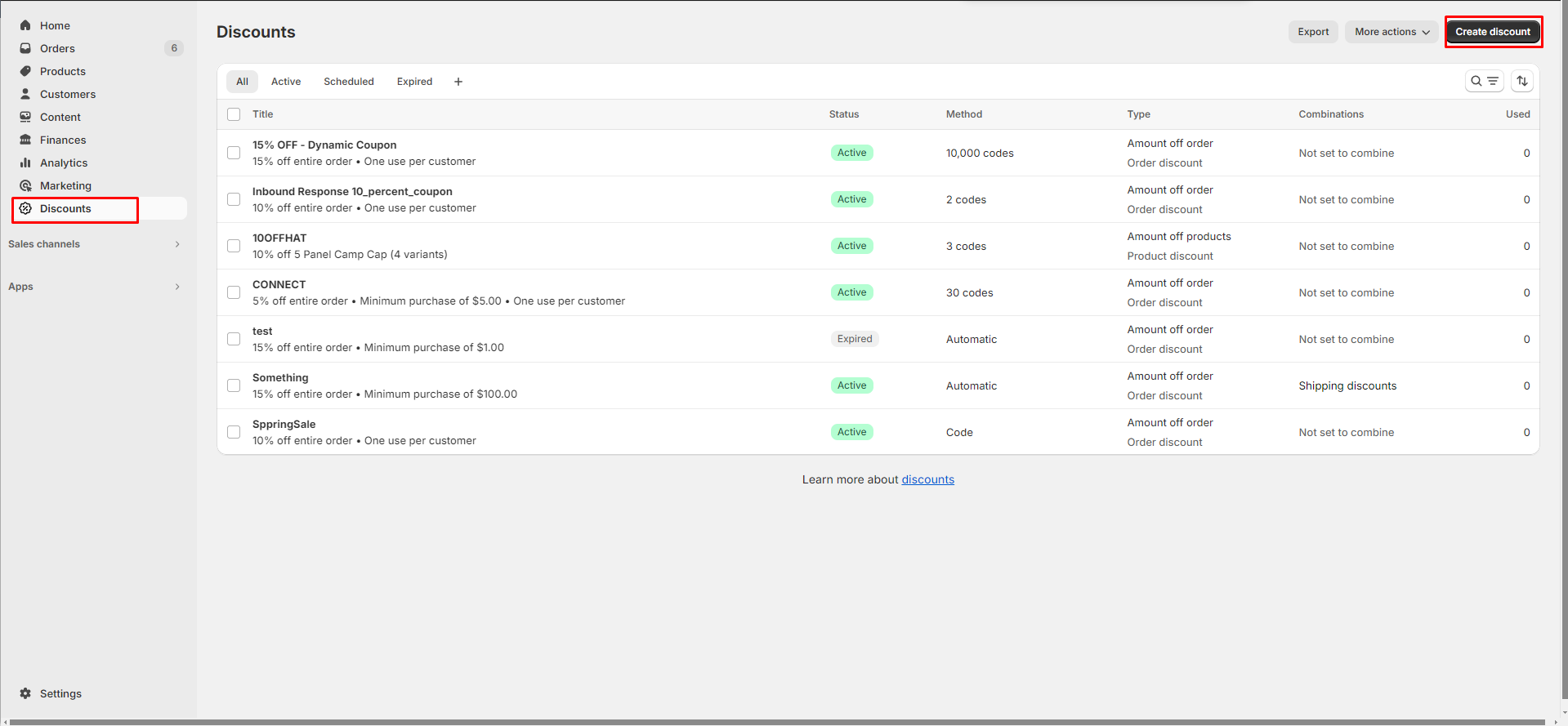
- To create the discount in Shopify, click on ‘Discount’ in the left toolbar and select the ‘Create Discount’ button in the top right:
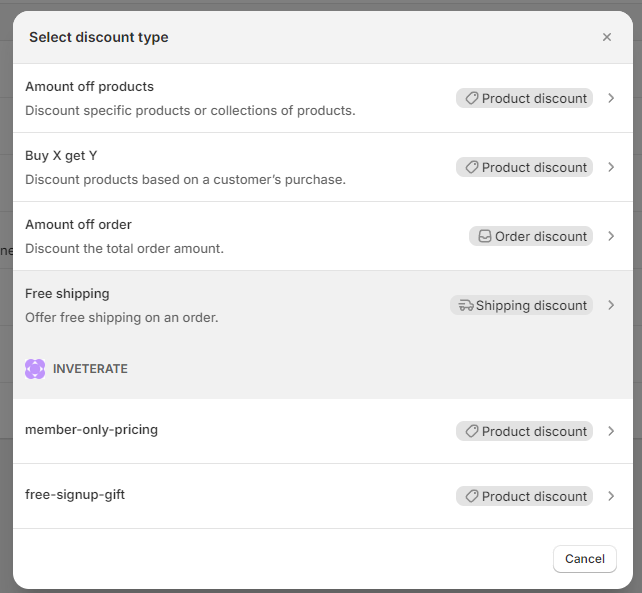
- Then select the type of discount
- Define the coupon code use-case.
We generally suggest using the method Discount code, then click on generate random code. Configure the remaining items depending on your coupon requirements.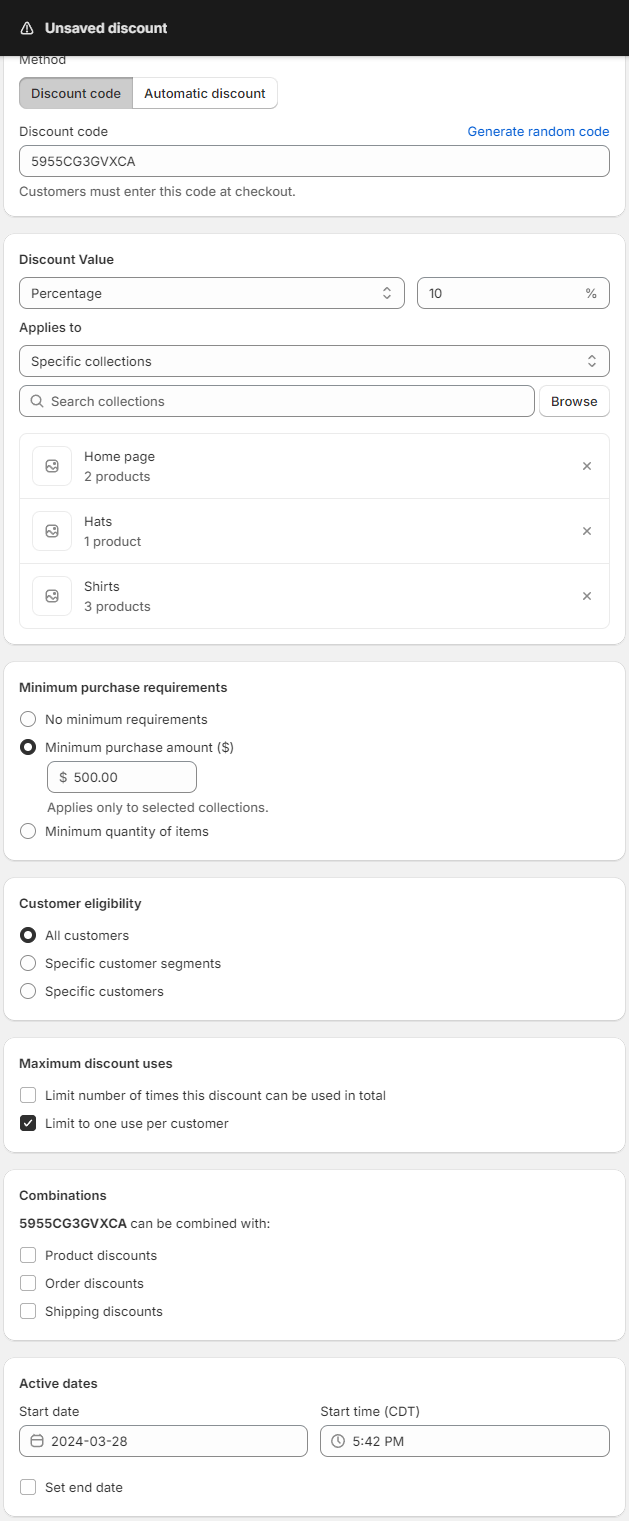
- Once you’ve created your discount, copy down the Price Rule ID from the URL:
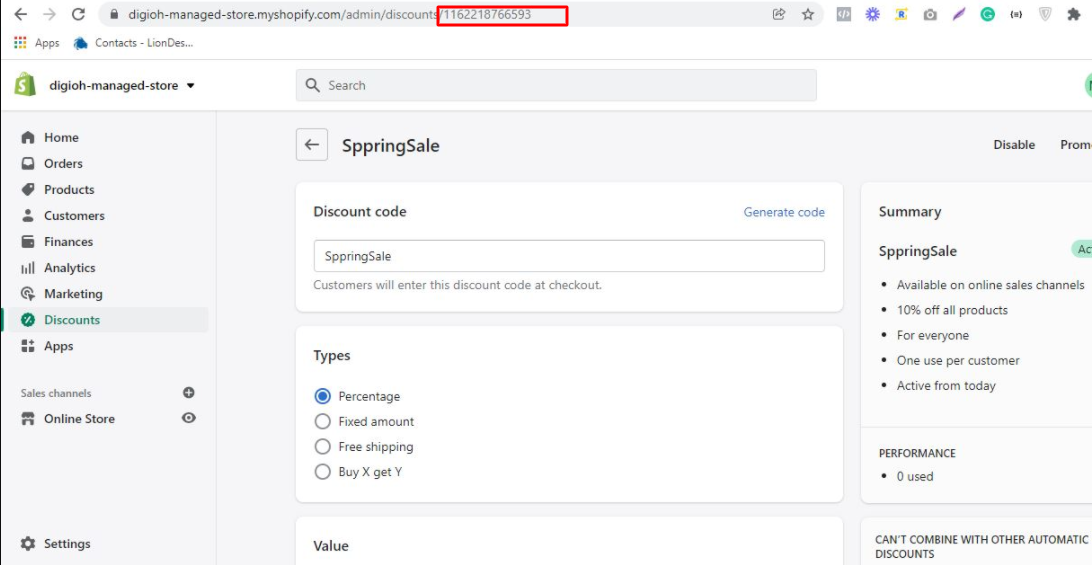
Step 4: Connect Digioh to Shopify
The extension requires a Shopify pipeline be created in your account to generate and store the coupon code.
- In Digioh, go to Pipelines and click Create New Blank Pipeline.
- Add a New Task and select Shopify.
- Configure the task:
- Select your Shopify connection.
- Enter your Price Rule ID.
- (Optional) Add a Coupon Prefix.
- Set the Coupon Code Length (default: 12).
- Choose Alphanumeric or Numeric format.
- Click Save Task and Publish the Pipeline.
Step 5: Configure Extension Metadata
To activate the extension, configure these metadata keys:
Widget or Account Metadata
These settings can be configured for an individual campaign via Campaign Metadata, or at the account level via Account Metadata
| Key | Description | Required |
| shopify_integration_id | Your Digioh pipeline’s integration ID | ✅ |
| shopify_discount_key | Data layer field (e.g., custom_20) to store the coupon | ✅ |
Widget-Only Metadata
This metadata must be added to any campaigns that should generate a Shopify coupon code on submission.
| Key | Description | Required |
| shopify_coupon_generate | Set to “true” to enable coupon generation on a Specific Pop-up | ✅ |
💡 All three keys must be configured correctly for the extension to function.
Step 6: Using a Pipeline to send the coupon code to your ESP
To include the coupon code with a submission and update a user’s profile with the code, you can update the Map Data step of an existing pipeline to map the coupon code to your desired profile field.

The input field will contain the custom field configured via the shopify_discount_key metadata. And the output field will contain the intended dataField that will hold the coupon.