
What You Will Learn
- When and why to use the Responsive Inline Scaling extension
- How to install the extension
- How to enable and configure it using campaign metadata
- How it behaves in common scenarios (E2E, flex layouts, multi-page quizzes)
- How to troubleshoot
The Responsive Inline Scaling extension automatically scales INLINE campaigns down (and optionally up) to fit the width of the container they are embedded in. It helps inline campaigns render cleanly across screen sizes and layout variations, similar to the Responsive feature available for pop-ups and banners.
Overview
Use this extension when:
- An inline campaign has a fixed native width and overflows smaller containers
- You want to avoid creating extra breakpoints just to handle intermediate screen widths
- Edge-to-Edge (E2E) alone is not sufficient for the design or layout
This extension:
- Scales the inline wrapper using
CSS transform: scale(), preserving the original aspect ratio - Adjusts
margin-bottomto remove extra whitespace introduced by scaling - Accounts for container padding when calculating available width
- Recalculates automatically on window resize and on internal Digioh page changes (e.g., quiz navigation)
Installation
- In Digioh, hover over your profile icon in the top-right corner.
- Select Extensions.
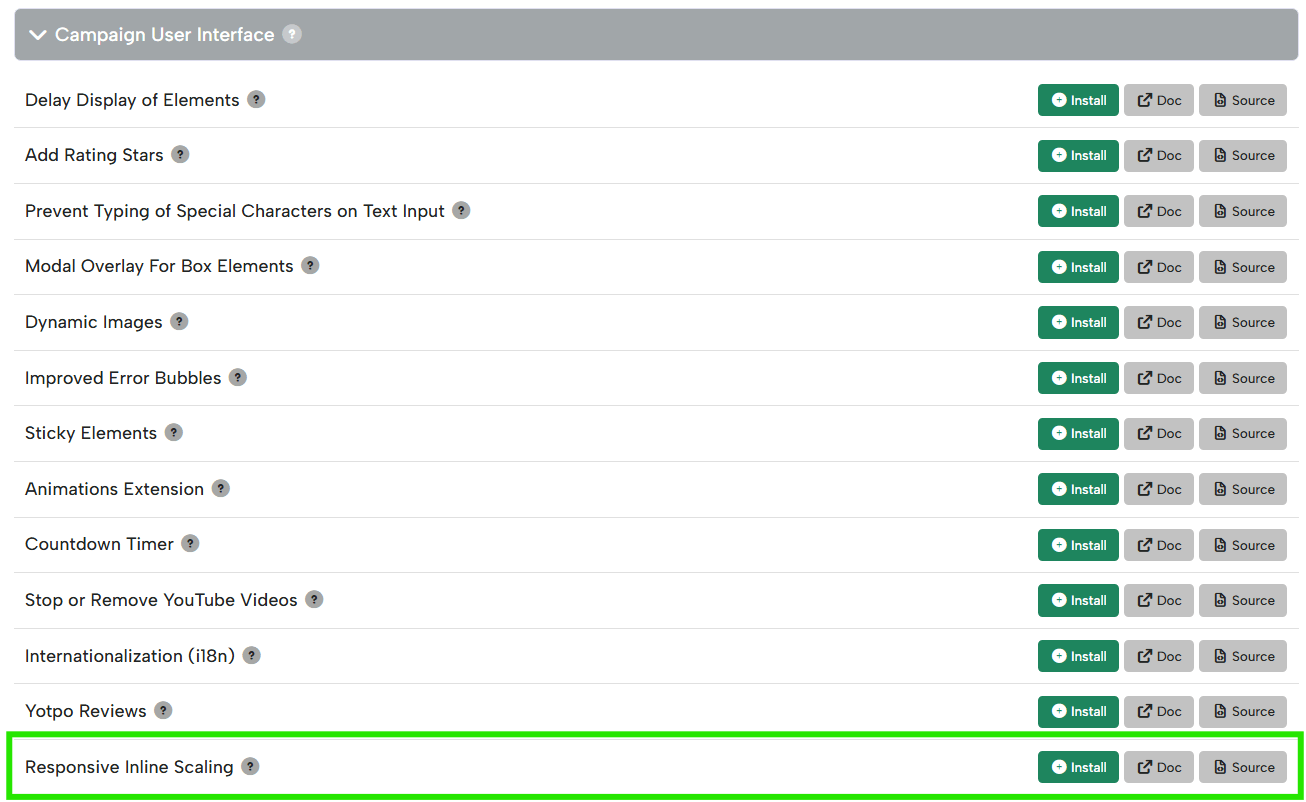
- Find the Campaign User Interface dropdown, locate Responsive Inline Scaling, and click Install.
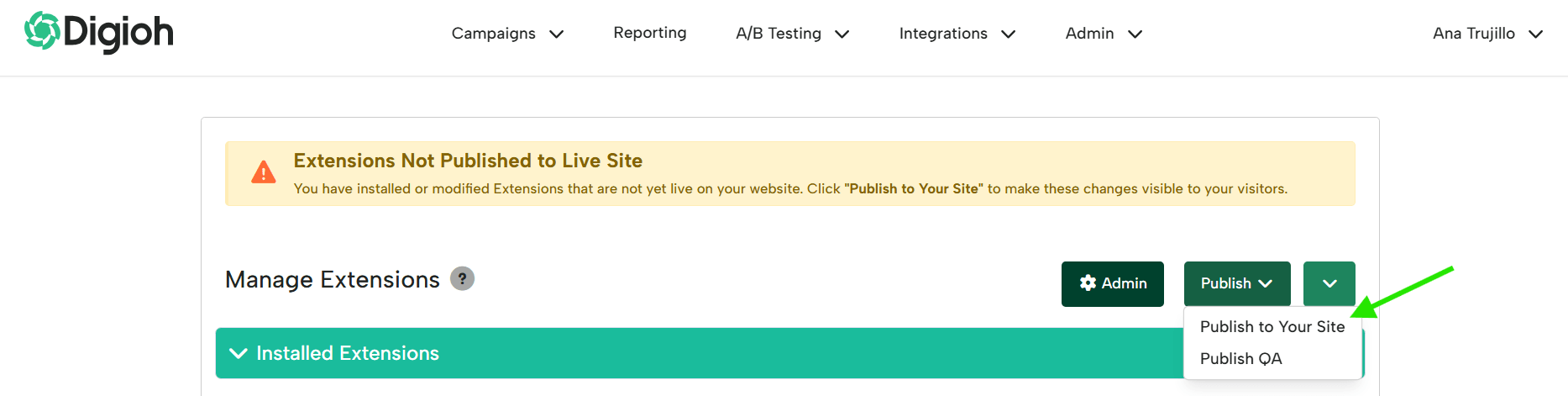
- Click Publish to your Site.
Configuration
All configuration is done through campaign-level metadata on the inline campaign you want to scale. To apply metadata in the Campaign Editor:
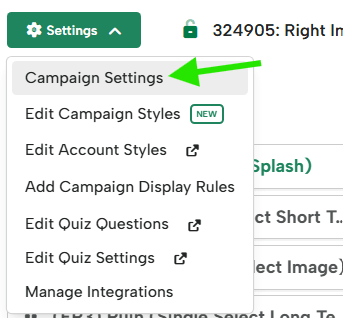
- In your campaign editor, go to Settings > Campaign Settings
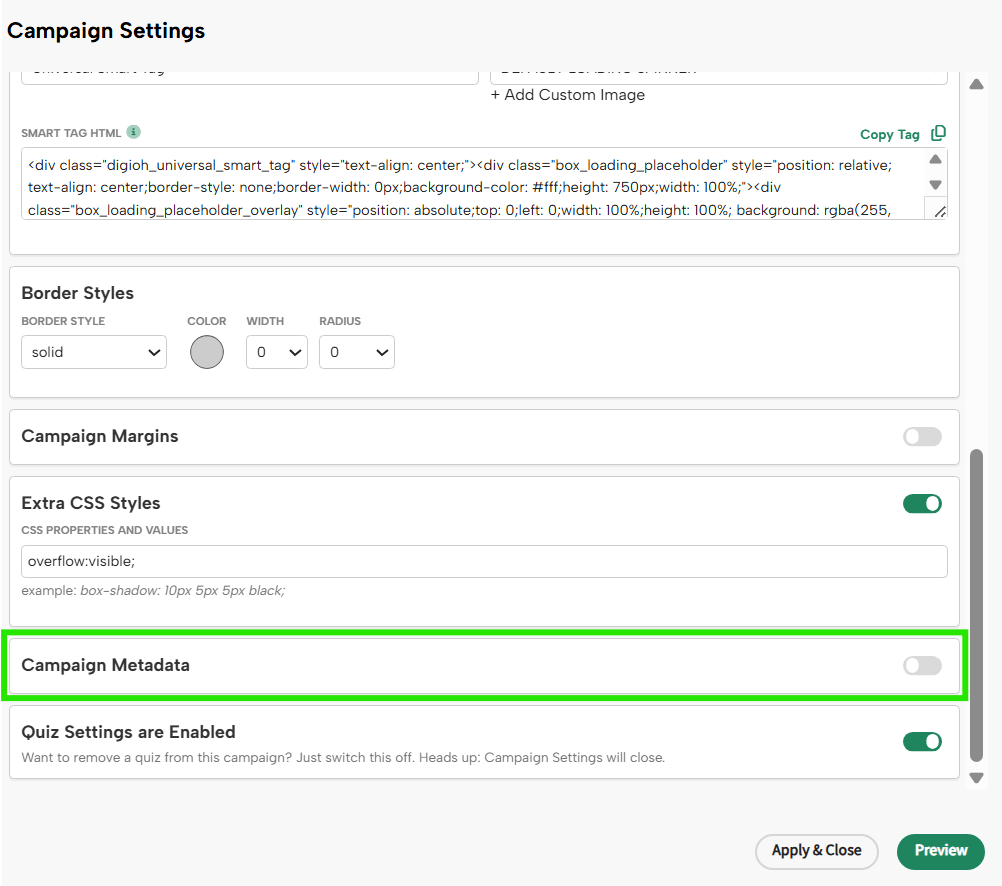
- On the Campaign Settings window, scroll down to Campaign Metadata and toggle it on to start adding the metadata keys and values
Required Metadata
The following metadata key must be set to enable the extension on a campaign:
| Metadata Key | Level | Required | Description | Example Value |
|---|---|---|---|---|
responsive-inline-scale |
Campaign | Yes | Set to true to enable responsive scaling on this inline campaign. |
true |
Optional Metadata
The following keys are optional. If omitted, the extension uses the default behavior described below.
| Metadata Key | Level | Required | Description | Example Value |
|---|---|---|---|---|
scale-inline-up |
Campaign | No | Allows the inline to scale up when the container is wider than the native width. Default is false (scale down only). Automatically ignored when Edge-to-Edge (E2E) is enabled. |
true |
scale-inline-minwidth |
Campaign | No | Minimum container width in pixels below which scaling is disabled. If the container is narrower than this value, the inline renders at its native size. | 768 |
scale-inline-maxwidth |
Campaign | No | Maximum container width in pixels above which scaling is disabled. If the container is wider than this value, the inline renders at its native size. | 1200 |
💡 Tip: Use scale-inline-minwidth and scale-inline-maxwidth together to restrict scaling to a specific range of container widths, for example, between 480px and 1024px.
Behavior Notes
Scale Direction
- Scale down only (default): The inline scales down when the container is narrower than the inline’s native width.
- Scale up: Enabled by setting
scale-inline-up = true. The line will also grow to fill wider containers.
Margin Adjustment
After scaling, the extension automatically adjusts margin-bottom to prevent extra whitespace below the inline. If you have set a custom margin-bottom on the inline, the extension preserves that value and layers its correction on top.
Flex Row Layout Fix
If the inline is placed inside a flex-row container where sizing is being constrained, the extension applies a small flex fix (min-width: 0) to the inline’s flex item only. This prevents the container from blocking the scale calculation.
Multi-Page Quiz Support
For multi-page quizzes, Digioh replaces the page DOM internally when a visitor navigates between steps. This extension hooks into api.onChangePage() and automatically recalculates scaling after each page change, so every quiz step renders at the correct size.
Edge-to-Edge (E2E) Compatibility
- Scale down works with E2E layouts.
- Scale up does NOT work with E2E and is automatically ignored to avoid over-scaling or stretching the inline.
Preview Note
⚠️ Digioh Hosted Preview for inline campaigns may look incorrect when scaling is enabled, due to how the preview layout is constructed. This does not affect live site behavior. Always validate on a live page using QA mode whenever possible.
Troubleshooting
| Issue | Likely Cause | Resolution |
|---|---|---|
| Scaling is not happening at all | Extension not enabled or wrong campaign type | Confirm the campaign is INLINE (not a pop-up or banner). Confirm responsive-inline-scale = true is set in campaign metadata. |
| Scaling stops at certain breakpoints | Min/max width limits are configured | Review scale-inline-minwidth and scale-inline-maxwidth values. If the container width falls outside that range, scaling is intentionally disabled. |
| Scale-up is not working | scale-inline-up not enabled, or E2E is active |
Set scale-inline-up = true. Check whether E2E is enabled on the campaign, as scale-up is automatically ignored when E2E is active. |
| Whitespace appears below the inline after scaling | Custom margin-bottom interaction | Verify the margin-bottom on the inline wrapper. The extension preserves your custom value and adjusts on top of it. |
| Quiz pages are not rescaling after navigation | onChangePage listener not firing |
Confirm the extension is published and active. If the issue persists, reach out to us, and we’ll investigate. |
Running into an issue or have a question? Reach out to our support team at support@digioh.com, and we’ll be happy to help!