
Overview
Digioh Passport for Braze connects your Digioh on-site campaigns with your Braze customer data. Once enabled, Digioh can recognize visitors who already exist in Braze, sync a visitor’s identity to Braze after a Digioh form submission, and use profile data to control when specific on-site experiences appear, all without requiring additional forms or custom development.
Once enabled, Digioh can:
- Identify visitors who already exist in Braze (via prior SDK engagement, email click-through, or form submission)
- Sync a visitor’s identity to Braze after a Digioh form submission
- Identify users clicking through from Braze campaign emails
- Distinguish between known and unknown visitors
- Use Braze segments, subscription groups, and custom attributes to control Digioh display rules
- Personalize on-site messaging using Braze profile data
- Track page view and campaign interaction events to Braze
- Support cart abandonment, browse abandonment, and cross-device identification
What Makes a Visitor “Known”?
Digioh considers a visitor “known” if any of the following has occurred:
- Digioh collected their email earlier on that device (via a campaign form submission)
- They arrived at your site via a link in a Braze email that is configured to pass identity on the query string
- The Braze Web SDK has already identified the user on that device
- A JavaScript variable is configured to expose their email or external ID to Digioh
Prerequisites
Before setting up Passport, ensure the following are in place:
- Active Braze account with API access
- The Braze Web SDK installed on your site
- The Digioh script installed on your website
Setup Instructions
Step 1: Connect Digioh to Braze
You will need at least one authenticated Braze integration configured in your Digioh account.
- In Braze, generate a REST API Key with the appropriate permissions and note your Braze instance URL.
- In Digioh, go to Integrations and click Add Integration. Search for Braze and select it.
- Click Add New Connection. Name your connection, enter your Braze API Key and instance URL.
- Save the integration and note the 5-digit Integration ID shown on the Integrations page, you will need it in Step 3.
Step 2: Install the Passport Extension
- In Digioh, hover over your profile icon in the top right and select Extensions.
- Scroll to the Platform Interoperation
- Find Owned Identity for Braze and click Install.
- Click Publish to Your Site to push the extension live.
Step 3: Add Account Metadata
This step links the extension to your Braze integration.
- From the profile menu (top right), select Account Metadata.
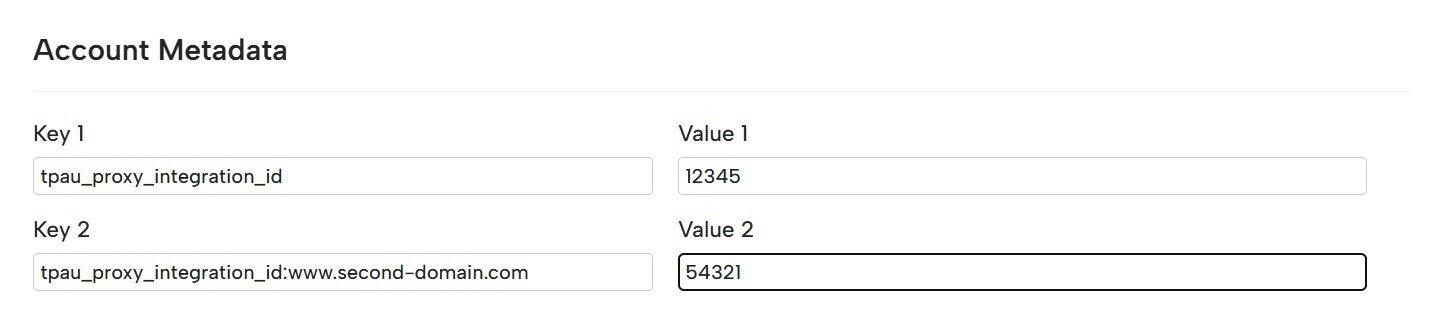
- Add the following key-value pair:
Key: tpau_proxy_integration_id
Value: [Your Braze Integration ID from Step 1]
- Click Save, then go to Campaigns and select More > Publish Account.
Once this is complete, Passport for Braze becomes active on your site.
For multiple sites or sandbox environments using different Braze integrations, add a site-specific override:
Key: tpau_proxy_integration_id:www.staging.yoursite.com
Value: [Sandbox Braze Integration ID]
Use the full exact domain including “www.” when specifying site-specific overrides.
Step 4: Maximize Identity Tracking (Optional but Recommended)
Digioh will automatically retain and use the email identity of visitors who submit a Digioh campaign form. To expand identification coverage to your broader subscriber base, we recommend the following.
Email Click-Through Identification
Update your Braze email templates so that links to your site include the user’s identity on the URL query string, using Braze’s Liquid syntax:
?email={{${email_address}}}
?userId={{${external_id}}}
We recommend using external_id (userId) where possible as it is more secure. Add these parameters to the links in your highest-traffic emails, especially welcome and double opt-in emails, to maximize the reach of identity tracking across your subscriber base.
Braze Web SDK
If you have the Braze Web SDK installed and a user has already been identified via changeUser(), Digioh will automatically read the identity from it with no additional configuration required. The legacy Appboy SDK is also supported, so customers on older SDK versions do not need to make changes.
If no Braze SDK is detected on the page, Passport continues to operate in reduced mode: form submissions and profile lookups still work, and device-based changeUser() calls are skipped without throwing errors.
JavaScript Variable
If your site exposes a logged-in user’s email or external ID in a JavaScript variable, add the following to Account Metadata:
Key: tpau_userid_source_var
Value: window.yourDataLayer.customer_id (or whichever JS path exposes the ID)
Using Passport in Digioh Campaigns
Targeting Known Status and Audience Membership
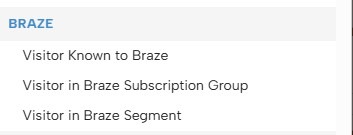
After installing the extension and configuring Account Metadata, Braze-specific targeting rules become available in Campaign Display Rules. The available built-in rules are:
- Visitor Known to Braze, whether the current visitor has a known Braze profile
- Visitor in Braze Segment, target or suppress campaigns based on Braze Segment membership
- Visitor in Braze Subscription Group, target or suppress campaigns based on Braze Subscription Group membership
Known visitors are people Digioh can already match to a Braze profile. Use this to suppress email capture pop-ups or show “welcome back” and VIP messaging. Unknown visitors are people Digioh has not yet identified. Use this to show welcome sign-ups, first-time offers, or newsletter promotions.
To target a Braze Segment, create the segment in Braze and reference its Segment ID in your Digioh display rule. To learn how to build segments, see Braze’s Segmentation basics guide.
Personalizing Campaign Content
Install the Universal Merge Tags extension alongside Passport, then use the following syntax in campaign text to populate Braze custom attribute values:
[BRAZE_FIELD|field_name|default_value]
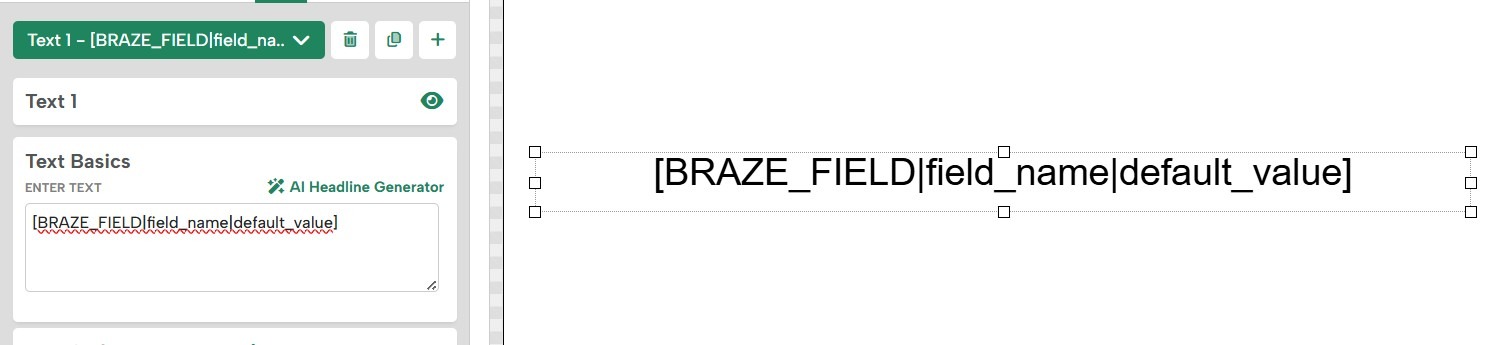
The default_value is optional but recommended. It is used when the visitor is unknown, the field does not exist in their Braze profile, or the field is blank.
Example: [BRAZE_FIELD|first_name|there] would display “Welcome back, Sarah!” for a known user whose first_name is Sarah, and “Welcome back, there!” for everyone else.
Tracking Events to Braze
The extension can be configured to track page view and campaign events to Braze using metadata at the account, campaign, or campaign-page level.
Available Metadata Keys
tpau_pageview_event: Name of the Braze event to send on every page view. Configured in Account Metadata.
tpau_pageview_json: JSON for the event payload, supporting UMT merge tags. Example: {“page_path”:”[PAGE_PATH]”, “ip_address”:”[IP_ADDRESS]”}
tpau_box_event: Name of the event to send when a campaign page is viewed.
tpau_box_json: JSON for the campaign event payload, supporting UMT merge tags. Example: {“box_id”:”[BOX_ID]”, “box_name”:”[BOX_NAME]”, “page_name”:”[BOX_PAGE]”}
The extension tracks the most specific event level configured. If both campaign-page-level and campaign-level config exist, only the campaign-page event is tracked. Campaign-page-level is ideal for conversion events.
Note: Custom event names and properties should be pre-created in Braze before sending; otherwise Braze may ignore events sent by Digioh.
Technical Details
When a visitor submits a Digioh form, Passport generates a stable Braze external_id using an MD5 hash of their email address (uppercased before hashing). This keeps identity consistent across sessions and prevents duplicate profiles in Braze. The raw email is also written to the profile as a Braze user attribute shortly after, to ensure the identity change completes first.
The extension detects whether to look up a user by email or by external ID based on the identifier format, so no additional configuration is required. If no Braze SDK is present on the page, Passport operates silently in reduced mode: form submissions and profile lookups continue to work, and device-based changeUser() calls are skipped without throwing errors.
API payloads are compressed using LZString base64 encoding, so they will not be human-readable in browser DevTools without decompression.
Getting Started Checklist
- Braze account set up and configured
- Braze connection created in Digioh
- Passport extension installed and published
- Targeting and personalization rules created for relevant campaigns
- Test completed using ?boxqamode on your site
For questions or assistance, contact the Digioh support team at support@digioh.com.