
Overview
Digioh Passport for Ometria connects your Digioh on-site campaigns with your Ometria customer data. Once enabled, Digioh can identify known Ometria users visiting your site, use their Ometria profile attributes and list membership to control campaign display rules, personalize campaign content with Ometria data, and track page view and campaign interaction events back to Ometria.
The extension supports a wide range of functions:
- Flexible general-purpose event tracking from site to Ometria (conversion tracking, marketing attribution)
- Anonymous User Tracking (AUT): queues events until the user is known, then sends everything to Ometria as a profile merge
- Targeting Digioh campaigns based on Ometria user profile data (fields, list membership)
- Personalizing Digioh campaign content based on Ometria user profile fields
- Digioh Campaign-Form auto-fill for known users
- Tracking site pageviews to Ometria with analytics data including marketing attribution and geo-location
- Tracking campaign interaction events to Ometria with form and analytics data
- Cross-device identification and profile merging
- Cart abandonment, browse abandonment, and customized user experience based on cart/product interactions
What Makes a Visitor “Known”?
A visitor is considered “known” to Digioh if:
- A Digioh campaign collected their email on that device
- They clicked a URL linking to your site that includes userId or email parameters on the query string
- The Ometria JavaScript SDK is installed and the user is identified through it
Prerequisites
To use the extension, you will need at least one authenticated Ometria Integration configured in your Digioh account.
Setup Instructions
Step 1: Install the Extension
- In Digioh, hover over your profile icon (top right) and select Extensions.
- Scroll to the Platform Interoperation section.
- Find Owned Identity for Ometria and click Install.
Step 2: Add Account Metadata
This step links the extension to your Ometria integration.
- From the profile menu (top right), select Account Metadata.
- Add the following key-value pair using the Integration ID from your Ometria integration in Digioh:
Key: tpau_proxy_integration_id
Value: [Your Ometria Integration ID, e.g. 65209]
- Click Save, then publish your account to push changes live.
If you manage multiple sites from a single Digioh account (or have a sandbox environment), you can configure site-specific integration IDs:
Key: tpau_proxy_integration_id:dev.customer.com
Value: [Sandbox Ometria Integration ID, e.g. 65210]
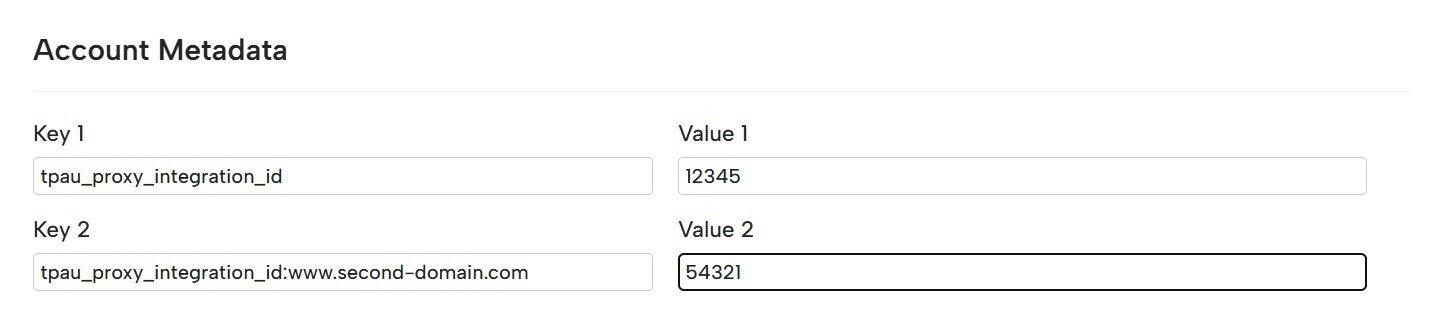
This is useful when you want a staging or development domain to point to your Ometria sandbox environment.
Maximizing Identity Coverage
Digioh will retain and use the email identity of users where a Digioh campaign collected their email. You should also expand this to include existing Ometria users — especially if you have existing mechanisms to create users in Ometria (e.g. native email signup forms or a login process).
Ometria JavaScript SDK
If you have the Ometria JavaScript SDK installed on your site, Digioh will read the userId from it if available, with no additional configuration required.
Email Click-Through Identification
Update your Ometria email campaign templates so that links to your site include the user’s identity on the URL query string:
?email={{email}}
?userId={{userId}}
We recommend using userId where possible, as it is more secure. Any clicks on a link containing these parameters will identify that user to Digioh and activate targeting capabilities. Add these parameters to your most commonly clicked emails (e.g. welcome email, double opt-in confirmation) to maximize identity penetration across your subscriber base.
Using Passport in Digioh Campaigns
Targeting Ometria Data
Digioh supports targeting (and anti-targeting) of campaign displays based on known Ometria user attributes and list membership. An Ometria user is “known” to Digioh if a Digioh campaign collected their email, or if the user has clicked on a URL to your site that has userId or email parameters on the query string.
This extension works by retrieving and caching Ometria user attributes in real time, and making the data available in a JavaScript object tpau that you can reference in Campaign conditions.
Available Ometria user attributes are converted to properties of the tpau object:
tpau.attributeName

List membership is also targetable:
tpau.lists[numericListId] = true

Square brackets are needed here because list IDs are numeric and therefore invalid with dot notation.
Note: Digioh can create Custom Conditions for you based on your needs to make targeting easier for non-technical users. Ask your Digioh support contact to set these up.
Anti-Targeting Ometria Data
When anti-targeting on user attributes, be careful: the JS Var condition “Does NOT equal” will be true for unknown users (whose attribute is undefined). If you want to anti-target known users who do not have a specific attribute value, you must also check that the visitor is known:
JavaScript Variable | Equals | tpau.known | true
JavaScript Variable | Does NOT equal | tpau.favoriteColor | green

Without the “known” check, the campaign would display to all unknown visitors, which is probably not what you want. If you do want to target unknown visitors specifically, use:
JavaScript Variable | Equals | tpau.unknown | true
Important: Use “Equals” rather than the default “Contains” comparison when checking boolean values. Boolean true does not “contain” anything, so “Contains” would fail.
Personalizing Campaign Content
You can personalize the content of your campaigns using Ometria user field data. Install the Universal Merge Tags extension alongside Passport, then use the following merge tag syntax in your campaign text:
[OMETRIA_FIELD|fieldName|default_value]
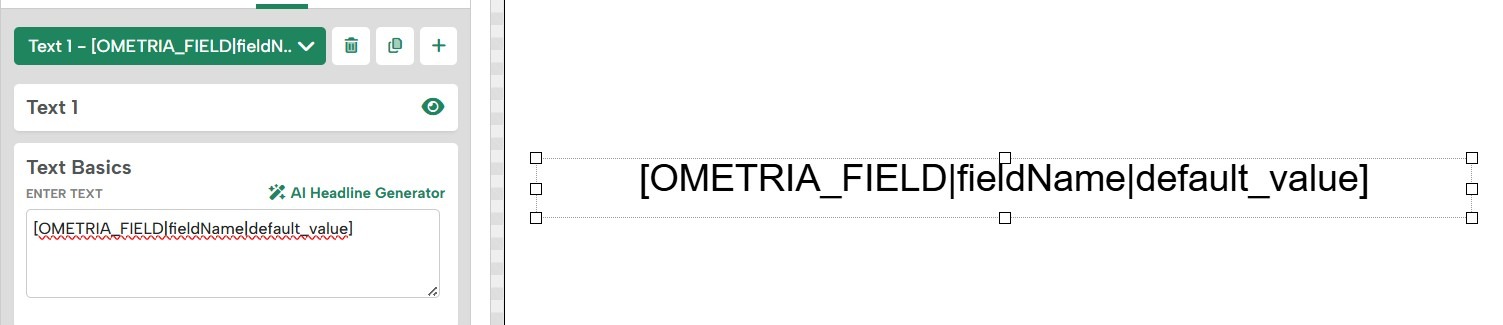
The default_value is optional but recommended. It is used when the visitor is unknown, the named field does not exist in their Ometria profile, or the field is blank.
When using Ometria merge tags, we recommend conditioning the campaign on tpau.known = true. While default merge tag values will work for unknown users, you usually want to personalize only the experience of identified visitors.
Tracking Events to Ometria
Important: Ometria requires that custom event names and properties be pre-created in Ometria before sending. Without this, Ometria will ignore events sent by Digioh.
The extension can be configured to track page view and campaign events to Ometria using metadata at any of account, campaign, or campaign-page level.
Available Metadata Keys
tpau_pageview_event: Name of the Ometria event to send on every page view. Must be configured in Account Metadata.
tpau_pageview_json: JSON for the event payload, supporting UMT merge tags. Example: {“page_path”:”[PAGE_PATH]”, “ip_address”:”[IP_ADDRESS]”}
tpau_box_event: Name of the event to send on campaign-page view.
tpau_box_json: JSON for the campaign event payload, supporting UMT merge tags. Example: {“box_id”:”[BOX_ID]”, “box_name”:”[BOX_NAME]”, “page_name”:”[BOX_PAGE]”}
The extension tracks the most specific event level configured. If both campaign-page-level and campaign-level event config exist, only the campaign-page event will be tracked. Campaign-Page-level is ideal for conversion events.
Advanced: Interoperating with Your Site JavaScript
From your own on-site JavaScript or a Google Tag Manager tag, you can call the functions listed below from the window.DIGIOH_API object for advanced use cases.
Please note: You should only attempt to do this if you are comfortable developing custom JavaScript or have technical resources to assist.
- DIGIOH_API.setEmail(email): set or replace the known user profile with an email
- DIGIOH_API.setUserId(userId): set or replace the known user profile with a userId
- DIGIOH_API.clearData(): remove all known user info and make the visitor unknown
- DIGIOH_API.trackPlatformEvent(eventName, payloadObj, options): track a custom event to Ometria, or queue it if the user is unknown. Options include updateEventId and createdAt.
Because Digioh is dynamically loaded JavaScript, these functions may not be available immediately on page view. Use the event queue to call them before Digioh has loaded:
window.digiohEventQueue = window.digiohEventQueue || [];
window.digiohEventQueue.push({eventName: “preload_test_event”, eventPayload: {event_val: 1}});
Any events pushed to window.digiohEventQueue will be processed as soon as Digioh activates.
Getting Started Checklist
- Ometria account set up and configured
- Ometria connection created in Digioh
- Passport extension installed and published
- Targeting and personalization rules created for relevant campaigns
- Test completed using ?boxqamode on your site
For questions or assistance, contact the Digioh support team at support@digioh.com.