
What You’ll Learn
- What Responsive display mode is and how it works
- How to enable it for popups, sidebars, and banners
- The three Responsive Window Settings options and when to use each
- Best practices and recommended configurations
Overview
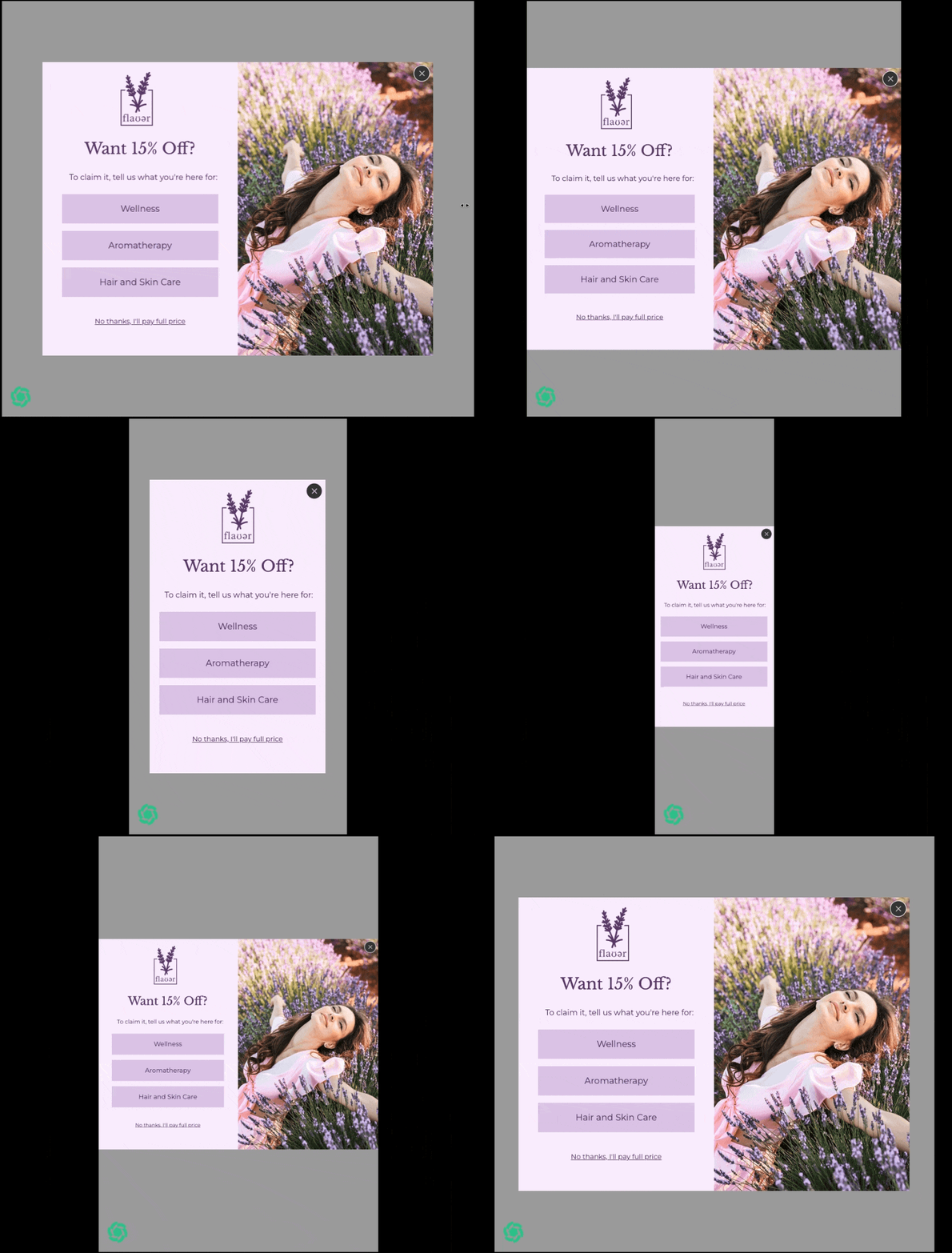
The Responsive display mode automatically resizes your campaign based on the size of the visitor’s browser window or screen. Without it, a campaign built at a fixed pixel size may appear too large and get cut off on smaller screens. With it enabled, your campaign scales down gracefully to fit any window.
The Responsive setting is enabled at the Campaign level. Once enabled, you can configure the Responsive type and settings per page, meaning each page in your campaign (Main Page, Thank You Page, Extra Pages) can be configured independently (though we recommend keeping them cohesive).
Note: Responsive is not supported for embedded (inline) campaigns.
How to Enable Responsive Display Mode
- Open your campaign in the Digioh editor.
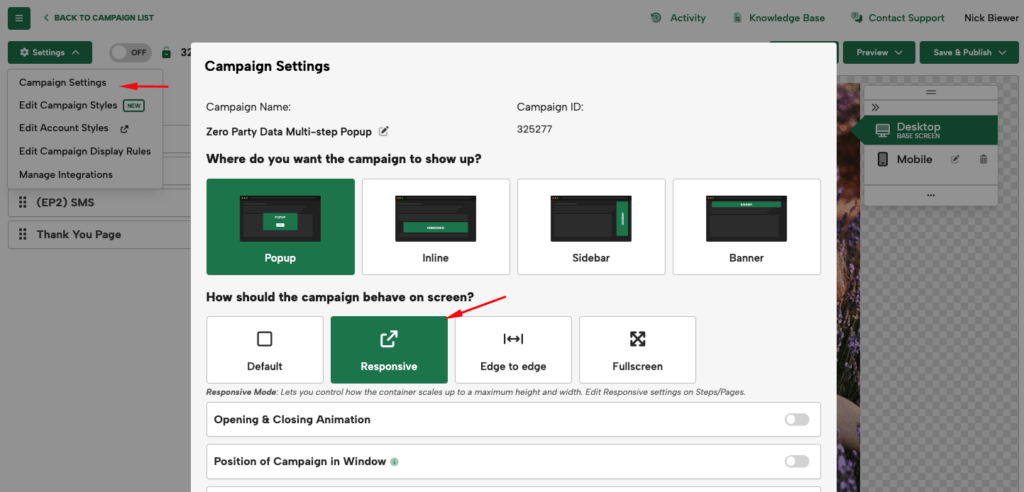
- Hover over the Settings dropdown in the top left, then click Campaign Settings.
- Toggle on Responsive.
- Click Apply & Close and continue to the Layout tab to view the per-page settings.
- Adjust the Responsive type and size settings per page as needed.
Note: If starting from a popup theme, Responsive may already be enabled. If so, you’ll just to review the Responsive settings per page.
Responsive Max Box Size Settings
Once Responsive is enabled, you will be prompted to choose how the campaign should scale per page using the Responsive Max Box Size dropdown on the Layout tab of your campaign pages. There are three options:
1. Window
The campaign scales up to fill the full height of the browser window and automatically adjusts as the browser is resized. This is best suited for near-full-screen experiences.
For popups where you want a true full screen experience, we recommend the Full Screen display mode.
2. Percentage of Window
The campaign scales to a maximum percentage of its configured dimensions relative to the browser window. For example, setting a max of 75% on a 900×650 popup means it will scale up but never exceed 75% of the visible window width or height.
Use this option when you want the campaign to always feel proportional to the visitor’s screen. This is a useful feature for mobile.
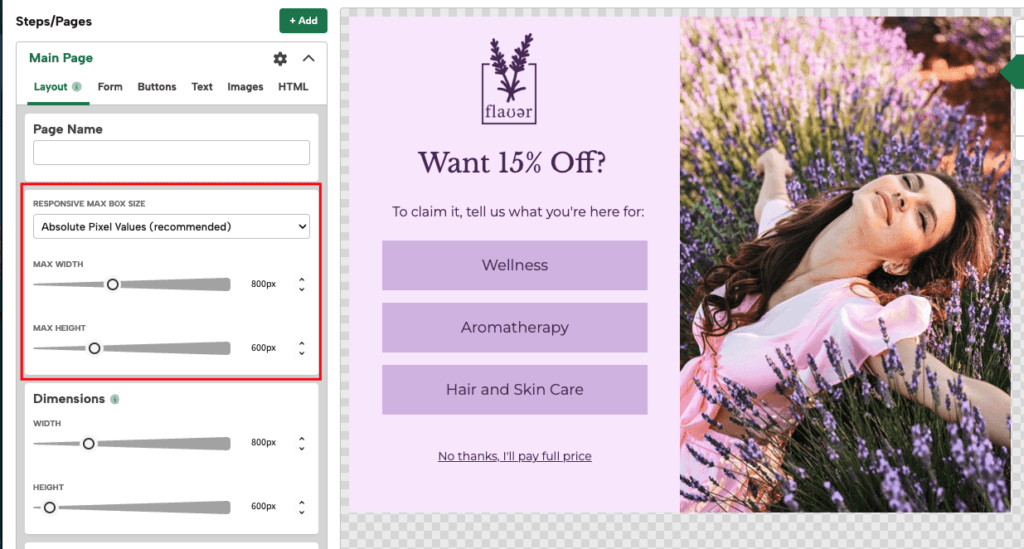
3. Absolute Pixel Values (Recommended)
The campaign scales down if the screen is smaller than the configured maximum pixel dimensions, but will not scale up beyond that size on larger screens.
Digioh recommends using Absolute Pixel Values with the maximum dimensions set to match the campaign’s configured width and height. This gives you predictable, controlled sizing behavior across devices.
Important Notes
- Recommended Campaign Sizing: Review our help doc to see our general best practices for campaign sizing.
- Edge to Edge, Full Screen, and Scrolling: You can only use one display mode at a time, as they are conflicting features, so you cannot combine them with Responsive. You can use different display modes per Screen Size (desktop vs mobile versions) but we recommend using the same across the whole campaign for consistency.
- Scrolling sidebars: The Scrolling option is only available for sidebar-type campaigns and keeps the sidebar fixed at the top center of the screen to allow vertical scrolling within the campaign. This may be a better option than rResponsive for very tall campaigns.
- Responsive + Screen Sizes: Responsive works alongside Screen Sizes (Desktop and Mobile versions). When using a Mobile Screen Size with Responsive enabled, you set the mobile Screen Size Max-Width to 515px to allow your desktop design to scale down some before switching to the mobile view.
Testing Your Responsive Configuration
After enabling and configuring Responsive settings:
- Use the Preview button in the editor and resize the browser window to simulate different screen sizes.
- For mobile testing, use the Preview on Live Website feature to generate a shareable link and load it on an actual device.
- For pre-launch QA, append ?boxqamode to your website URL to trigger the campaign without affecting live visitors.