
Digioh integrates with Shopify using a single Javascript snippet. Once installed, the script powers quizzes, email capture campaigns, and other onsite experiences on your store. This guide explains how to install the Digioh Javascript on Shopify using our Shopify App, or via direct theme installation.
Digioh has 3 types of Javascript:
- Fast Activation (this is recommended for quizzes) – our Javascript loads immediately
- Low Impact (this is recommended if you only use Digioh Pop Ups) – delays our Javascript load until a real human interacts with your website
- Compatibility – this is for customers who for some reason can’t get our other Javascript to work due to conflicts
VIDEO: watch the video below on how Digioh’s 3 types of javascripts work
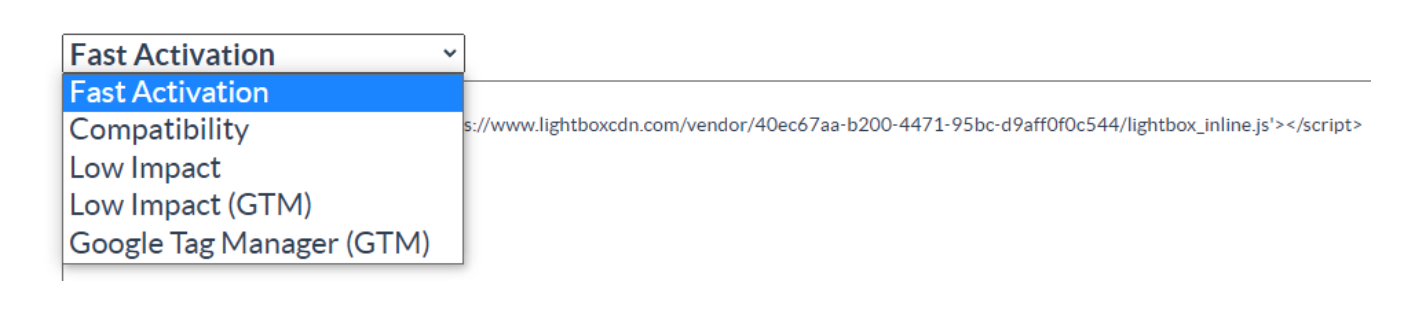
Here are the pros and cons for each type of javascript.
Additional Warning note: Make sure the Digioh Javascript is only on the site once. The entire Digioh platform is powered by one script, you will never need to do this step again. Sometimes clients add the Digioh Javascript twice (once via Google Tag Manager and another time directly on the site), if the Digioh Javascript is on the site twice, Digioh will not work and can potentially lead to unexpected issues on your site.
We offer 2 methods to get our Javascript added to Shopify:
Option 1 (Recommended): Automatic install via our Digioh Shopify App
Option 2: Manual Shopify Installation
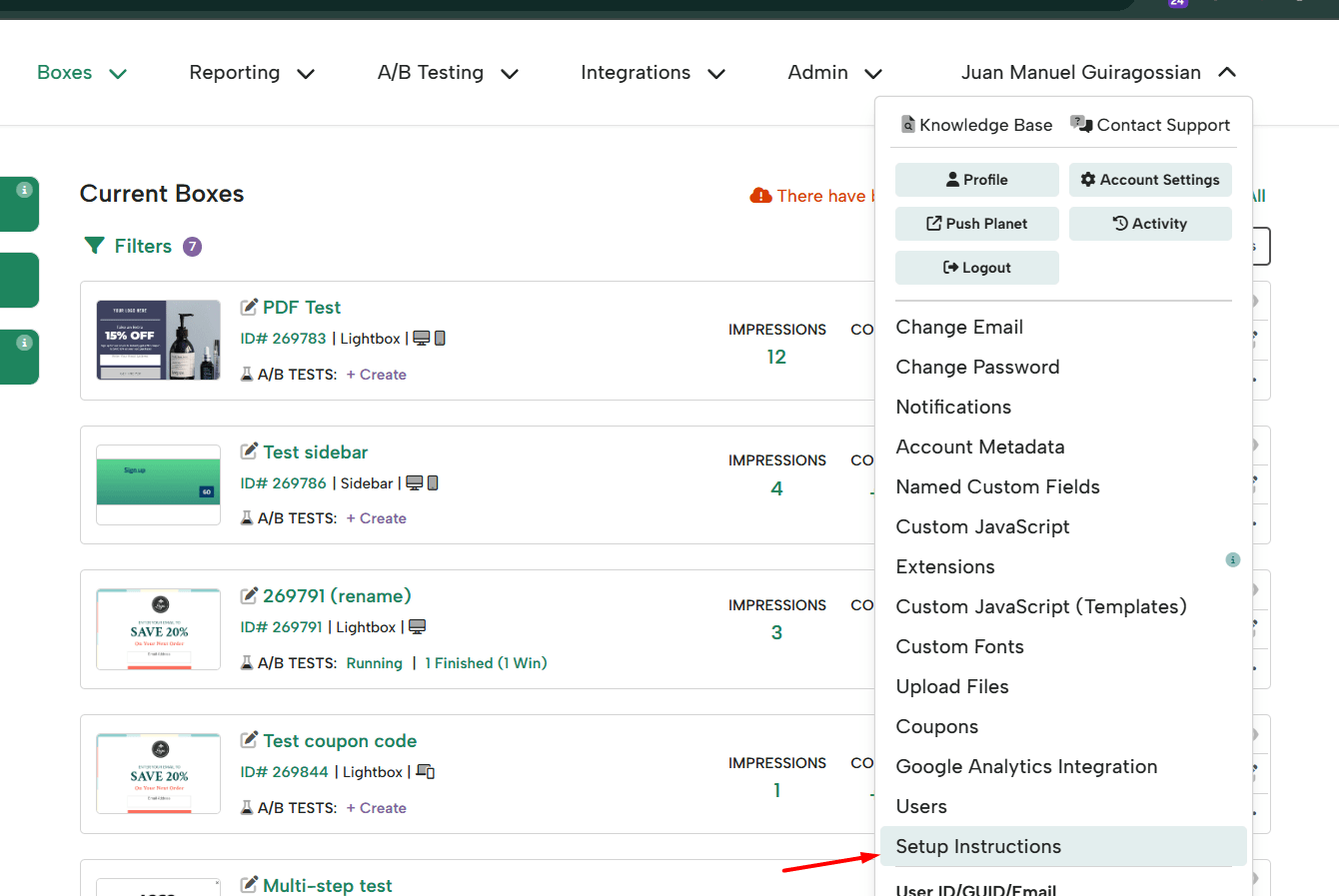
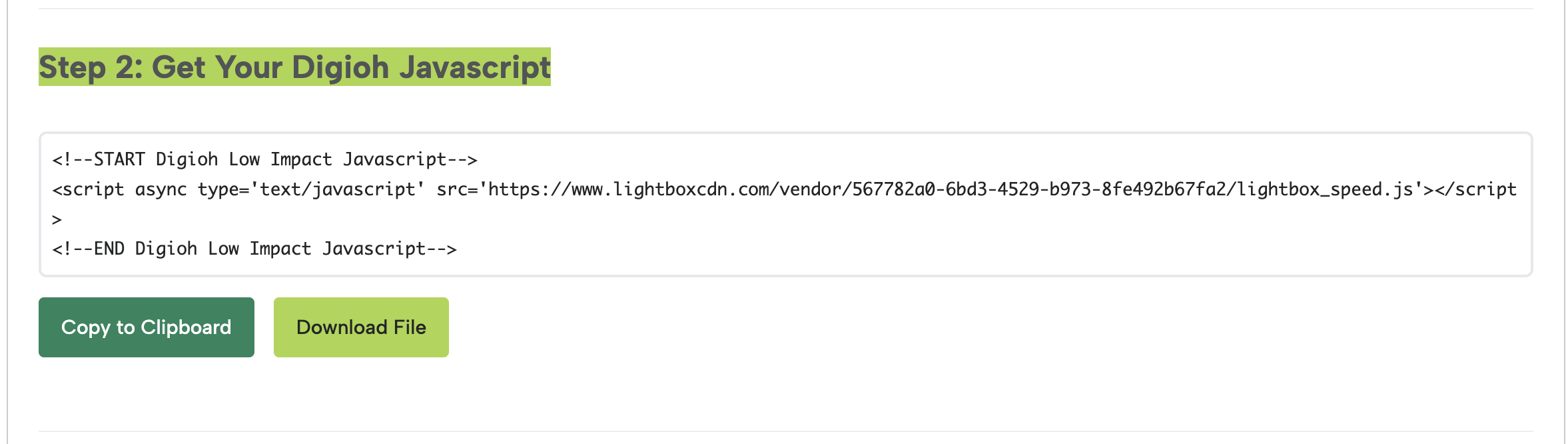
Login to your Digioh Account > Setup Instructions > Scroll down to the “Get Your Digioh Javascript” section, and click on “Copy to Clipboard” this will copy the Javascript. You will need to paste this Javascript into your Shopify theme.
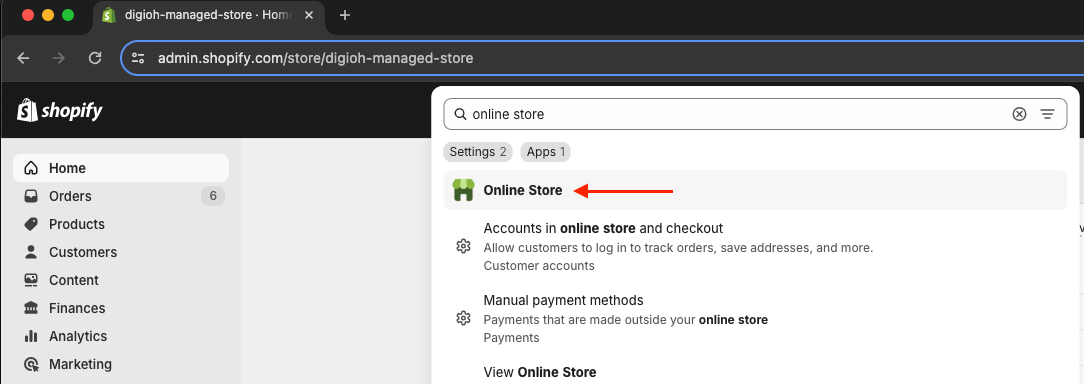
Go to your Shopify admin site and click “Online Store”.
Find the “Themes” section on the left side menu tab, and after opening the “Themes” section, click the “Actions” button icon “…” on the right side of the screen and select “Edit Code”.
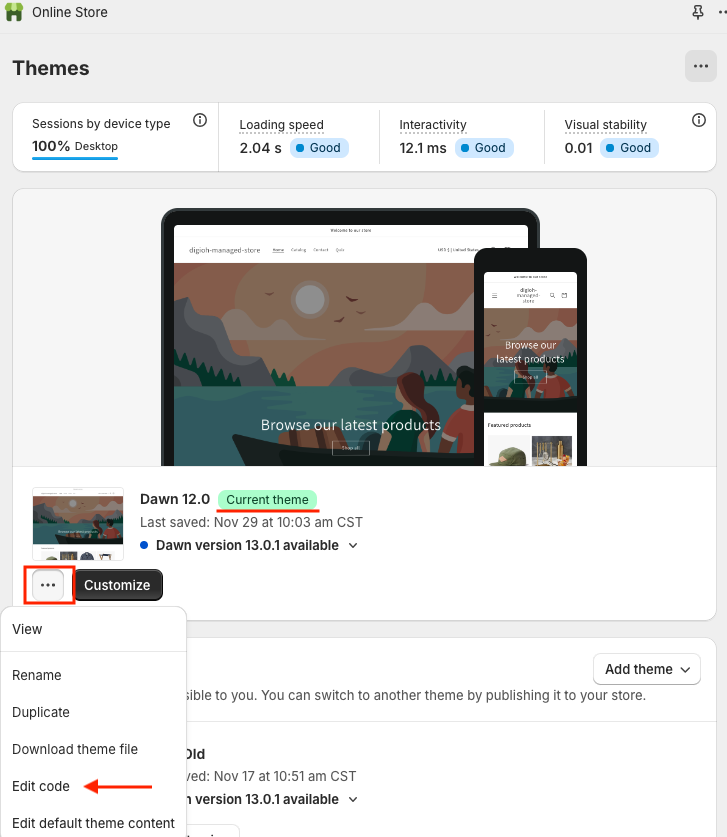
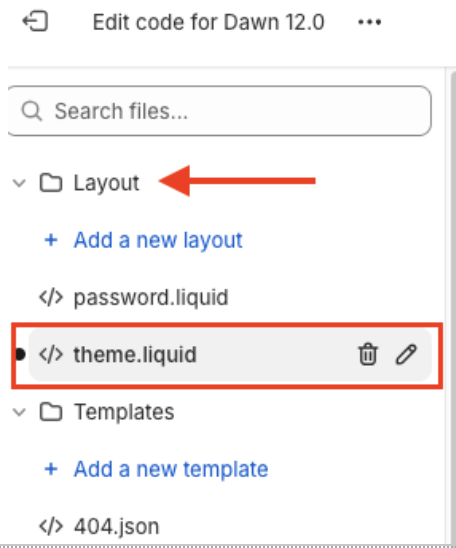
Click the “Layout” folder to display your .liquid files list, then click on “[/] theme.liquid” to generate the code file on the right side of the screen.
Find the closing </head> tag by pressing CTRL + F on Windows or Cmd + F on Mac and you can paste the Digioh JS Snippet just above the “</head>” section.
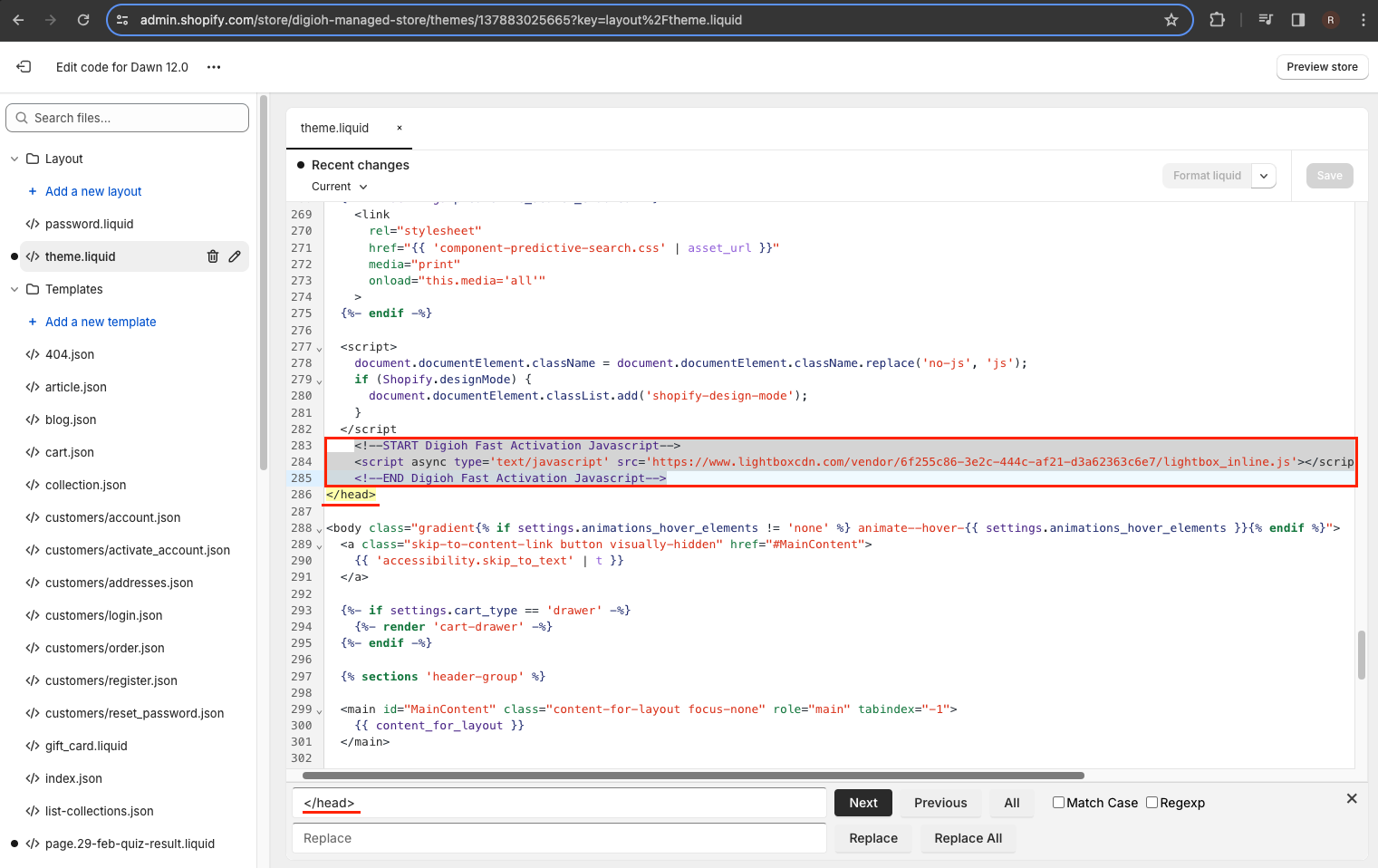
Save your changes!
In addition to the steps above, you can also inject your Digioh JavaScript via Google Tag Manager. You can find our steps on how to accomplish that here: Google Tag Manager: Digioh JS Tag Installation Guide
Your next step is to create a page for your quiz on your Shopify site and embed the quiz. That guide can be found here.