
Overview
The Form Field Reorder extension allows you to change the order of form fields using simple page metadata configuration. No need to rebuild your form or manually adjust CSS – just specify the desired order and the extension handles the rest. This only works when the campaign is being shown – so either preview or live! It won’t apply the reordering in the editor.
How to Install
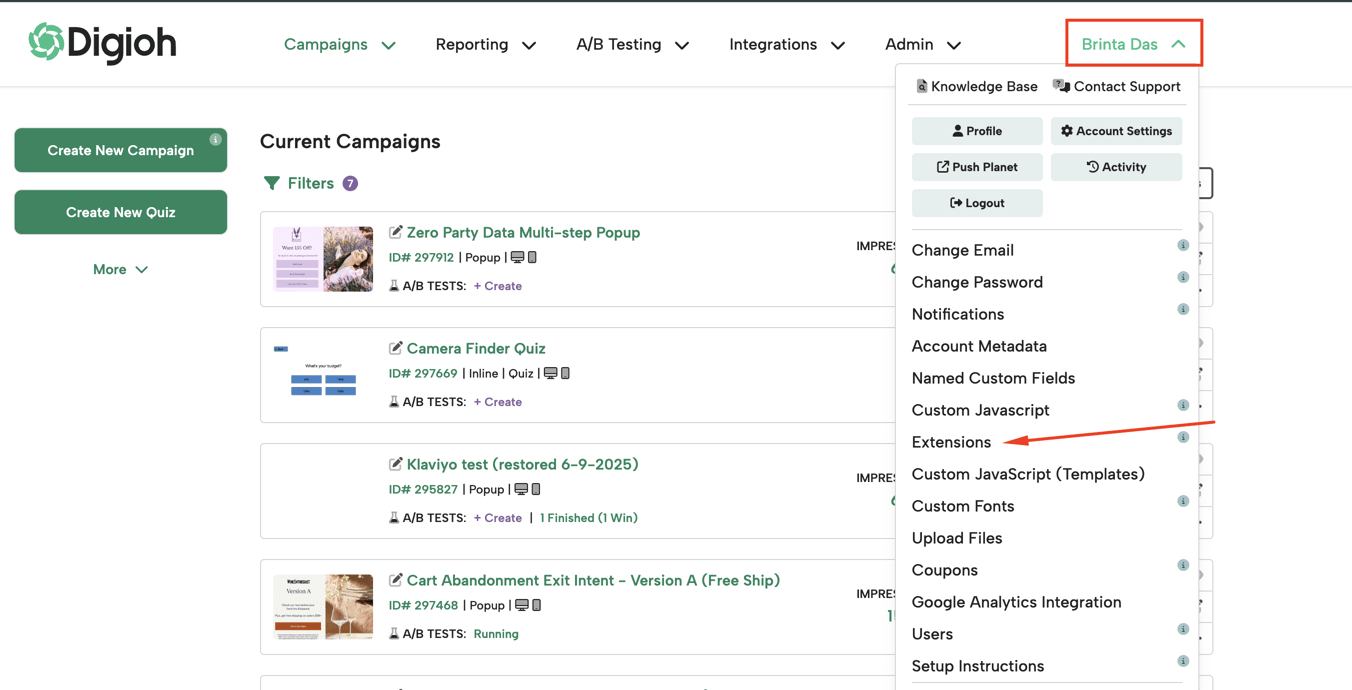
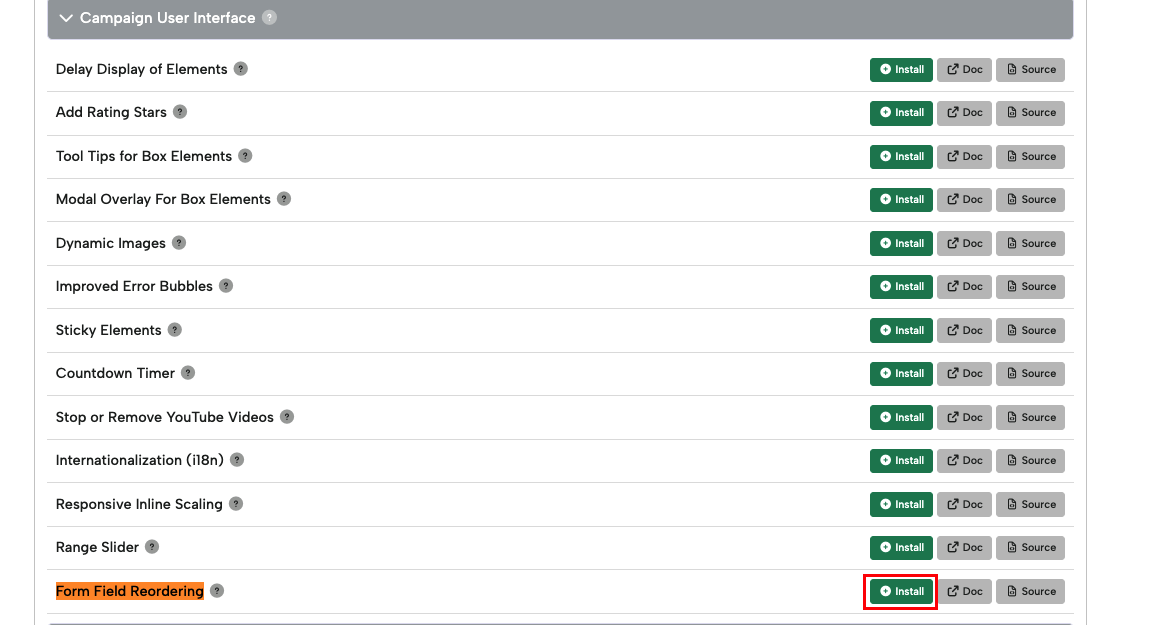
The Form Field Reorder extension is available to install directly from your Digioh account. Go to Extensions, search for Form Field Reorder under the Campaign User Interface section, and click Install.
Features
✓ Reorder any form field (standard or custom)
✓ Maintains horizontal field layouts automatically
✓ Adjusts spacing and margins for side-by-side fields
✓ Works with multi-page forms
✓ Comprehensive validation and error reporting
✓ Real-time logging for troubleshooting
Setup Instructions
-
Install Extension
- Set up Reordering under “Layout”, in “page metadata”:
Enable Reordering:
Key: form_reorder
Value: yes
Specify Field Order:
Key: form_order
Value: first_name,last_name,email,5,4,opt_in
Field Name Reference
Standard Fields
Use these exact names in your form_order:
- name – Combined first and last name field
- first_name – First name only
- last_name – Last name only
- full_name – Full name field
- email – Email address
- phone – Phone number
- opt_in – Opt-in checkbox
Custom Fields
Reference custom fields by number (any format works):
- 5 – Custom field 5
- custom5 – Custom field 5
- custom_5 – Custom field 5
Examples
Example 1: Basic Reorder
Goal: Move email to the top, then name fields, then opt-in
form_reorder: yes
form_order: email,first_name,last_name,opt_in
Example 2: Custom Fields
Goal: Name, job title (custom 5), company (custom 3), email
form_reorder: yes
form_order: first_name,last_name,5,3,email,opt_in
Example 3: Horizontal Fields
Goal: Keep side-by-side fields together (phone, employees, industry)
form_reorder: yes
form_order: first_name,last_name,email,4,2,3,opt_in
Important: List horizontal fields consecutively in your order (4,2,3). The extension will automatically detect they’re horizontal and maintain proper spacing.
How It Works
- Detection: Scans the page for form_reorder metadata
- Validation: Checks that all specified fields exist
- Grouping: Identifies consecutive horizontal fields
- Reordering: Moves fields to match your specified order
- Styling: Adjusts margins for horizontal field layouts
- Logging: Reports all actions and any errors
Advanced Features
Horizontal Field Groups
The extension automatically detects when consecutive fields in your order are set to horizontal layout. It:
- Keeps them on the same row
- Removes left margin from the first field
- Maintains 12px spacing between fields
- Places the clear div after the last field
Multi-Page Forms
The extension runs on page load and also listens for page changes, so it works seamlessly with multi-page forms. Just configure the metadata on each page independently.
Troubleshooting
View Logs
Check the notifications panel:
Common Issues
“ERROR: Missing fields – X, Y, Z”
- Cause: The specified field doesn’t exist on the page
- Fix: Check field numbers/names or remove from form_order
“Form reorder not enabled”
- Cause: form_reorder metadata is missing or not set to “yes”
- Fix: Add form_reorder: yes to page metadata
Horizontal fields not aligned
- Cause: Fields may not be listed consecutively in form_order
- Fix: Ensure all horizontal fields are next to each other in the sequence
Fields in wrong order
- Cause: Typo in field name or number
- Fix: Check the “Detected order” log to see actual field names
Best Practices
- List all visible fields in your form_order for predictable results
- Keep horizontal fields together in consecutive order
- Test on preview before publishing
- Check logs if fields don’t move as expected
- Use clear field names – numbers for custom fields, exact names for standard fields
Support
For issues or questions:
- Check the notification logs for detailed error messages
- Verify all dependencies are installed
- Ensure field names match exactly
- Test with a simple 2-3 field reorder first