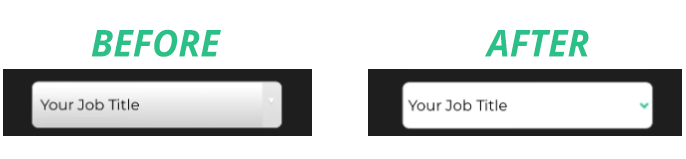
The Digioh editor provides a lot of options for styling forms, but sometimes web browsers have their own idea of how things should look. Your forms may appear different live on your site depending on what browser and device you’re using.
In this article, you’ll learn how to override browser styling for form dropdowns.
A common issue is for dropdowns to appear with a gradient in Safari on Apple devices.
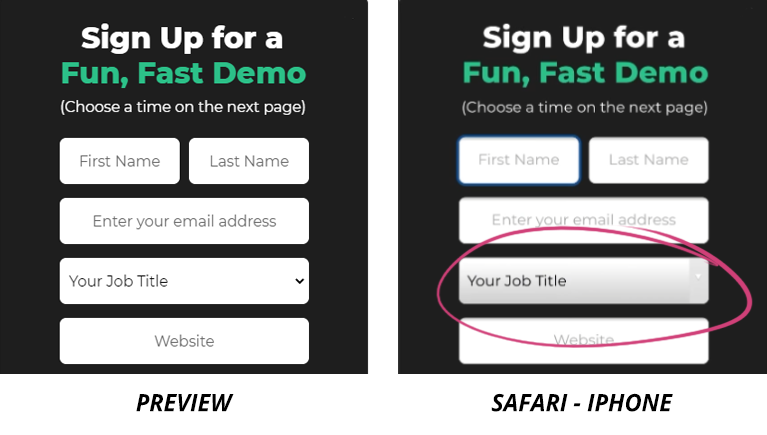
Luckily there’s a CSS trick to remove that!
To remove dropdown gradients from your forms:
1. Find out the unique CSS ID of the fields you want to edit.
Open up your browser’s dev tools and inspect the element.

In our example, the fields are #form_input_custom1 and #form_input_custom3
Alternatively
2. Choose an image to replace the dropdown arrow.
You can upload an image into your Files section, then get the image URL by clicking on the file name and copying the URL from your browser.
We’re using green_downarrow.png in this example.

3. Paste this code into the Form CSS in the main Form tab
(Replace the information in brackets [EXAMPLE] )
[#YOUR_FORM_ID(S)]  {
  overflow: hidden;
  overflow: -moz-hidden-unscrollable;
  background: url([IMAGE-URL]) no-repeat right [BACKGROUND-COLOR];
  -webkit-appearance: none;
  -moz-appearance: none;
}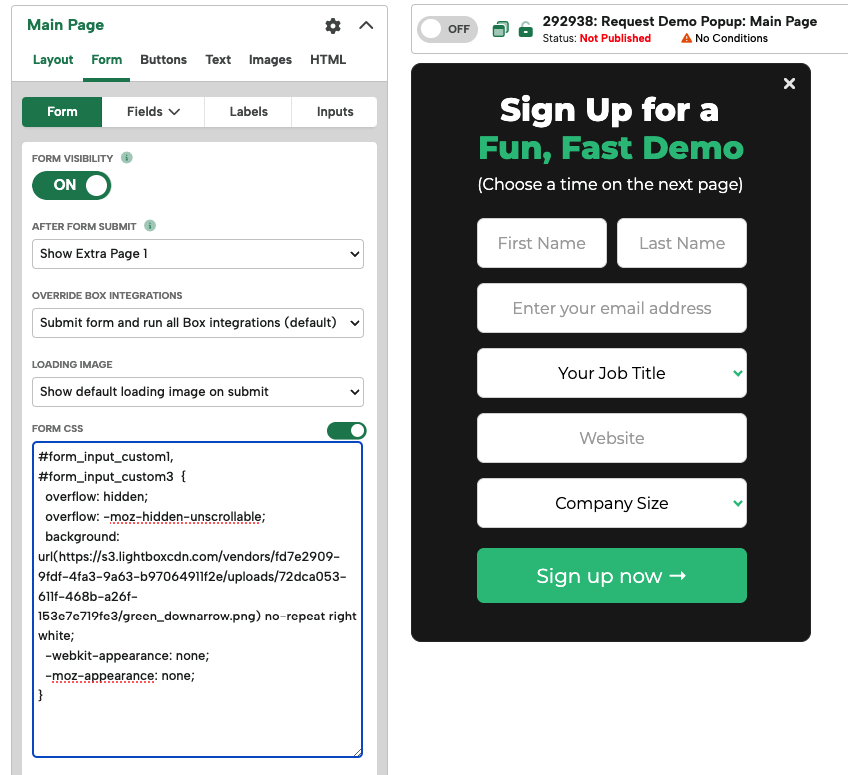
In our example, the code looks like this:
#form_input_custom1,
#form_input_custom3 {
overflow: hidden;
overflow: -moz-hidden-unscrollable;
background: url(https://.../green_downarrow.png) no-repeat right white;
-webkit-appearance: none;
-moz-appearance: none;
}
4. Test your campaign.
The dropdown should look exactly how you want it to now!