What you’ll learn
- How to make pop-up campaign overlays transparent
- How to use the transparency slider
The overlay behind your pop-up campaigns can be set as a solid color or made transparent. To make the overlay transparent, follow these steps.
Giving your Pop-Up a Transparent Overlay
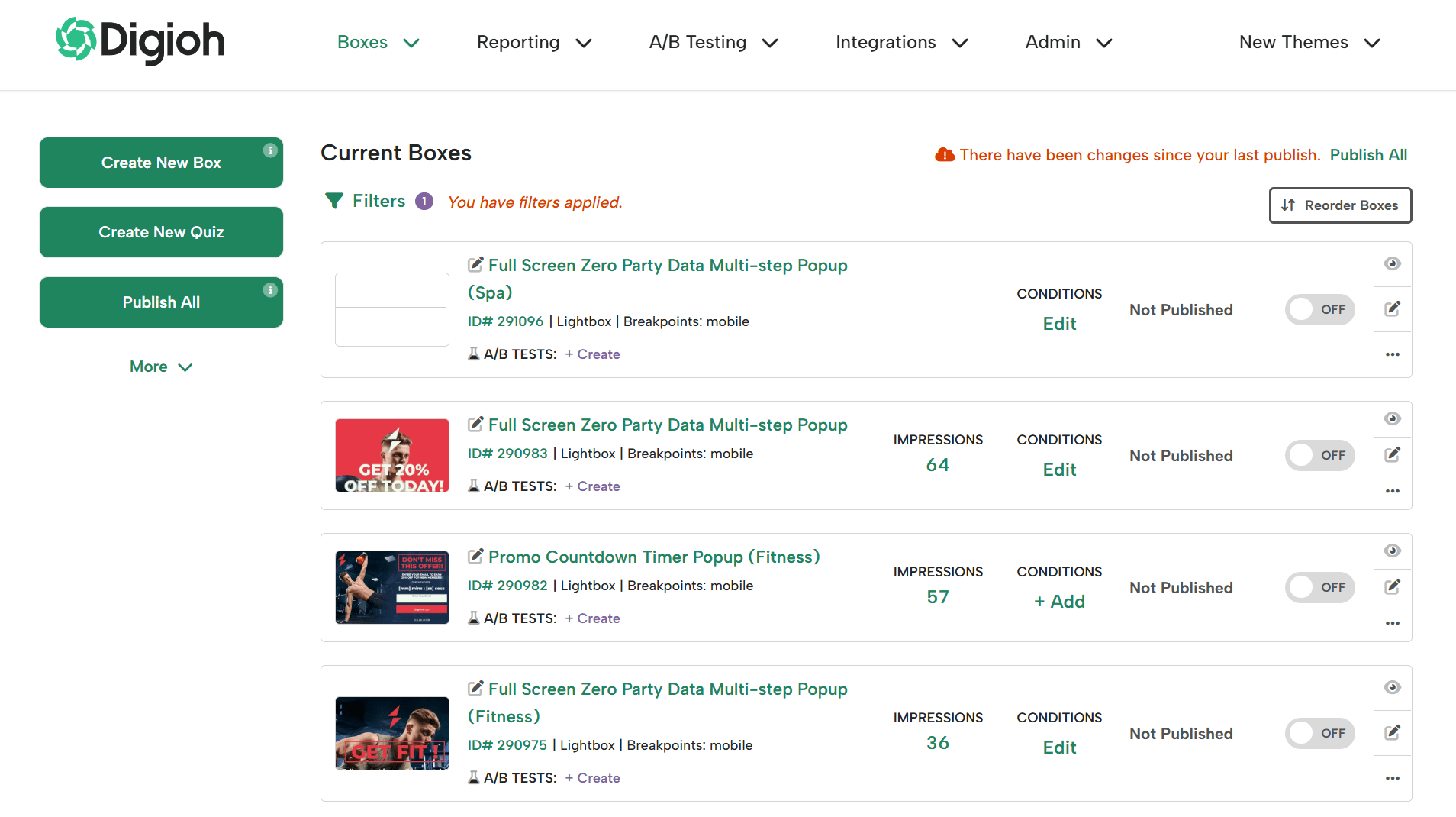
- Log into Digioh and pick a pop-up campaign to edit:
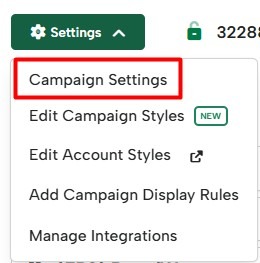
- Open the Campaign Settings via the Settings dropdown in top-right of the editor:
- Enable the Screen Overlay Background settings:
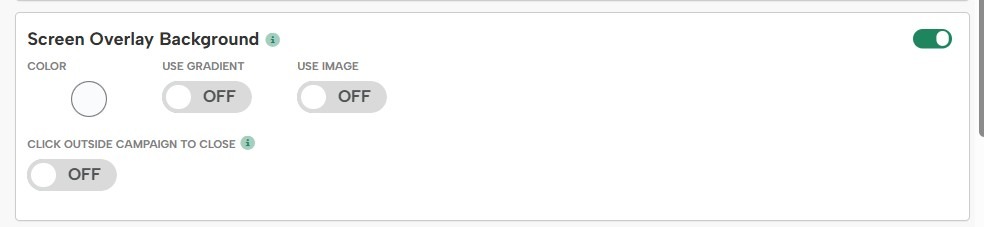
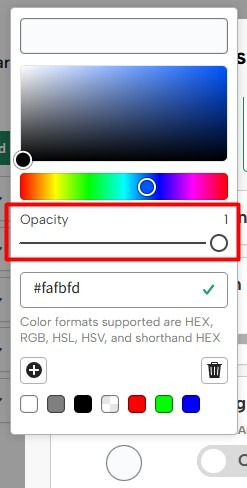
- Click the Color field to bring up the color palette.
- Adjust the Opacity slider to modify the overlay’s transparency. Click “choose” to save your selection.
- Once you’re satisfied with your settings, you can click anywhere outside the palette to save and close the settings.
- Click Save and Preview to test your overlay, or Save and Publish to push your changes to your site.