
What Will You Learn?
- How to seamlessly integrate your Google Analytics 4 (GA4) account with Digioh to enhance data tracking and attribution.
- Tips for ensuring accurate attribution tracking and data accuracy to maximize your marketing ROI.
Why Should I Connect My GA to Digioh?
Connecting your Google Analytics (GA) account to Digioh is crucial for accurate attribution tracking and obtaining comprehensive insights into your marketing efforts. Here’s why it’s important:
- Attribution Tracking: Digioh relies on Google Analytics to track attribution, which means it identifies the sources of traffic and conversions on your website. Attribution tracking helps you understand which marketing channels and campaigns are driving the most valuable traffic and conversions. By connecting your GA account to Digioh, you ensure that Digioh has access to the necessary data for accurate attribution tracking.
- Optimization Opportunities: Accurate attribution tracking allows you to identify the most effective marketing channels and campaigns. With this information, you can optimize your marketing strategies by reallocating resources to high-performing channels and improving underperforming ones, ultimately maximizing your ROI.
- Comprehensive Insights: Google Analytics provides a wealth of data about your website’s performance, including traffic sources, user behavior, conversion metrics, and more. By connecting your GA account to Digioh, we’re able to provide a deeper analysis of your website’s performance and marketing effectiveness.
- Data Accuracy: Connecting your GA account to Digioh ensures that the data used for attribution tracking and analysis is accurate and reliable. Since Google Analytics is widely recognized as a reliable source of website data, leveraging its data through Digioh helps ensure the accuracy of your attribution tracking and insights.
Before beginning the integration process, ensure you have the following:
- An active Digioh account with administrative access.
- A Google Analytics 4 account with at least one property set up. You should also be an administrator of this property.
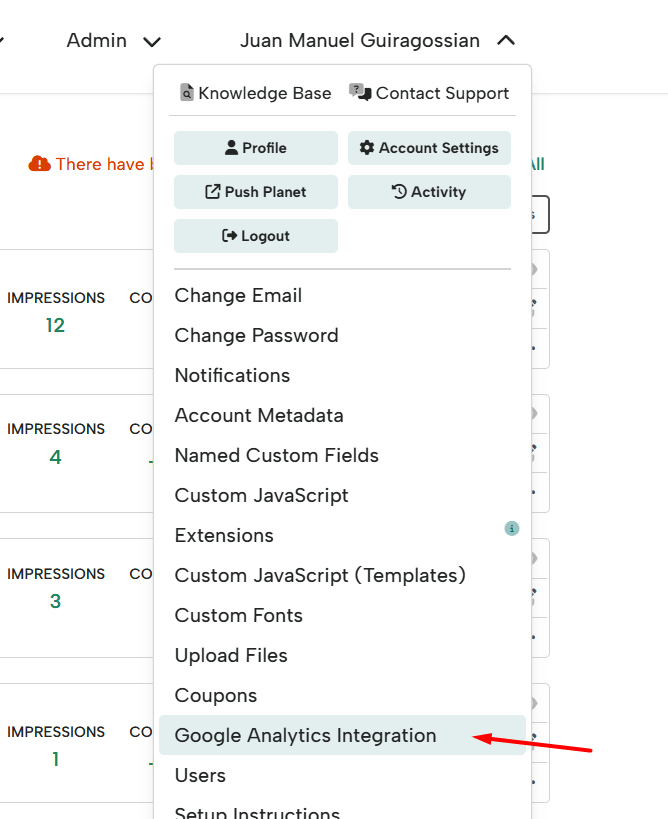
Log in to your Digioh account. Click on your Name in the upper right corner and select “Google Analytics Integration”.
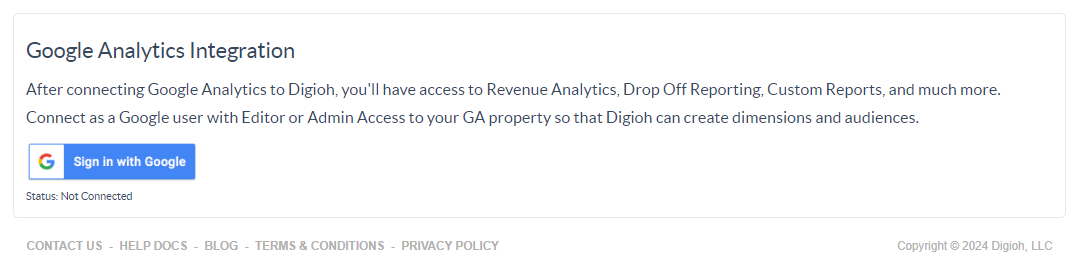
Connect Your Google Analytics Account by clicking on “Sign in with Google”. You will need to be an Admin or Editor in order to authenticate. We recommend first logging into Google Analytics in another tab and then clicking on the “Sign with Google” button.
Accept ALL the permissions to allow Digioh to access your Google Analytics data. This allows us to READ your goal data (to see if a user made a purchase or not) and write custom properties back to Google (for retargeting, quiz funnel drop off, and lots of other great metrics that you will enjoy).
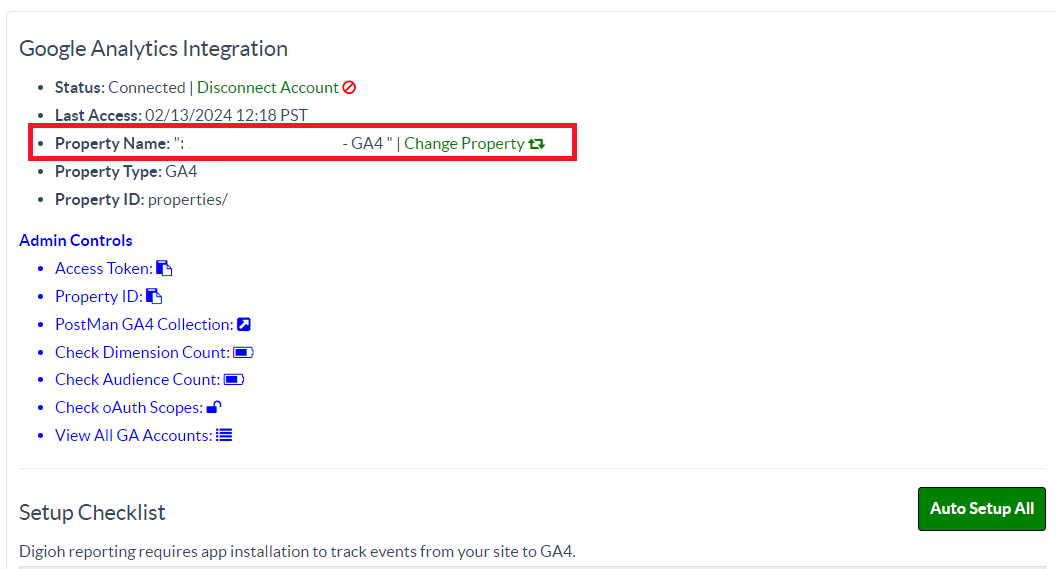
Once connected, select the GA4 property you wish to integrate with Digioh from the Property Name section. Typically, customers only have 1 property, but make sure it is a GA4 property, and it is the same Google Analytics property that we are servicing. For example, some customers have a US GA4 account and an EU GA4 account. We will want to pick the US one if we are on the US site.
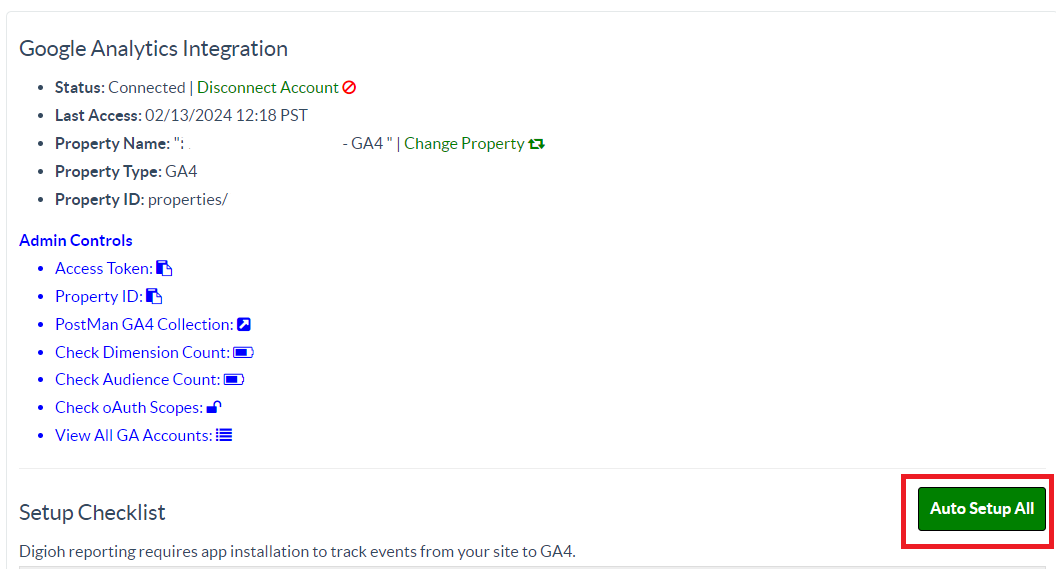
Auto Setup Dimensions and Custom Audience. Click on the Auto Setup all button. Digioh will automatically create the necessary Dimensions and Custom Audience in your GA4 property. I would go through the full list and make sure all the properties are created, if they were not, click on “Install” next to the property.
Once the setup is complete, do an account publish. After that, Digioh will start sending event data to your selected GA4 property. You can then view these Reports in Digioh.