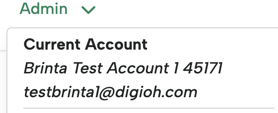
Super Users can access and manage multiple accounts without logging out. This guide shows you how to switch accounts using the Admin panel.
How to Switch Accounts
1. Log in with your Super User credentials
Sign in using your super user login. This gives you access to all accounts assigned to you.
2. Open the Admin page and locate the Switch Account section
Click Admin in the top navigation bar.
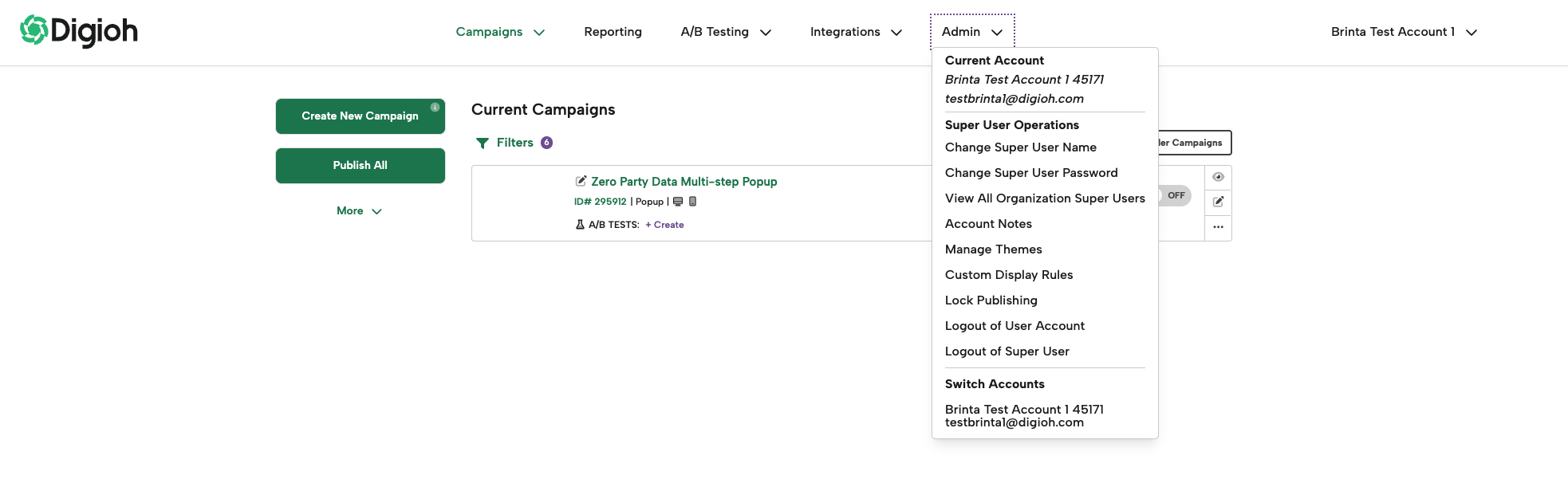
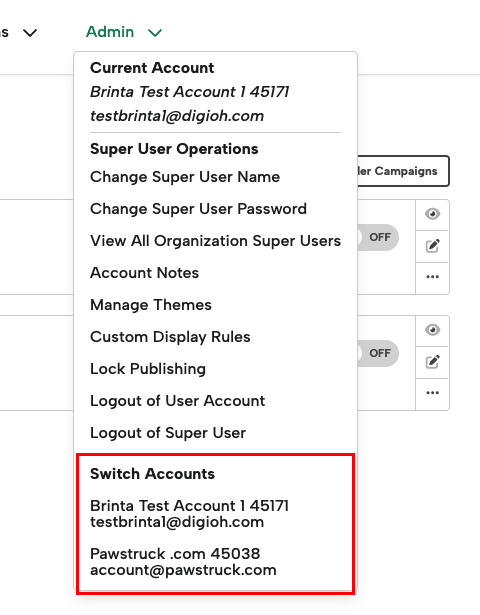
On the Admin page, find the Switch Account section. Here, you’ll see all accounts associated with your super user profile.
-
If an account is missing, it may not be assigned to you.
-
Contact Digioh Support if you need access updated.
3. Select the account you want to access
Click the account name to switch into that account.
You will immediately be logged in as that account and can begin managing settings, forms, users, or integrations.
To switch again, return to the Admin sectopm and repeat this step.
4. Verify you are in the correct account
After switching, check the current account section in Admin to verify you are in the correct account