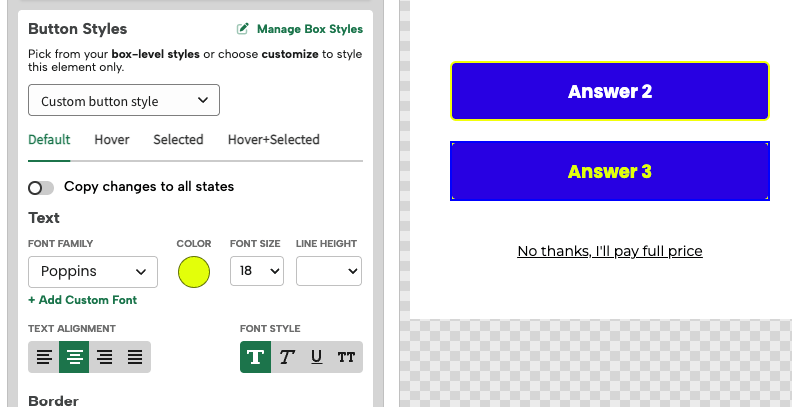
What you’ll learn:
- How to access and manage Account Styles
- How to create and customize text and button style presets
- How to use on new or refreshed campaigns
- How to apply, duplicate, and manage styles across screen sizes
What are Account Styles?
Account Styles are reusable design presets that make it easier to keep your branding consistent across your Digioh account. You can create styles such as a Primary CTA to be used on multiple campaigns. Once you’re in the editor, you can apply them on your campaign with just a few clicks.
IMPORTANT NOTE: Account Styles can be shared across multiple campaigns. Any edits made to these styles will automatically apply to all campaigns using them. Please review your updates carefully before saving to avoid unintended design changes across your account.
Each campaign also has its own “Campaign Styles,” which can be created and applied specifically to that campaign. If your Account Styles don’t meet the needs of a particular campaign, consider creating a Campaign Style instead. To learn more, refer to our Campaign Styles Guide.
Accessing Account Styles
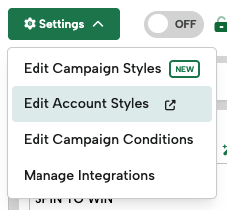
To access Account Styles, enter any campaign in your account, hover over the Settings dropdown in the top-left and select Edit Account Styles. This will direct you to the page where you can Manage Account Styles.
Creating and Editing Styles
Once on the Manage Account Styles page, you’ll see options for:
- Typography
- Buttons & Links
Click +Add Style to create a new style. Use the pencil icon to rename it to something clear and brand-relevant.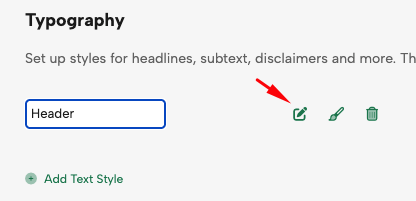
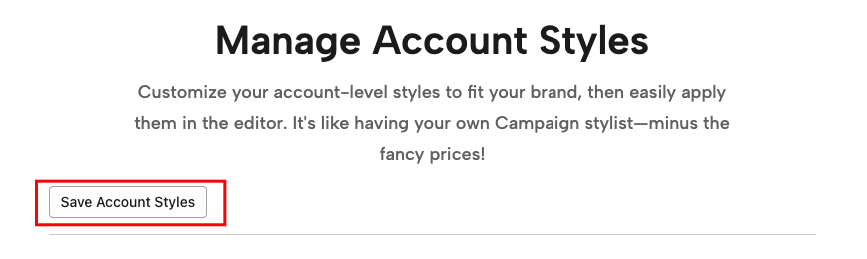
With your style created and named, now it’s time to customize them! Ensure you hit “Save Account Styles” before exiting the page
Typography Settings
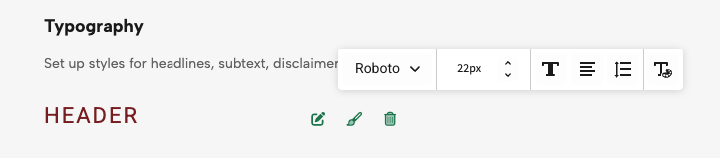
Click the paintbrush icon to access the toolbar where you can adjust:
- Font Family
- Size
- Style (Bold, Italic, Underline, Uppercase)
- Alignment
- Line-height and Letter Spacing
- Color and Opacity
Button & Link Styles
You’ll see the same text options as Typography, plus:
- Border (style, thickness, and radius)
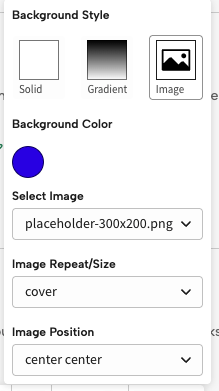
- Background (solid, gradient, or image)
- Spacing (padding)
With Button Styles, you can also edit each different button state: Default, Hover, and Selected. We recommend starting with the Default state, as the styling there will extend to the others, then customize those as needed.
Feature Details
Let’s dive deeper into some of these settings as they have a new look or additional features.
Color Picker
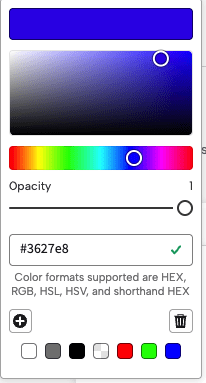
You’ll see a revamped color modal in the editor with the same capabilities as before. You can enter your color code (HEX, RGB, HSL, HSV, and shorthand HEX) or select from the color picker.
You can also use the pre-saved swatches at the bottom or add a new color swatch with your personal brand colors to reuse. When you’ve entered or selected your color, click the “+” button to save it as a swatch.
Letter Spacing
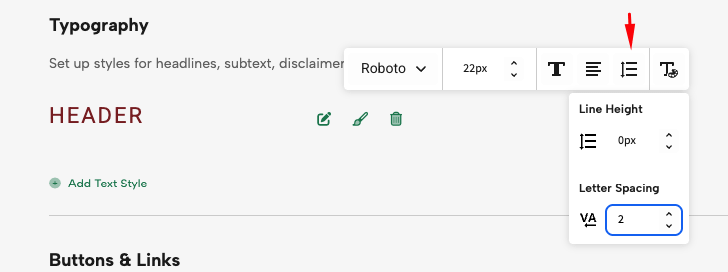
With this new feature, you can quickly adjust letter spacing in the toolbar for both text and button styles—just add your desired letter spacing pixel value.
Note: Letter-spacing does not work if using a Custom Button or Text element (yet!). You can use Extra CSS to achieve this on custom elements. Check out our CSS help doc here.
Button Border
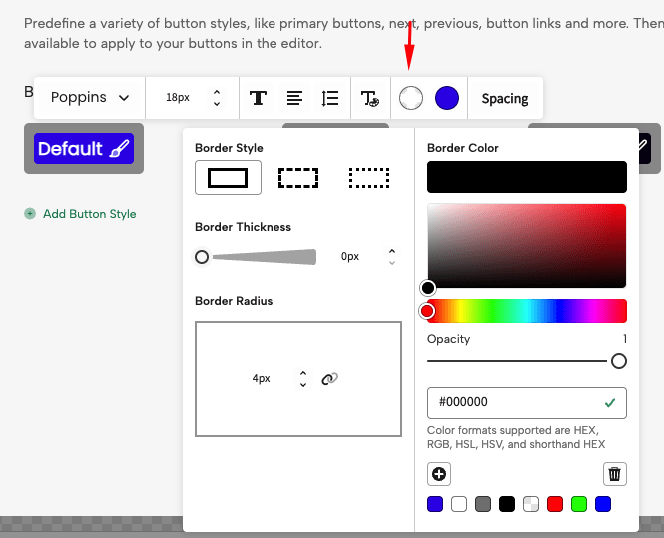
Border controls have also gotten a new look.
- Choose between solid, dashed, or dotted borders
- Choose your border color
- Use sliders or px input for thickness and radius
By default all corners will be linked on border radius. Click the link icon to unlink corners and customize each radius independently.
Note: Unlinked border radius’ do not work if using a Custom Button (yet!). You can use Extra CSS to achieve this on custom buttons. Check out our CSS help doc here.
Button Backgrounds
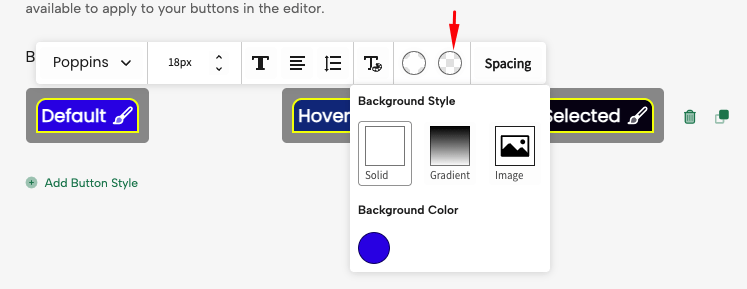
Button background controls have also gotten a revamped look.
Choose from:
- Solid color
- Gradient (select two colors for a vertical blend)
- Image
(To use a background image in Account Styles, you’ll need upload it to the platform first. It will then appear in the dropdown selector.)
With images you can select the background color, image, repeat/size and position. To learn more about images in buttons, see our full Image help doc.
Spacing
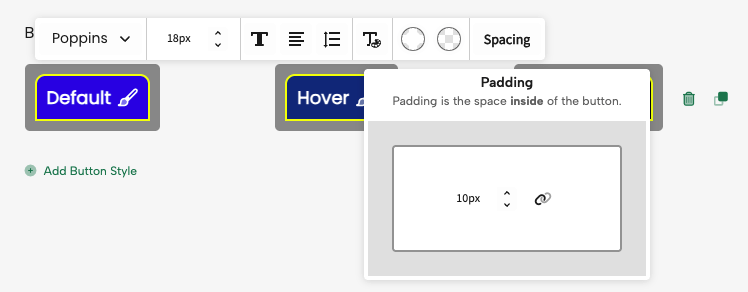
With Spacing you can fully customize the Padding of your buttons. Unlink the spacing to change the padding on specific sides to if needed.
Note: Spacing does not work if using a Custom Button (yet!). You can use Extra CSS to achieve this on custom buttons.
Duplicating or Deleting Styles

- For Button Styles, you can use the duplicate icon to create a variation (e.g., mobile-specific style).
- Use the trash can icon to delete a style. You can only delete a style if it’s not actively used in a campaign element.
Save Your Account Styles
Once you’re finished creating or editing your styles, make sure to save!
Applying Your Styles
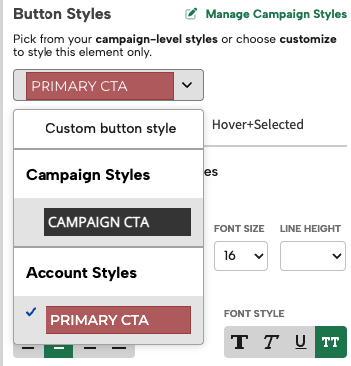
Once created, go into the editor for any campaign where you want to use your Account Styles. Select your element and simply apply the styles via the dropdown that appears in the design panel. Account Styles will display at the bottom of the dropdown below Campaign Styles (if your campaign has them).
For text elements, when a style applied you will no longer see the normal design controls for that element.
For button elements, when a style applied you will still see the normal design controls. This allows you to override specific stylings of the buttons (i.e. changing an image), while maintaining the rest of the Account Style intact. If you then make changes to the Account Style, the button’s styling will update except the changes you have overwritten.
You can always switch back to Custom Button/Text Style to create one-off elements. You can either work from scratch if no style was applied, or select a base Style and then switch to Custom to tweak it.