
For some pop-ups on site, you may want a small teaser that persists and displays to the user if they decide to close the lightbox and not provide their information at first. With Digioh, you can easily create this type of experience!
The below steps assume you have already created the pop-up lightbox.
Step 1: Creating the Teaser
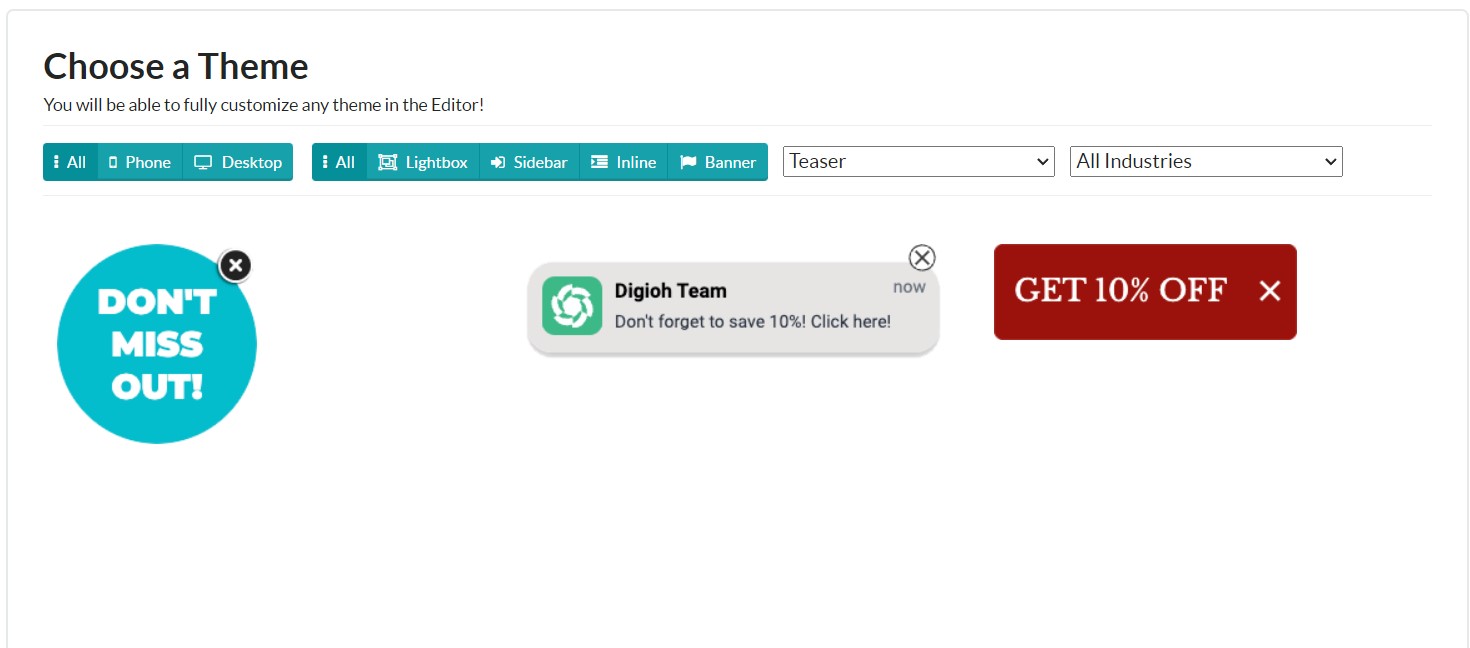
You’ll want to start by creating the teaser campaign by creating a new Sidebar type campaign. When creating the teaser, Digioh has a number of built in themes that you can use as a starting point for your design!
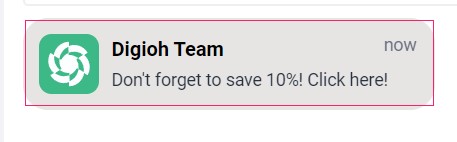
Once the teaser campaign has been updated to match your site’s design, add a button to the campaign that is the the same size as the teaser campaign itself (the button’s border has been set to red to show its dimensions):
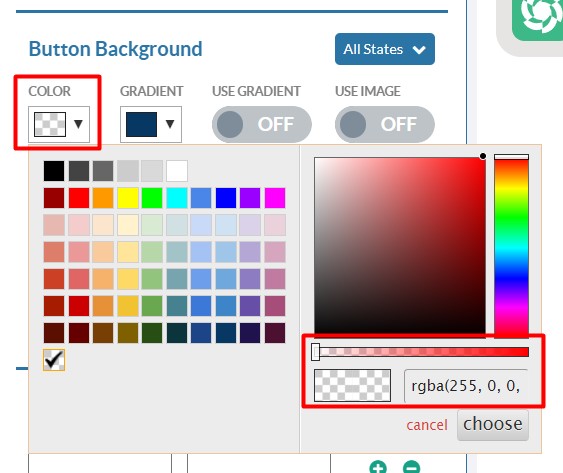
Make sure that the button has no text and that it’s background is set to transparent:
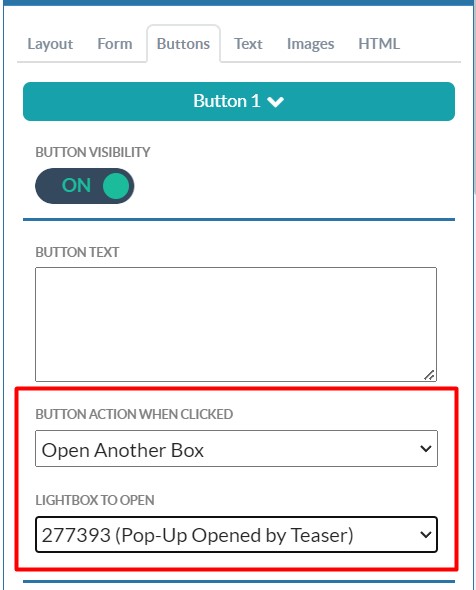
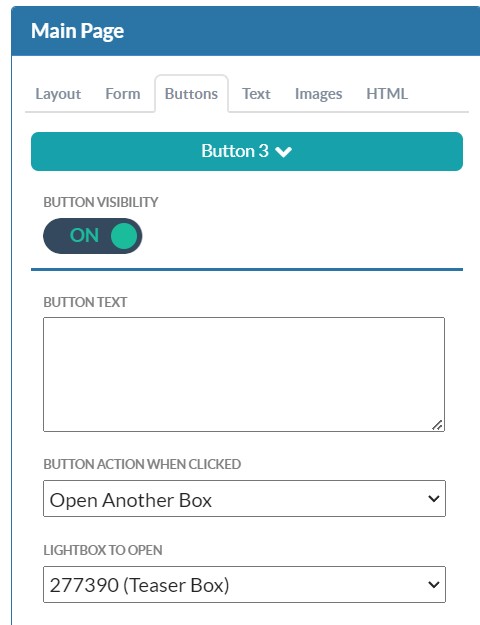
Finally, set the button’s action when clicked to ‘Open Another Campaign’ and select your pop-up lightbox:
Step 2: Setting the Pop-Up to Open the Teaser
After creating the teaser, you’ll then want to update the associated pop-up to open the teaser when users click the close button, rather than closing the campaign outright. This step requires that you use an actual button element rather than the built-in close button functionality located under the Widget settings.
Similar to the final step above, in the campaign editor for the pop-up select the close button and set its click action to ‘Open Another Campaign’ and select the associated teaser:
Step 3: Conditioning the Teaser
We generally recommend that the teaser begin with using an identical set of conditions to the pop-up. You can easily duplicate conditions from one campaign to another using our Copy Conditions URL. Once you have the base set of conditions, we recommend making the following updates:
- Add a condition based on the pop-up NOT being submitted. This prevents the teaser from appearing for users who have already filled out and submitted the pop-up.

- Set the teaser to have a maximum of 3-4 displays per session. This allows the teaser to persist and continue showing for a few page views to try to entice users to reopen the pop-up.

And that’s it! Users will now be able to easily re-open a pop-up and submit their information if they choose. If you have any questions, please let us know at support@digioh.com!