
What Will You Learn from This Doc?
- How to enhance your Digioh setup with the “Shopify Cart Targeting and Personalization” extension for customized user experiences.
- Step-by-step instructions on installing and configuring cart value conditions to precisely target users based on their shopping cart contents.
This feature requires the use of a Digioh extension. Extensions are designed as add-ons you can use to increase the power of Digioh and create a truly custom experience for your brand.
Digioh has many Extensions that you can install to extend its functionality for different use cases. These are created by the Digioh team and our power users. If you have an extension you’d like to share, are a potential extension partner, or have a new extension suggestion, let us know at support@digioh.com.
1) Access the Extension for Cart Targeting
Navigate to your extensions list and select the “Shopify Cart Targeting and Personalization” extension. This extension allows you to set specific conditions tailored to cart values, and more!.
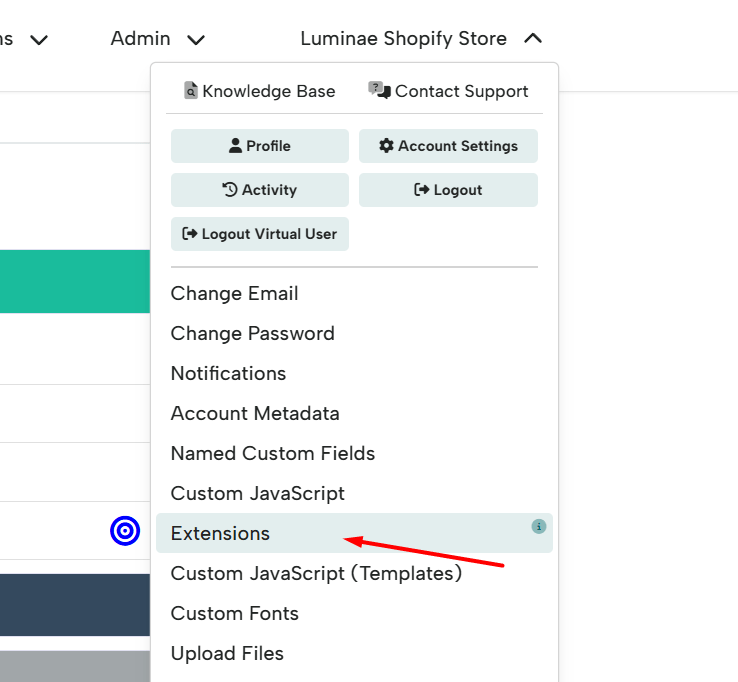
2) Install the following extension:
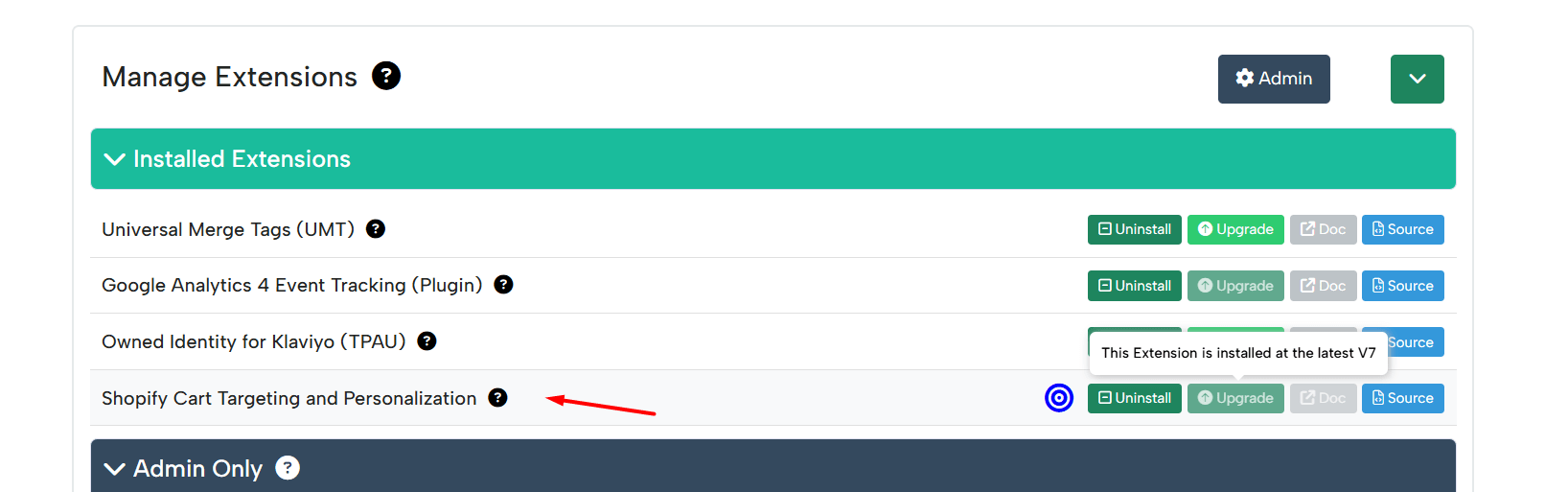
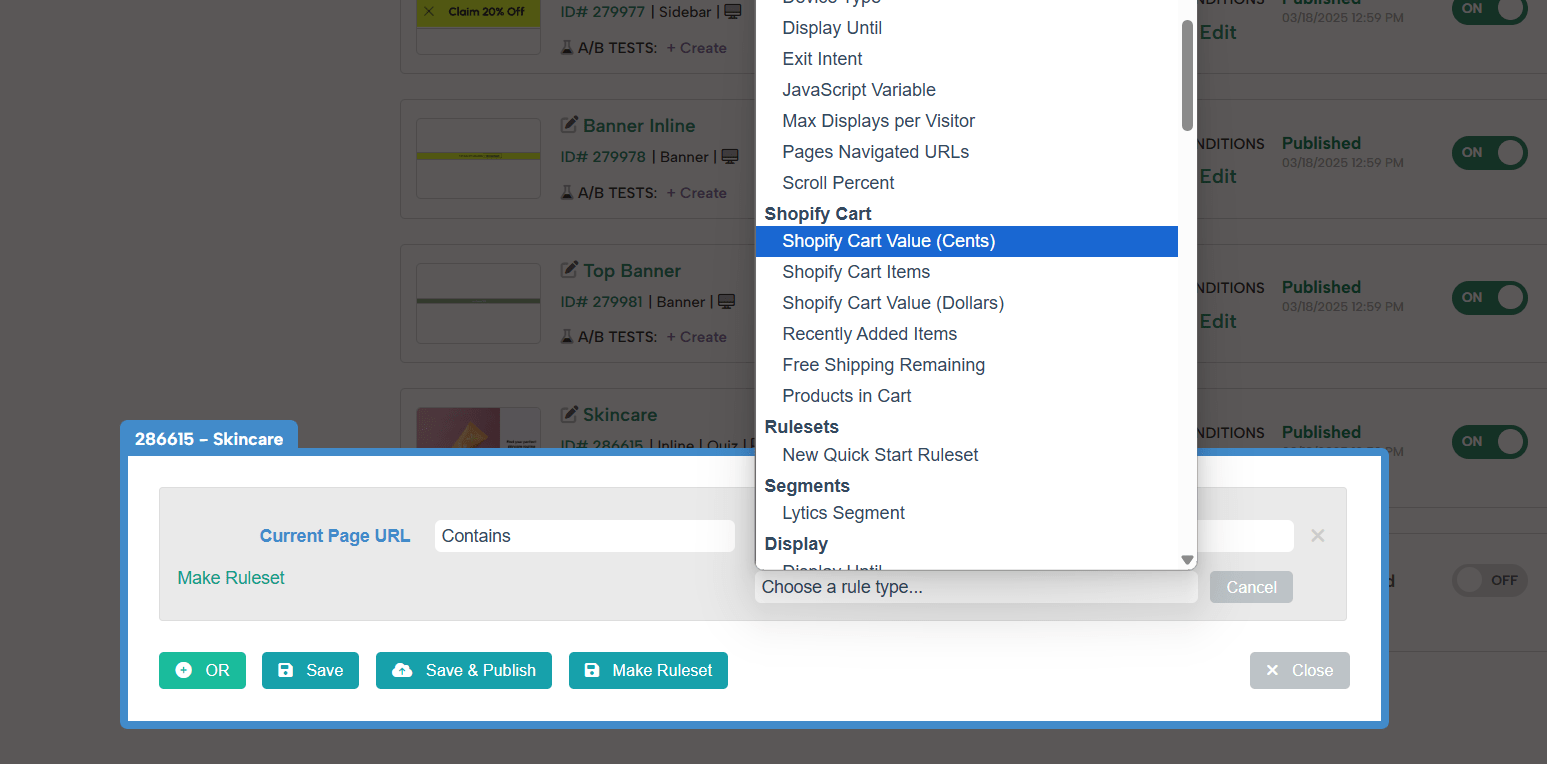
3) Set Cart Value Conditions
Go to your campaign list and choose the campaign you want to use to target cart conditions.
Tip: When you click on the blue text of the rule, a textbox will appear that tells you what it does, so you can reference this to set it up!
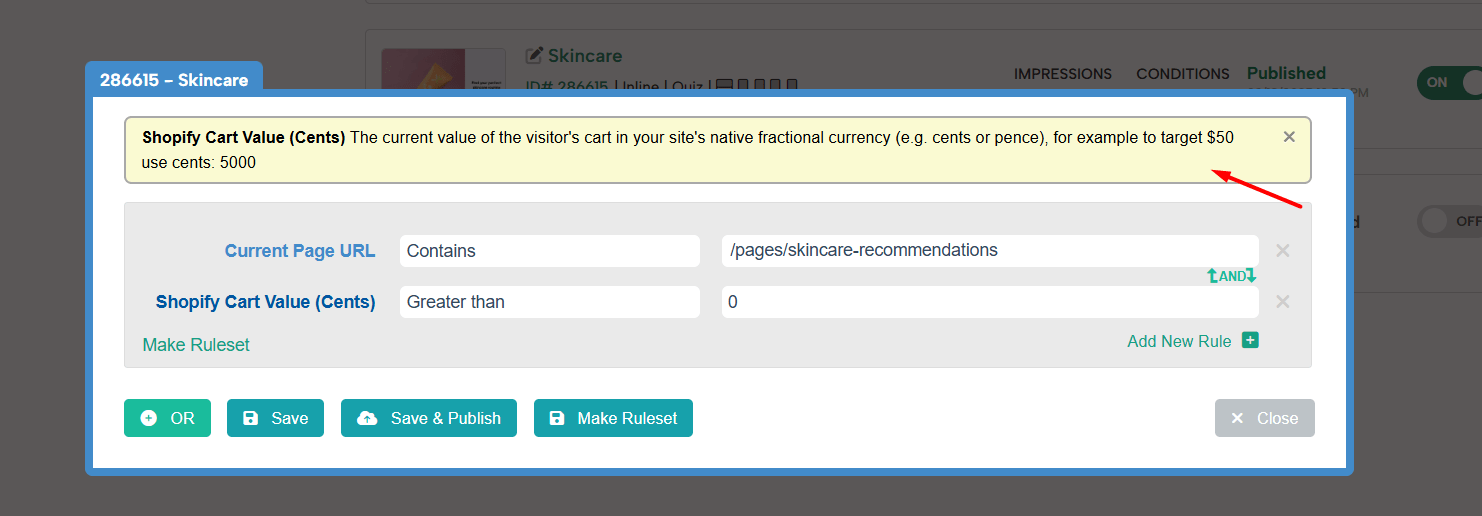
4) Save and publish your settings to activate the targeting rules.
5) Test the Cart Targeting
Add items to your cart to test the conditions you’ve set. When you meet the conditions, you’ll see the campaign appear on your website.
For the most precise targeting and customized experience, combine conditions like cart value and the number of items, pages the campaign should display on, number of visits from that customer, etc.