
What you’ll learn:
- Benefits of full-screen pop-ups
- Best practices for effective popups
- Step-by-step instructions for creating a full-screen pop-up in Digioh
Full-screen pop-ups are an effective way to capture attention and drive important actions, such as newsletter sign-ups or special promotions. Like banners, they help highlight key messages, showcase new products, and make major announcements that might otherwise go unnoticed.
Additionally, full-screen pop-ups can serve as a soft age-gating measure for restricted products when age verification is required.
It’s crucial to use them strategically. Proper timing, relevance, and an easy way to close the pop-up are crucial to maintaining a positive user experience. When implemented correctly, full-screen pop-ups can enhance engagement and help you achieve your business goals.
Follow these steps to create a full-screen pop-up:
From your main dashboard, click “Create New Campaign” or navigate to the Campaigns dropdown in the header and select “Create New Campaign”.
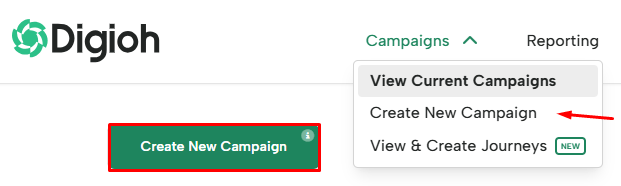
Choose a theme. You can use the quick start themes for full-screen pop-ups; these themes are ready to go!

Or once you can select any of our pop-up themes and modify them to be full-screen, by going to Campaign Settings and select the Full-Screen button.
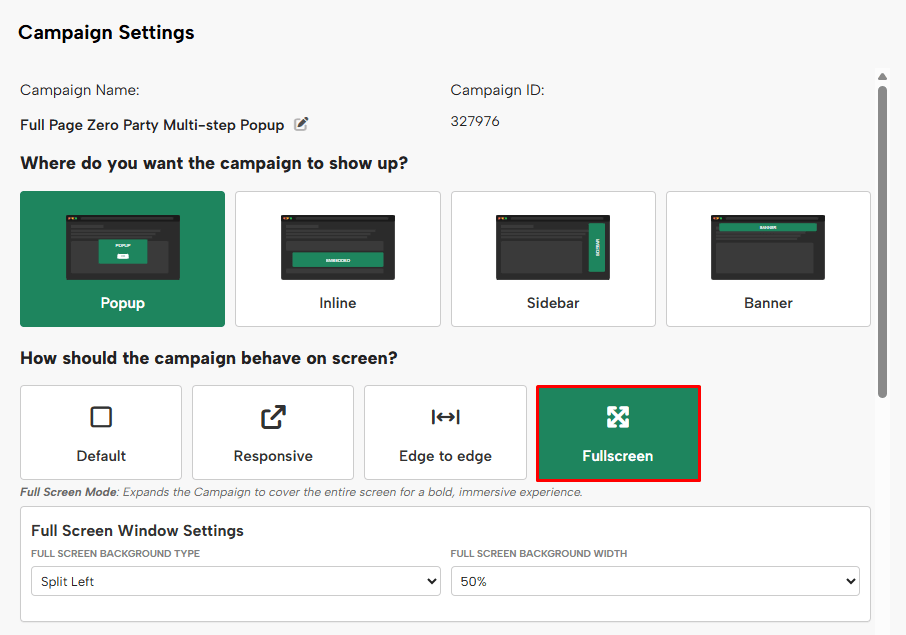
Full Screen Window Settings allow you to change the type of full screen. The options are:
- Full: This will stretch the background to fill the page, keeping your content centered.
- Split Left, Right, Top & Bottom: These options will split background image and content based on your selection. You will also have the option to select the percentage of the page your image takes up.
Tips: Be conscious of your page/content sizing compared to your split image settings. For example, if you’re using Split Left 50%, you’ll want to keep your form content at around 400px width, knowing that the image section will also take up 400px. This way, desktop sizing will can show cleanly at 800px, before switching to the mobile view.
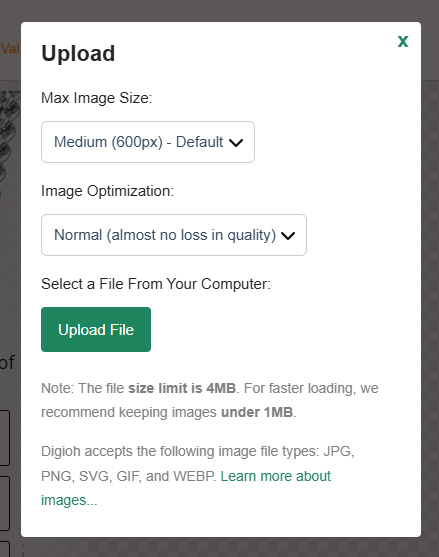
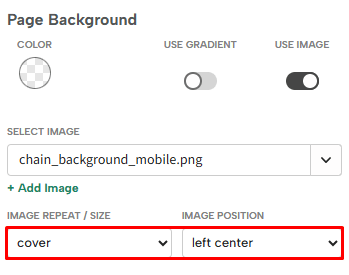
Under Page Background, you can select a color or toggle on the image option to upload a background image. You can change the image per page/step if desired!
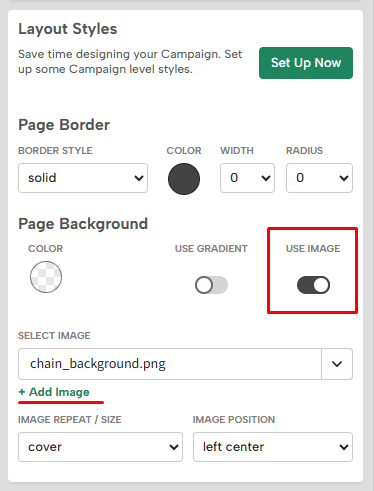
Adjust the Image Repeat / Size setting to “Cover” for a full background effect. A good starting point for Image Position is “Center/Center”.
Click Preview to see how your pop-up will appear on your website. Note that the editor does not fully reflect the final display, so previewing is essential. (We’re working on improving this—thank you for your patience!)
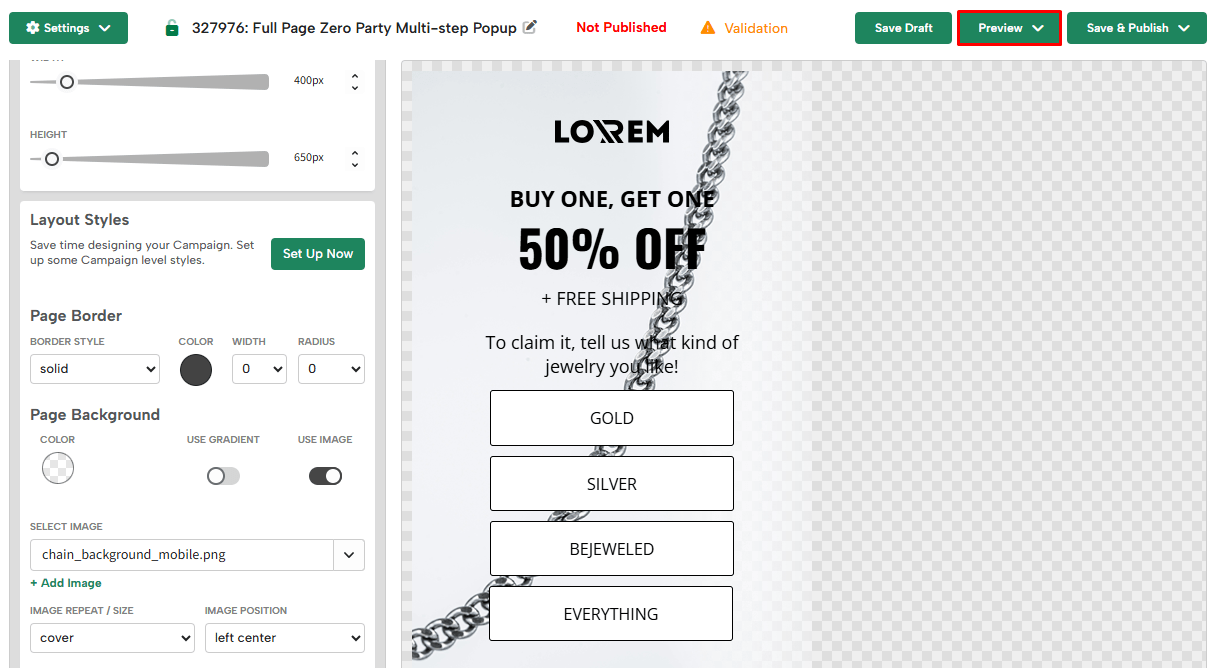
Once you’ve seen this layout in preview mode, you’ll get an idea of the adjustments you may want to make in Window Settings, Campaign Border, Campaign Background, or other places. Digioh gives you the ability to really fine-tune how your popup behaves on site.
Next, let’s design the mobile version. For better readability on mobile, consider changing the full-screen background type to “Split Top” or another format that suits your layout.
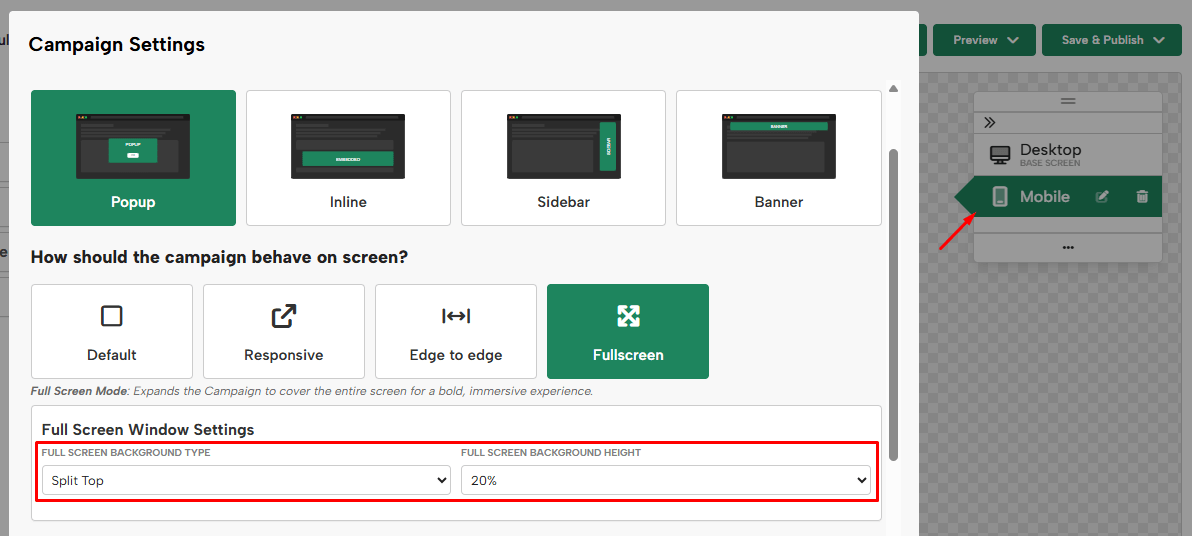
Tip: Similar to split left & right width, you’ll want to be conscious of your page content height when using split top or bottom. We recommend only using up to 30% image to ensure your form content can fit on small screens. For example, if using 30% image, we recommend keeping page/content height under 450px.
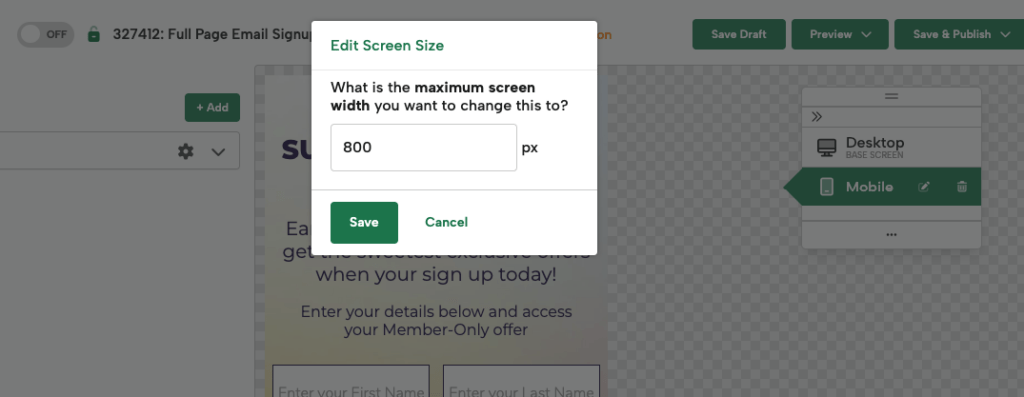
When previewing your full screen popup, you’ll also want to ensure your desktop version switches to mobile at the correct Screen Size pixel. You can edit this by clicking the pencil edit icon on the Screen Size tool bar. To learn more about Screen Sizes, view our help doc here.
Once you’re satisfied with both the desktop and mobile versions, click Save and Publish.
Full-screen pop-ups are high-converting and can be a powerful way to grab the attention of your website visitors. Be sure to use them sparingly, however, as they can become overwhelming to your customers if they see them too often.
Alternative method:
Another way to create a full-screen “welcome wall” is by using the Screen Overlay Background setting. This method is ideal if you only need a solid color, gradient, or full-image background.
To create a full-screen welcome wall in Digioh using the old method, follow these steps:
- Go to the Campaign Settings
- Toggle on Screen Overlay Background and choose a background color, gradient, or image.
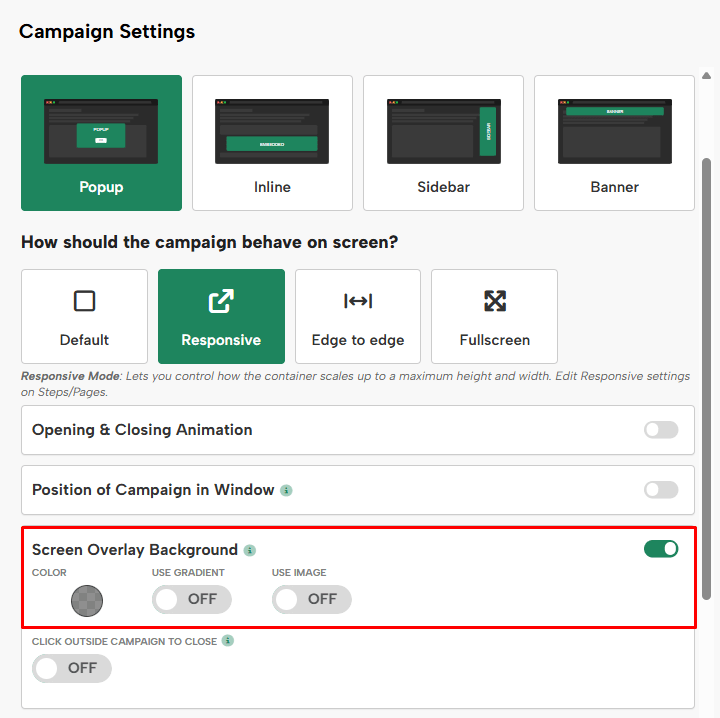
- Preview your pop-up to see how it looks.
For additional tips and best practices, check out the video at the top of this article or reach out via the Contact Us form on the right.