
What you’ll learn:
-
What the YouTube extension does to manage videos during navigation and campaign close.
-
How to enable the extension using Campaign Metadata and the Extensions menu.
-
Best practices for embedding YouTube videos so they work correctly with the extension.
Note: If this is your first time embedding a YouTube video on a Digioh campaign, we recommend reviewing How to Add a YouTube Video to a Digioh Campaign
What it does
The YouTube Video Handler Extension allows Digioh campaigns to control embedded YouTube videos inside a campaign. This extension enables features such as automatically pausing videos when a campaign closes or when a visitor navigates between pages of a campaign.
Use this extension when your campaign contains embedded YouTube videos, and you want Digioh to manage playback behavior automatically.
Here’s what it does behind the scenes:
-
Detects if your campaign includes a YouTube video.
-
Pauses the video when users change pages within the campaign.
- Removes the video when the campaign is closed, helping to stop the video and clean up resources.
How to enable this extension
To activate this extension for your campaign, follow these steps:
- Navigate to your profile dropdown > extensions.
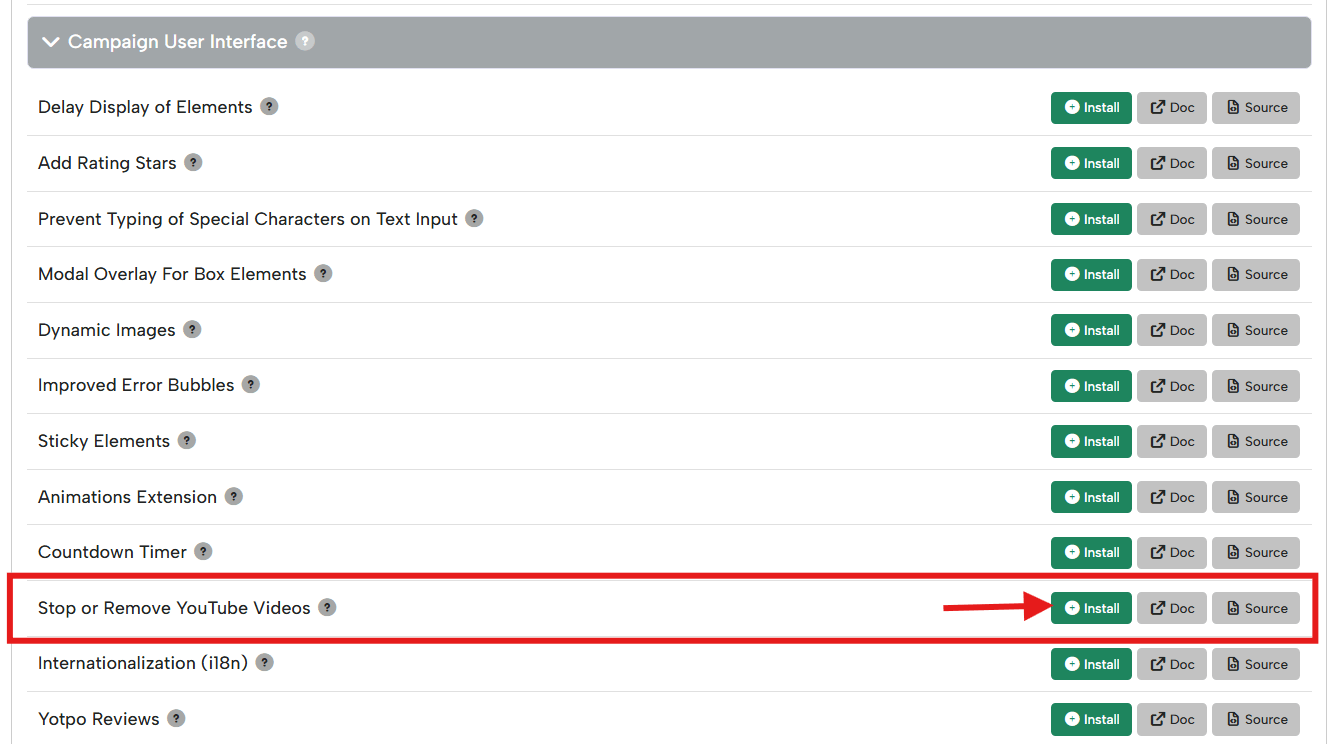
- Go to Campaign User Interface and install the Stop or Remove YouTube Videos extension.
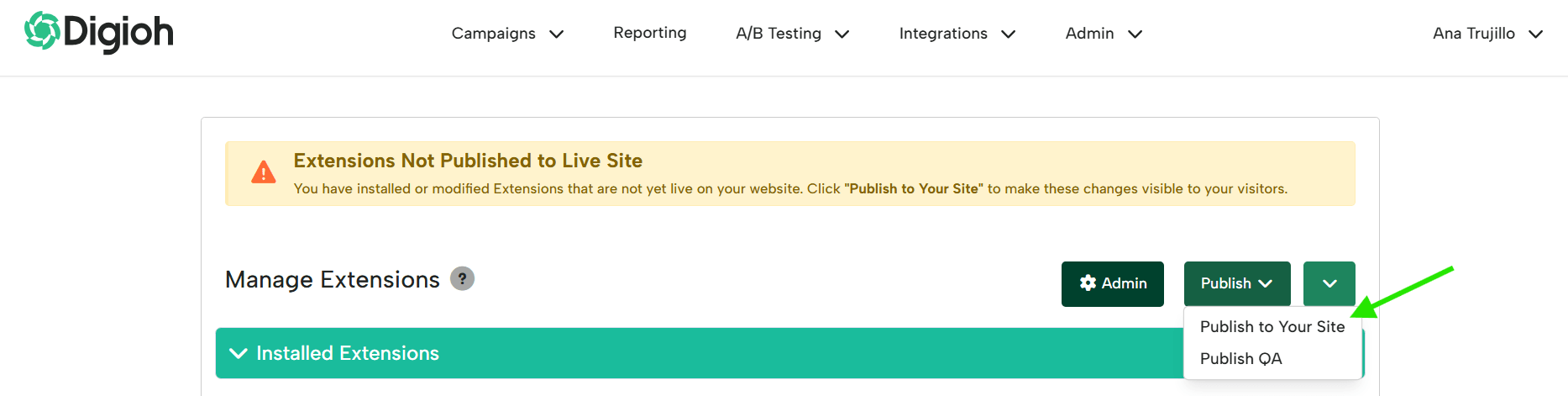
- Click Publish > Publish to Your Site.
- Go back to your campaign editor and go to Settings > Campaign Settings > Campaign Metadata Campaign and toggle it on.
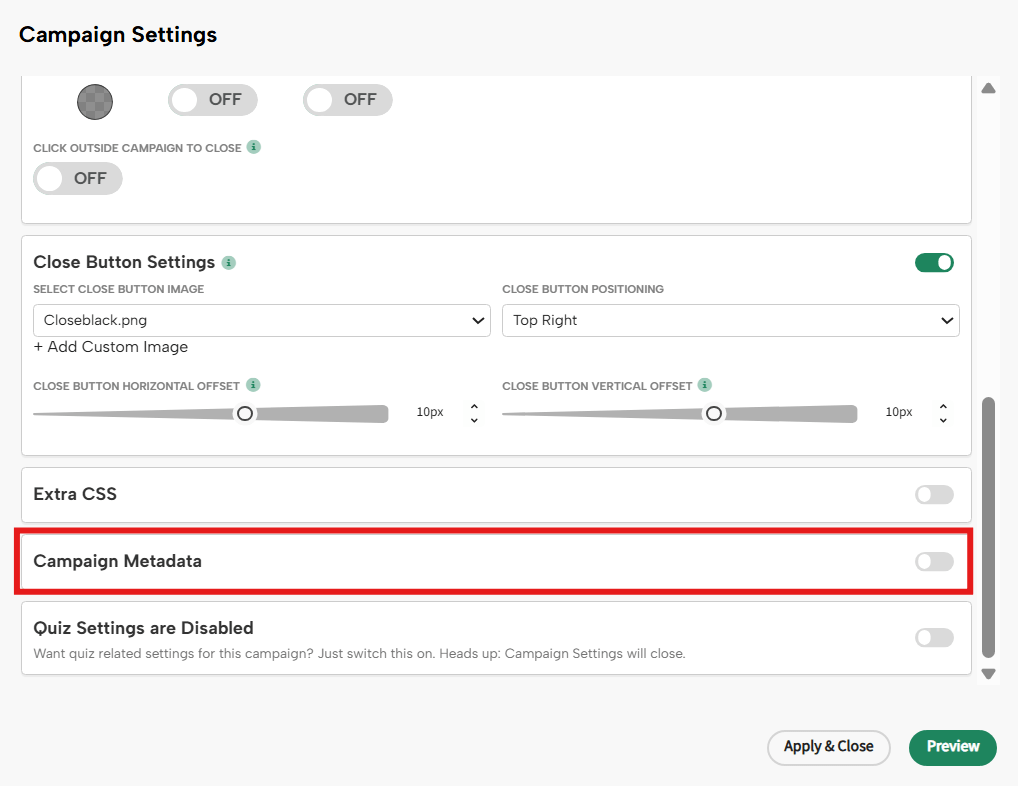
- Add the following Campaign Metadata:
- Ket: youtube_videos
- Value: true

- And that’s it! Make sure to publish your campaign in order for these changes to go live.
Important notes
-
Your YouTube video must be embedded using an iframe in the format:
https://www.youtube.com/embed/... -
To allow pausing, make sure your YouTube iframe includes this parameter:
enablejsapi=1
(e.g.,https://www.youtube.com/embed/VIDEO_ID?enablejsapi=1)