
Quizzes aren’t a “set it and forget it” kind of deal. If you ever need to fine-tune your logic, adjust your product counts, or update your results page, here is exactly how to do it.
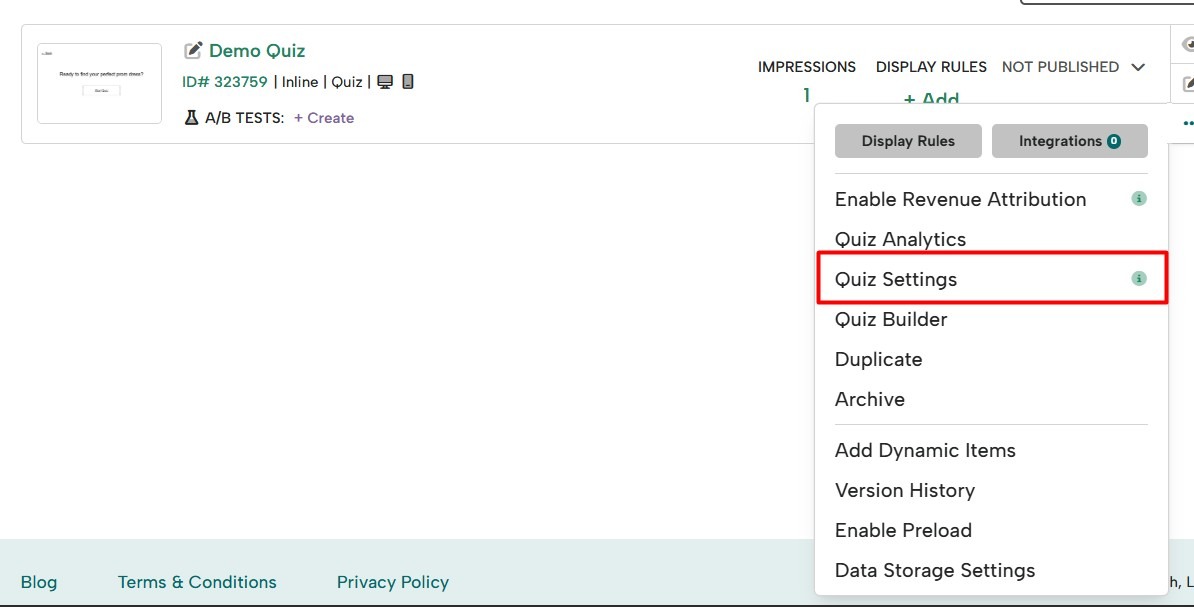
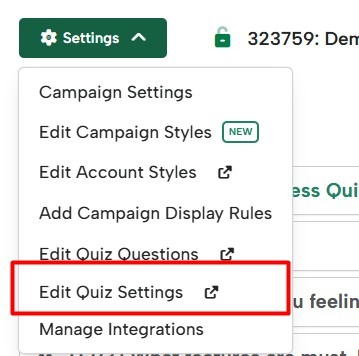
There are 2 ways you can access your quiz settings:
Option 1
From the campaign list, select Quiz Settings from the additional options for a quiz campaign:
 Option 2
Open the Digioh Editor for your quiz and select Settings -> Edit Quiz Settings in the upper-left corner:
- Digioh Offers 2 types of Recommendation Logic (“Logic Mode”)
- Option 1 – Outcomes: Outcomes is our popular method and recommended approach. This allows you to be specific about exactly which products you’d like to recommend based on a set of answers. You can also easily add/remove/edit product recommendations with ease. This approach is also easier to test. If you have less than 100 product recommendations, this would be our recommended approach.
- Option 2 – Weights: Weights is our advanced way and allows you to give “weights” to specific products, Shopify Tags, or any attribute in Shopify on every answer click. At the end, we add up all the weights, and display the products with the most weights on the results page. This is a great option if you have lots of product recommendations and want the results to be based on Shopify Tags.
- For “Result Page Type” select “Redirect to External URL”, this allows us to setup a dynamic product recommendation page in Shopify. The other option “Digioh Local Result Pages” is if you want to use a Digioh page.
- Set the “Max Results” that you ever want to show on your recommendations page. For example, if you don’t want to show more than 3 products on the recommendations page, select “3”
- Set “Items per Row” that you want to display per row. So, for example if you want 2 rows of 3 products. You will want to set the “Max Results” to 6 and the “Items per Row” to 3.
- Set “Hero Product” this is if you want to display 1 Main Product at the top and all additional product recommendations underneath it.
- Set “Out of Stock”. You can make sure out of stock products are never recommended by selecting “Suppress Out of Stock Products”
- Set “Results Redirect Delay” this is the delay we add between submission of the quiz to re-directing them to the results. We recommend setting this as 2 seconds
- Set “Results Page URL Domain” this should be your website domain
- Set “Results Page URL Path” this is the results page URL, we recommend /pages/quiz-result (we will need to create this page in Shopify at a later step)
- Set “Results Page URL Query” this is additional parameters you can use to personalize your Results page. For example if you ask for a name or specific data in the quiz, we can populate that on the quiz page.
- Here are some common query strings:
- [NAME]
- [CUSTOM_5]
- Here are some common query strings:
Refer to our Quick Start Guide if you need help building a new quiz!