
The Modal Overlay For Box Elements extension lets you set any element in your campaign to open another campaign page as a modal overlay, a layered panel that appears on top of the current page without leaving it. Use it to show secondary content like tooltips, product details, or multi-step flows.
Install the extension
- Select Extensions from the account dropdown.
- Find Modal Overlay For Box Elements in the list.
- Click Install.
- Publish your account.
How it works
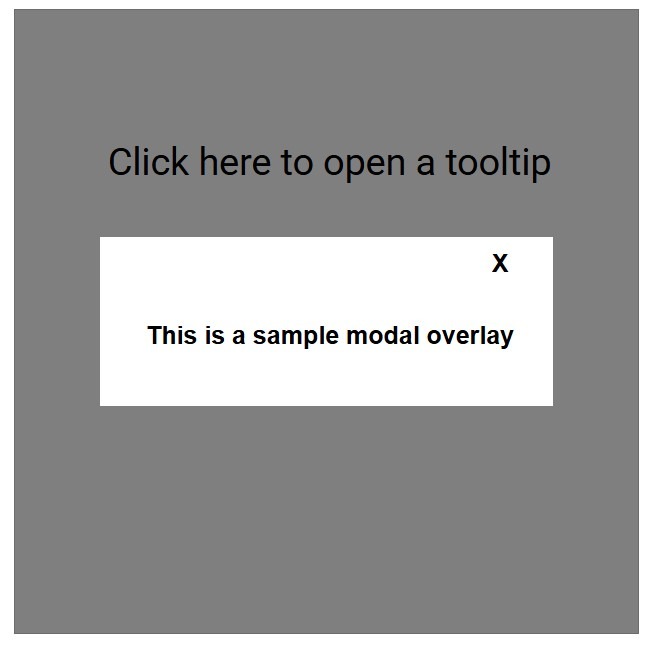
The extension scans every element in your campaign for the modal_overlay metadata attribute. When a visitor clicks a configured element, the specified page from the campaign (for example ep1, ep2, or thx) opens as a floating modal over the current page, with a semi-transparent backdrop behind it. A close button on the overlay page, set with modal_overlay_close, closes the overlay.
Configuration
Create Your Overlay Pages
In the campaign where you’ll be using the Modal Overlay extension, create the overlay pages as extra pages in the campaign.
Metadata Configuration
Two metadata keys control the feature:
Trigger element (the button or element that opens the modal)
On the element that you want users to click to open the overlay, add the metadata modal_overlay with the value of the page that will open (thx, ep1, ep2, etc.):

Close button (on the overlay page)
On the overlay page, add a button that will be used to close the overlay. The button must have the metadata modal_overlay_close. You can leave the value blank, or if you’re using nested modals (see below), you can set the value to all to close all open overlays at once:


Nested modals
You can open a modal from inside another modal. Each modal stacks on top of the previous one with its own z-index and backdrop. When you close a modal, the one beneath it becomes interactive again.
To close every stacked overlay at once, set modal_overlay_close = all on the close button. This dismisses every open overlay in the stack at the same time.
Automatic behaviors
- Centering: The overlay centers over the parent page automatically.
- Backdrop: A semi-transparent dark gray layer sits behind the modal to focus attention.
- Z-index: Each new overlay increments the z-index to keep stacking correct.
- Parent locked: While a modal is open, the parent page stays non-interactive until you close the modal.
- Scrolling: Overlays taller than the page scroll (overflow-y: auto).
- Size warning: If the modal page is larger than its parent page, Digioh logs a warning in the QA panel.
Notes and limitations
- The modal_overlay value must be a valid page name: ep1, ep2, ep3, and so on, or thx.
- Give each overlay page at least one close button with modal_overlay_close
- Important: Without a close button, visitors cannot dismiss the overlay.