
When a user submits an email with a form submission, you may want to validate this email with Never Bounce. In order to do this, simply use the Never Bounce Integration Extension.
1. Install the Extension in your Digioh Account
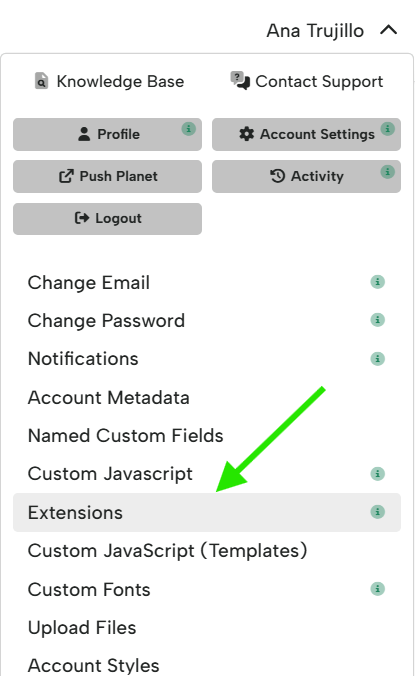
In your account, navigate to the menu under your account name at the top right of the page. Here, select “Extensions”.
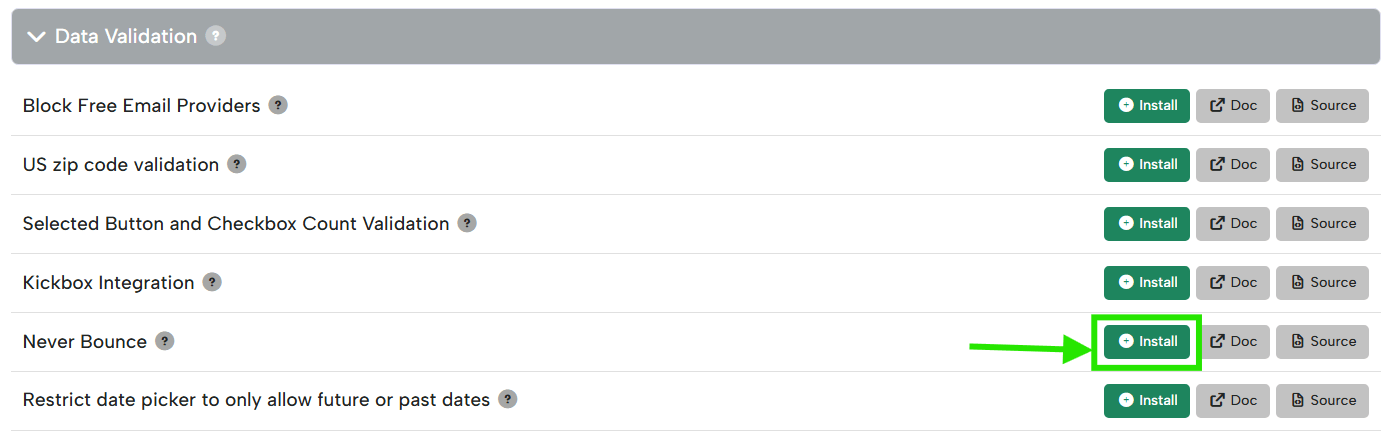
Find the “Never Bounce” extension under the “Data Validation” category and click Install
Once installed, make sure to publish from the same extensions page.
2. Set up your Never Bounce Integration
To set up your Never Bounce Integration, go to Integrations > Integrations from the navigation bar.
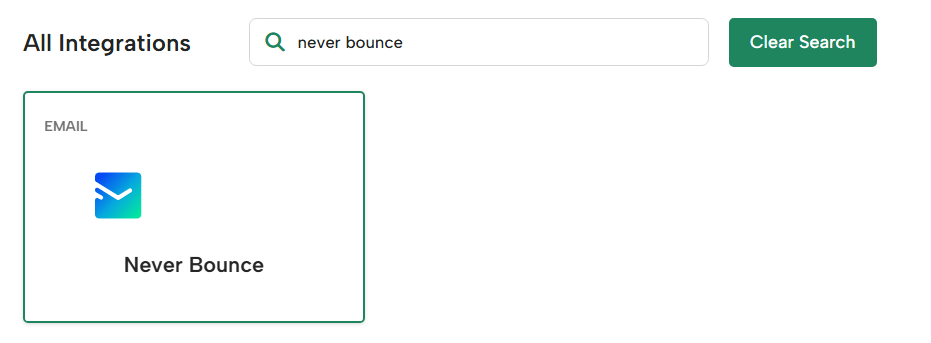
Select the “+ New Integration” button, search for Never Bounce, and click on it
Name your integration and select the campaign you would like to run the Never Bounce validation on.
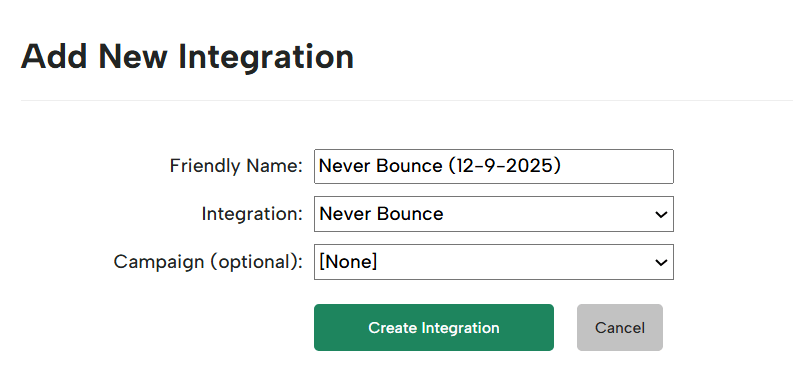
After selecting “Create Integration”, you’ll need to enter your Never Bounce API key and domain.
Once you have set up your integration, on your Integrations page, find the Never Bounce integration ID under the name.
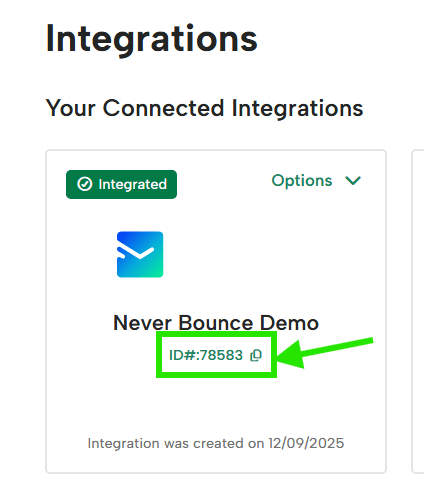
3. Configure Account Metadata
After finding your Never Bounce integration ID, navigate to the menu under your account name on the top right-hand side of the page.
Select “Account Metadata”.
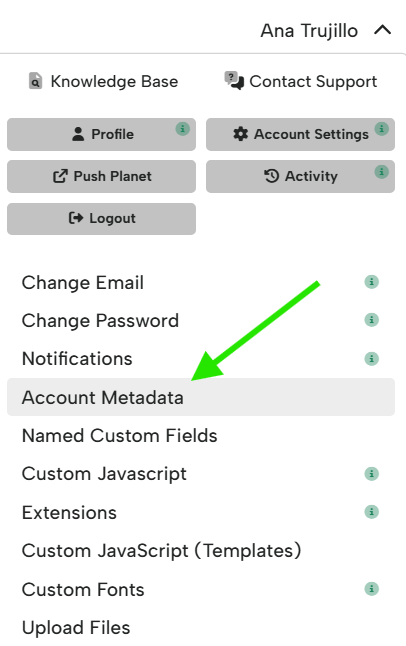
Here, configure metadata key: neverbounce_proxy_integration_id, and for the value, put your Never Bounce integration ID.

You can also configure site-specific integration IDs. This is useful if you are running multiple sites out of a single Digioh instance and/or have a sandbox site that you want to point to your Never Bounce sandbox:

4. Configure Campaign-level Metadata
Navigate to the campaign you are setting up with Never Bounce and navigate to Settings > Campaign Settings.
Here, scroll down to campaign metadata and configure it using key email_field and then set the value.
For the value, there are a couple of configurations:
- custom_x, where x is the number of the custom field used for email

When a user submits the field configured in the Campaign-level metadata, the extension will take that field and run the Never Bounce Integration set up on your account. If the validation comes back as true from Never Bounce, the app will continue submitting the form. If the validation returns false from Never Bounce, the app will stop the form from submitting and alert the user.
5. Additional Configuration Options
Never Bounce also offers the additional Result Code values Unverifiable and Unknown. When Never Bounce returns a result of “Unverifiable” it indicates that the domain has been set to “accept all” and there is no definitive way to determine if the email is valid or not. When Never Bounce returns “Unknown” it indicates that Never Bounce did not receive a response from either the domain or the server and thus cannot validate the provided email.
You can configure your campaign to accept either or both of these responses to allow users to still submit their email address. To do so, you’ll just need to add additional Campaign Metadata.
- To accept emails that return a response of “Unverifiable”, add Campaign Metadata: neverbounce_accept_all = true.
- To accept emails that return a response of “Unknown”, add Campaign Metadata: neverbounce_allow_unknown = true.
- If you want to control the error message displayed for invalid emails, add Campaign Metadata error_message = <Error Message to Display>:
Questions? Comments? Let us know at support@digioh.com