
How to setup a DNS value in GoDaddy for your Digioh Javascript.
What you’ll set up:
You’ll create a CNAME record:
-
Host:
forms(you can choose another host;formsis a simple default) -
Points to / Value:
customers.lightboxcdn.com -
TTL: default (or 1 hour)
After DNS propagates, share your chosen subdomain with your Digioh CSM/support so we can finish enabling it on your account. (No changes to your Digioh snippet are typically needed unless your CSM instructs otherwise.)
Prerequisites:
-
GoDaddy account access with permission to edit DNS
-
Your primary domain (the one associated with your Digioh account)
-
A chosen host label (e.g.,
forms,pop,widgets)
Step-by-step (GoDaddy):
1. Log in at godaddy.com
2. Click your account name (top-right) → My Products:

3. In the left nav, choose Domain.

4. Click the domain where you want to add the record (match the domain used with Digioh).
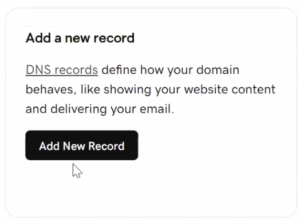
5. In DNS tab for that domain, click Add New Record:
6. Create the CNAME:
-
Type: CNAME
-
Host:
forms(you can choose another host;formsis a simple default) -
Value / Points to:
customers.lightboxcdn.com -
TTL: keep default (or 1 hour)
7. Save the record
- If prompted to verify your identity, simply follow the prompts within GoDaddy.
Finally, send your CNAME (e.g. forms.yourdomain.com) to Digioh Support so we can verify and apply your SSL.
Once we’ve applied the SSL, you’ll want to do an account publish to make sure the changes are live.
While your Digioh campaigns will work once the custom domain is configured, we highly recommend updating your site’s Digioh embed to reference the new domain. After we confirm the configuration is completed, navigate to Profile > Setup Instructions to find your new installation code with the custom domain.
FAQs
Can I use a different host than forms?
Yes – choose any unused subdomain (e.g., pop, quiz, promo). Just keep it consistent and share the exact host with Digioh so we enable the right one.
Do I need to edit my Digioh script?
Usually no. Once we enable your custom subdomain, Digioh will leverage it automatically for first-party requests. Your CSM will tell you if anything else is needed.
We deploy via GTM. Is that okay?
GTM can be blocked by many ad blockers; Digioh’s script isn’t typically blocked when directly embedded. For mission-critical pop-ups, direct embed is recommended.
Does this affect Push Planet?
No. This CNAME is specifically to keep on-site Digioh campaigns firing as first-party. Push Planet pages are separate.
Related resources
-
Installing Digioh JavaScript on Your Site (direct embed & quick test flow).
-
GTM Installation Guide (and why direct embed avoids ad-block issues).
-
Lightbox Not Displaying? Troubleshooting checklist.