
Login to Shopify. At the top search for and select “Online Store”.
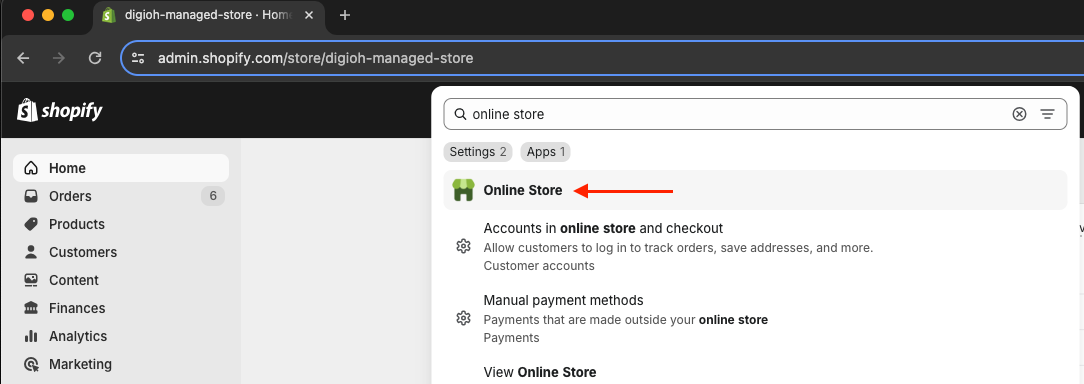
In the Online Store nav and choose “Themes”.
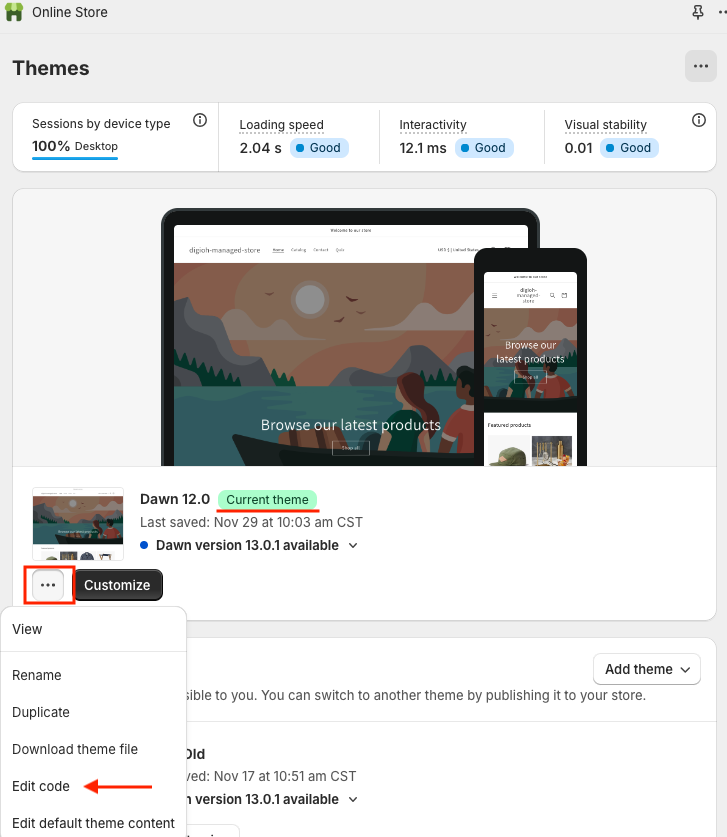
Where it says “Current Theme”, click on the “…” icon and then click on “Edit Code”
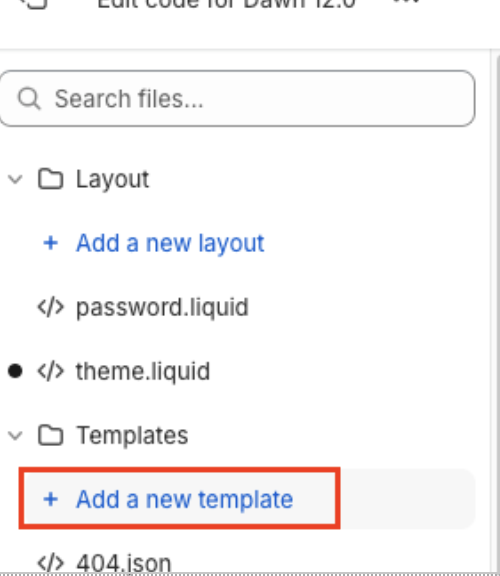
Now, we are going to create New Template. Click on “Templates” and “Add a New Template”
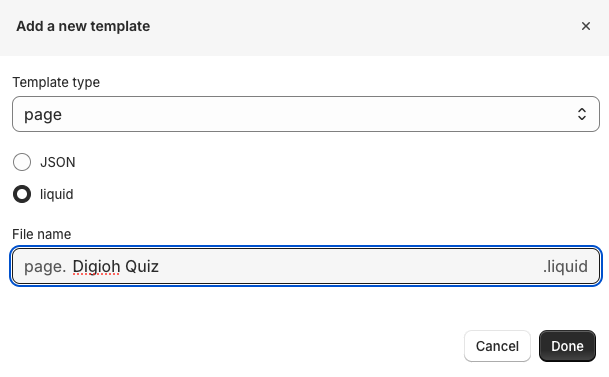
For Template Type, Select Page, select the Liquid radio button, and name the file “Digioh Quiz” and hit Done.
Now enter in {% raw %}{{ page.content }}{% endraw %} and hit Save.
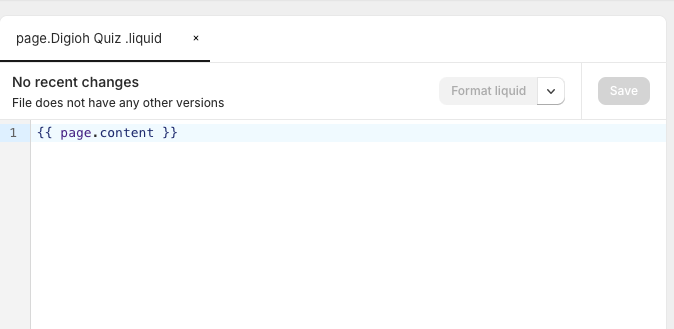
Now we’re setup to create the page your quiz will live on.
Go back to the Online Store navigation and choose Pages.
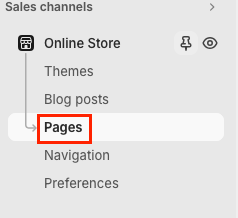
Click on “Add Page” button in the top right corner.

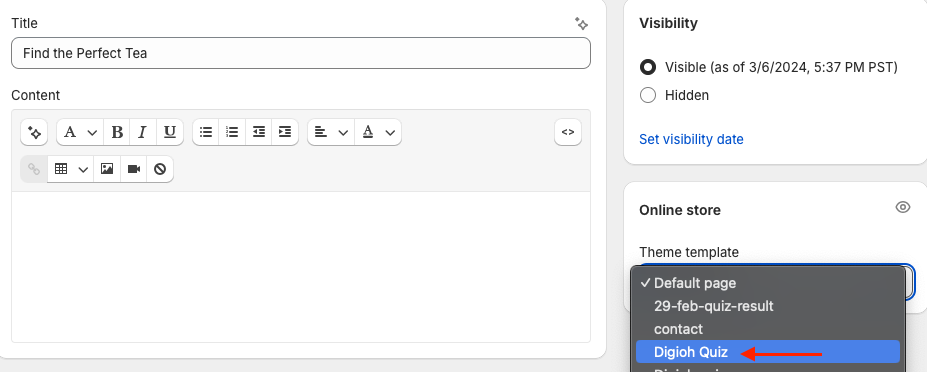
You can add a title like “Quiz” or “Find the Perfect Tea”.
On the right side we will need to pick a Theme Template.
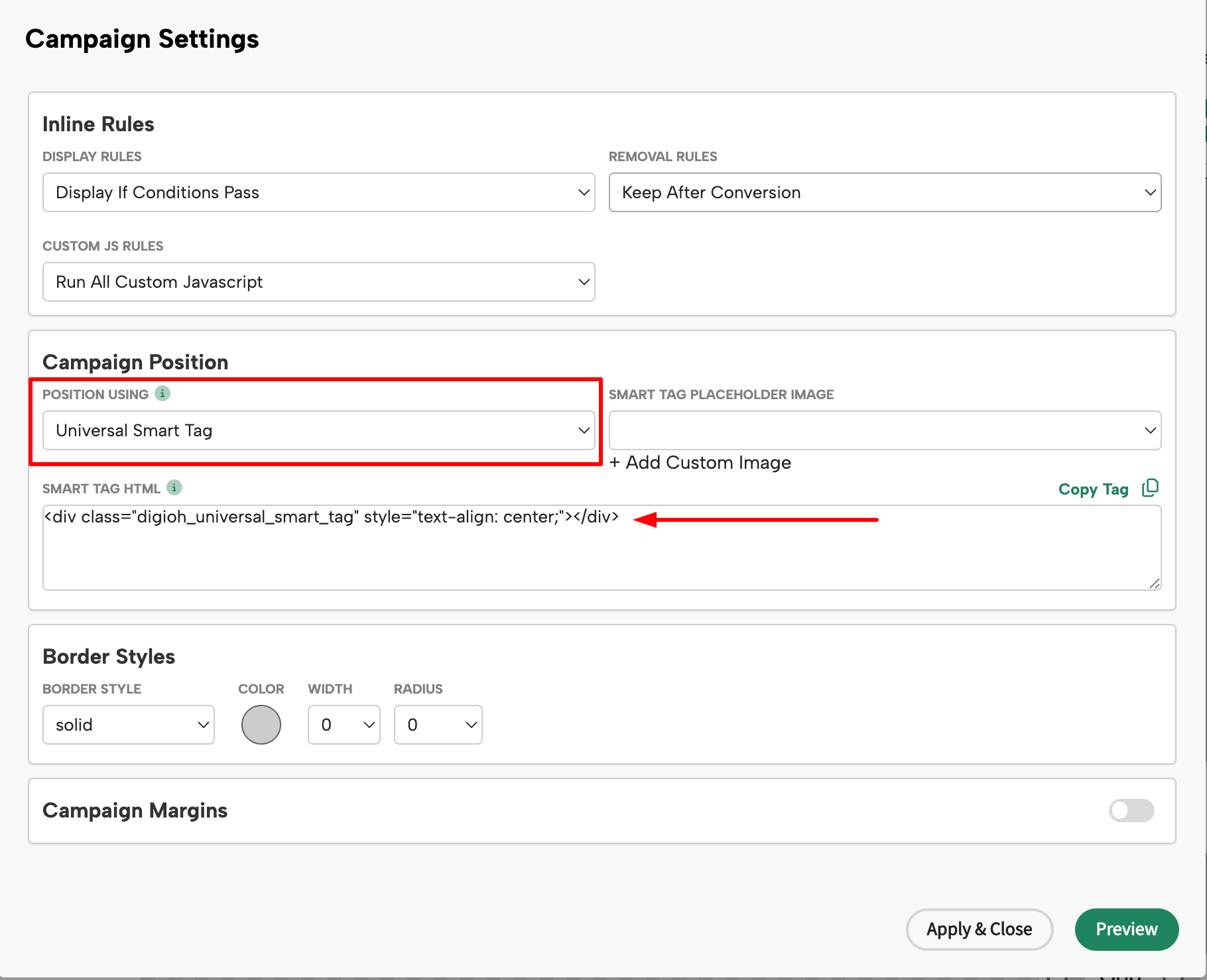
Now, we are going to embed the Digioh Quiz to your Shopify page. Go to your Digioh Quiz, Go into the Campaign Editor, Click on Settings > Campaign Settings, Select “Universal Smart Tag” for the Position Using Section, and Copy the Universal Smart Tag.
We recommend uploading a loading spinner that is on brand in the “Smart Tag Placeholder Image”. You will want to upload your Smart Tag Placeholder image before copying the Universal Smart Tag.
Now, on your Shopify “Quiz” page click on the “<>” icon and select “Edit HTML” and paste in the Digioh Universal Smart Tag that you copied in the previous step.
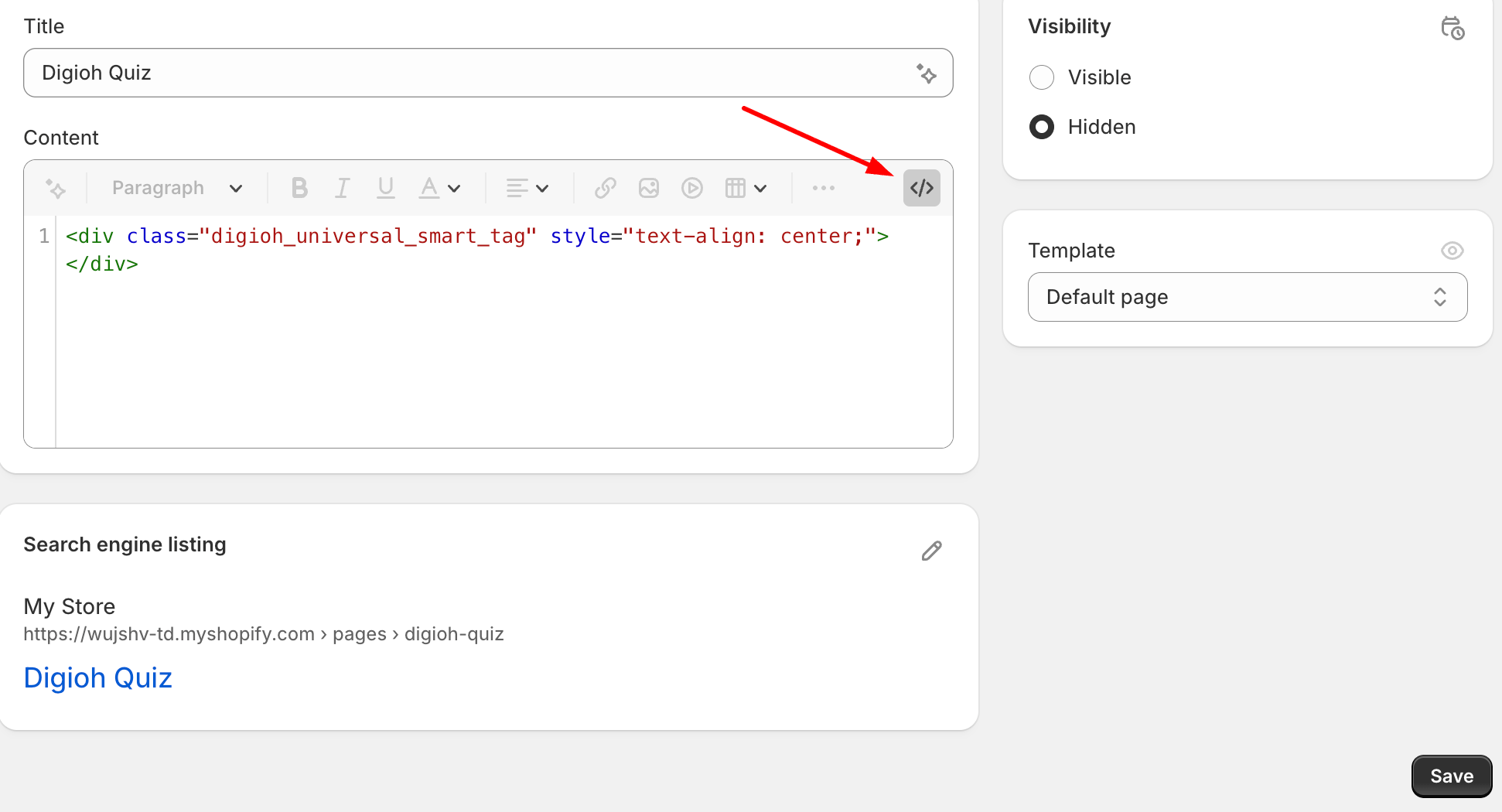
Hit Save and Load your Shopify Page.
In your Digioh Dashboard, open the Display Rules options for your quiz:

To configure the display rules for your quiz, select “Add”
Then choose “Add Display Rules”
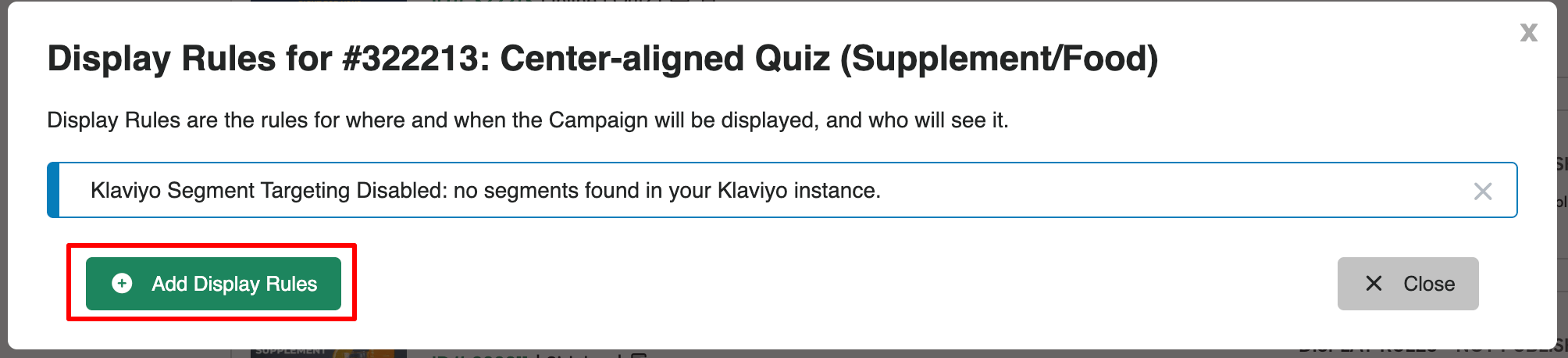
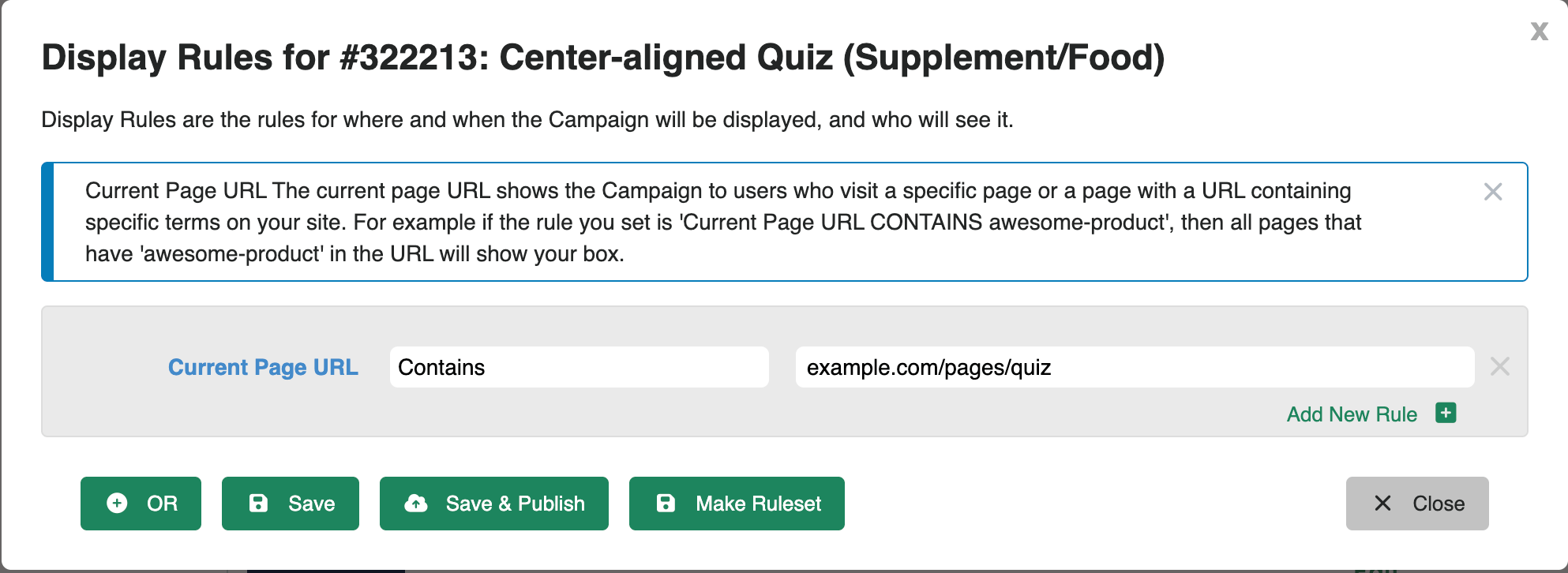
From the options, select “Current Page URL” and enter the URL of the page where you want the quiz to appear. Click on Save to save the changes.
After configuring this setting, return to the editor, hover over the “Save and Publish” button, and click on “Save & Publish to Your Site” to publish the quiz on your website.

If your Digioh Campaign is enabled and you’ve successfully published the changes in Digioh

The quiz should now be visible on your website!
Now you need a page for the quiz results.
Digioh offers two types of Results Pages:
- Digioh Result Pages (recommended) – these are automated result pages
- Shopify Result Pages (advanced) – these are custom built pages inside a Shopify Liquid Theme