
What You’ll Learn in This Article
This guide explains how to install the Digioh JavaScript tag using Google Tag Manager (GTM). You’ll also gain insight into a key limitation of GTM with ad blockers, and what to do instead to ensure your campaigns always run smoothly.

Step 1: Create a New Tag in GTM
- Log in to your Google Tag Manager account.
- Navigate to Tags.
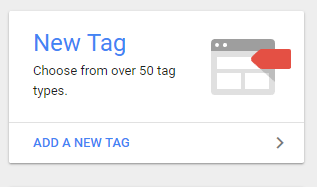
- Click New Tag and name it.
Step 2: Add the Digioh JavaScript Snippet
- Name your tag
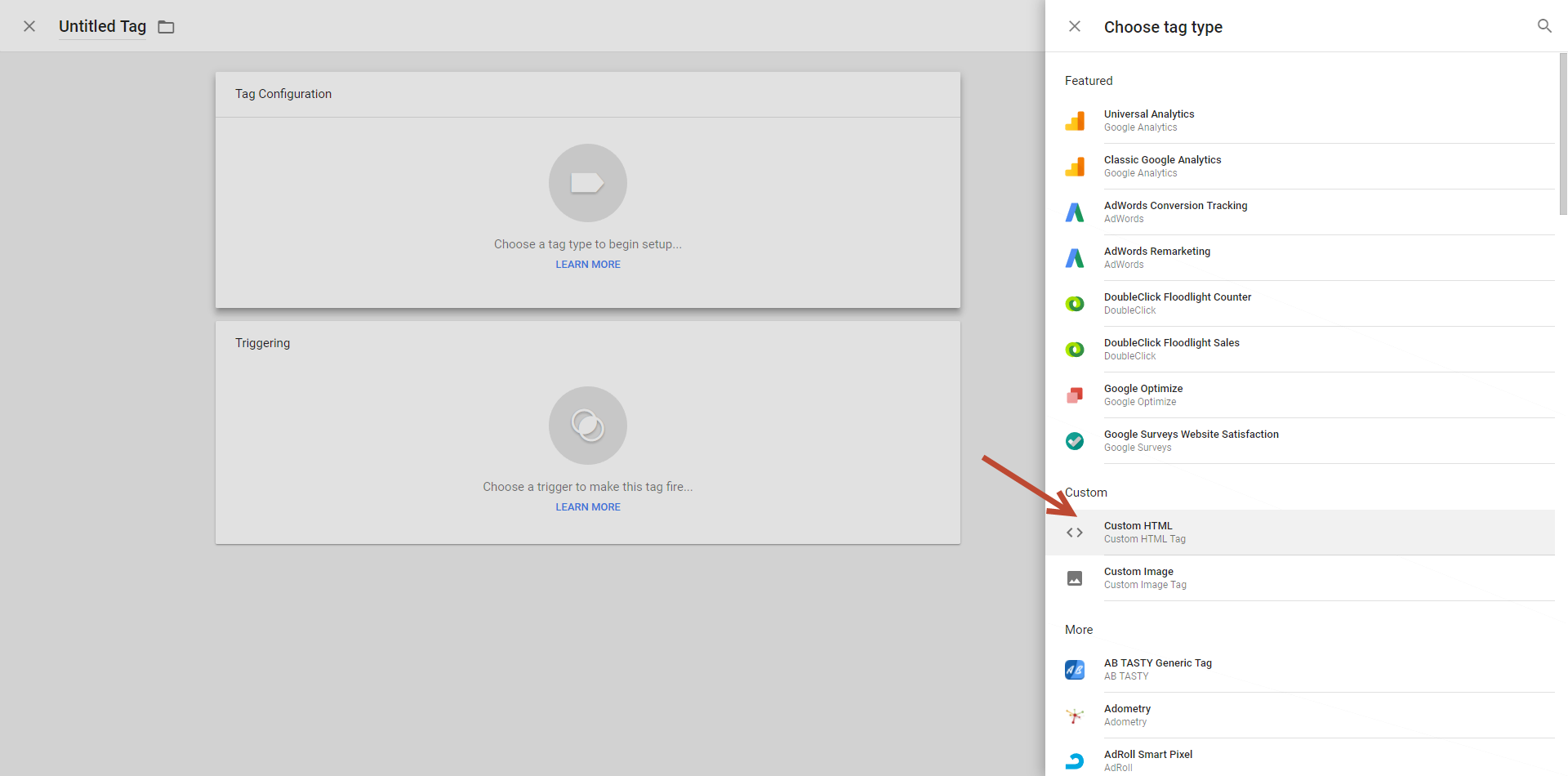
- Click Tag Configuration.
- Select Custom HTML.
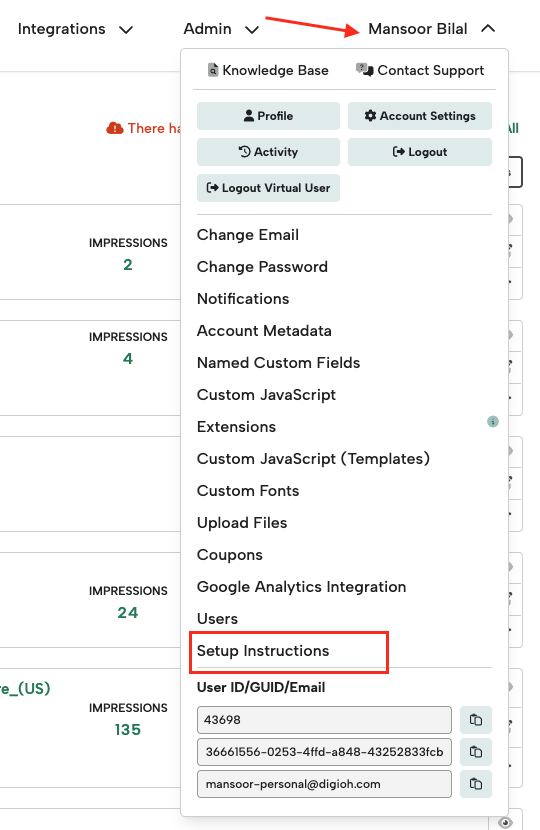
- In your Digioh account, click your name in the upper-right corner.
- Select Setup Instructions from the dropdown menu.
- Copy your Digioh JavaScript snippet.
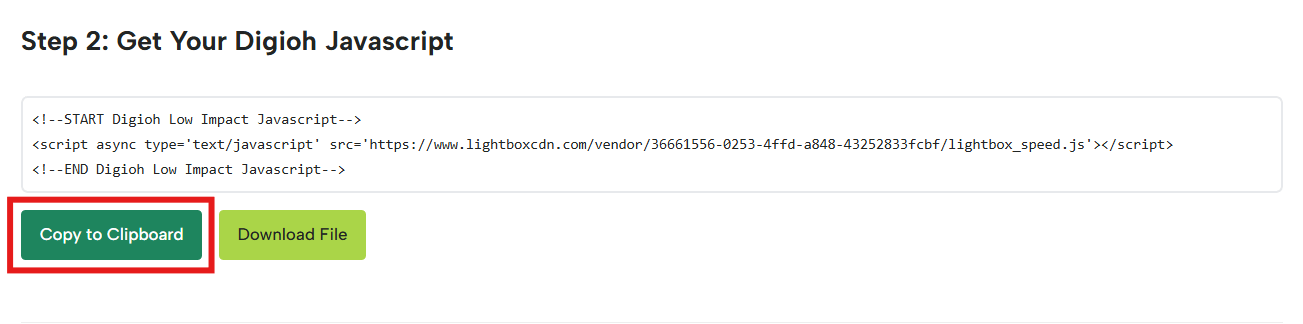
- Paste the snippet into the Custom HTML field in GTM.
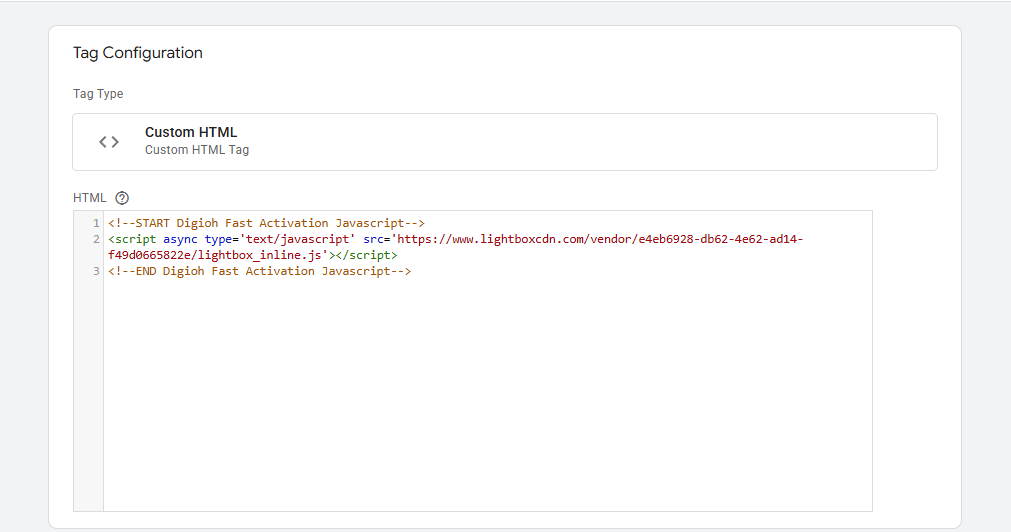
Step 3: Configure Triggering
- Click Triggering.
- Select All Pages.
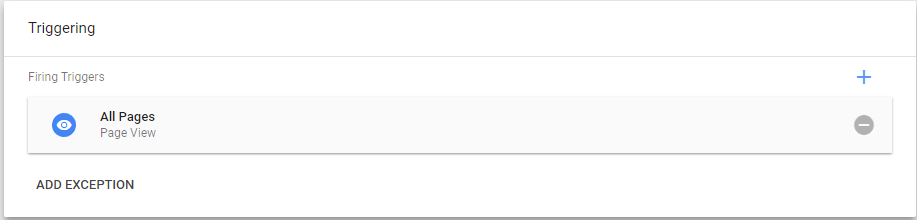
- Click Save.
This ensures the Digioh script loads on every page of your website.
Step 4: Publish Your Changes
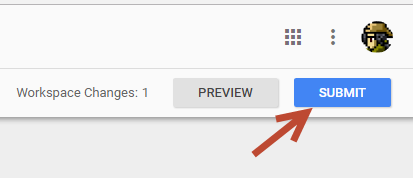
- Click Submit in the upper-right corner of GTM.
- Enter a Version Name and optional description.
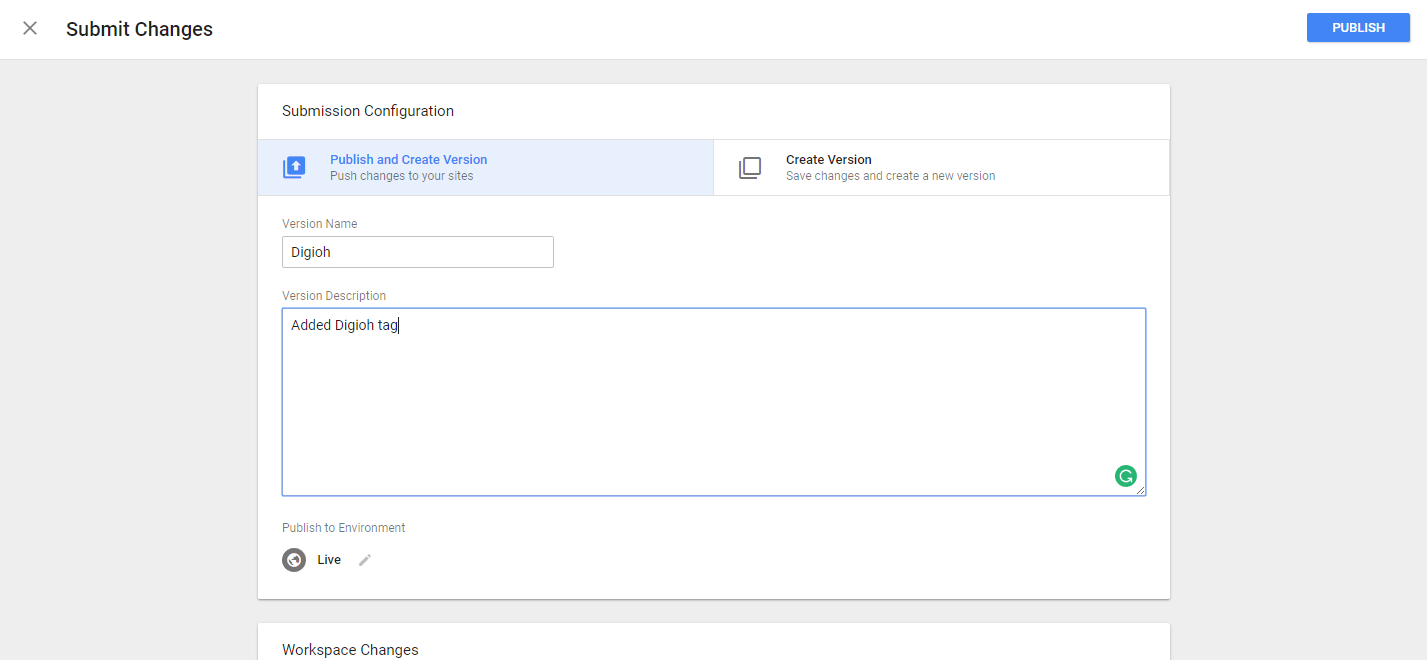
Your Digioh JavaScript tag is now live!
Important: Google Tag Manager and Ad Blockers
Many modern ad blockers block Google Tag Manager entirely. If Digioh is installed through GTM, campaigns may not display for visitors using ad blockers.
Digioh’s direct JavaScript installation is not blocked by known ad blockers. If you are running mission-critical campaigns, or if a large portion of your audience uses ad blockers, we strongly recommend embedding the Digioh script directly in your website’s <head> instead of using GTM.