
The Yotpo Reviews Extension lets you display existing Yotpo reviews within Digioh campaigns (pop-ups, banners, inlines, sidebars, etc.).
Use the Yotpo Reviews Extension when:
- The page already displays Yotpo reviews
- You want to reuse those reviews inside a Digioh campaign
- You want full control over styling using CSS
- You want to show ratings or reviews in multiple locations on the same page
Common use cases include:
- Highlighting product ratings in banners or sidebars
- Showing reviews inside inline campaigns
- Reinforcing social proof near calls-to-action

Limitations & Notes
Because this extension only reads reviews that are already on the current page, there are a few important limitations to be aware of:
- The extension reads existing Yotpo DOM elements from the current page only; it does not fetch reviews via the Yotpo API or from other pages or products. Therefore, if a product’s reviews are not displayed on the page, the extension cannot access them
- The extension works best on pages where Yotpo is already loaded
- It should not be used on pages without Yotpo reviews, for example: Home pages, Category pages (unless reviews are rendered there), or Landing pages without Yotpo reviews loaded
- Review order depends on how Yotpo is configured on the site
- The maximum number of supported detailed reviews is 5
Supported Display Modes
The extension supports two display modes. You choose the mode using campaign metadata.
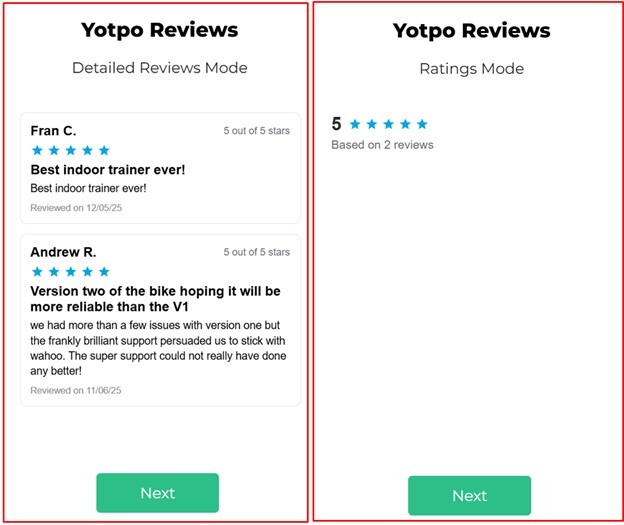
1. Ratings Mode
Displays:
- Average rating score
- Star icons
- Review count text (e.g., “Based on 42 reviews”)
Best for: banners, sidebars, hero sections, compact placements
2. Detailed Reviews Mode
Displays:
- Reviewer name
- Star rating
- Review title
- Review content
- Review date
You can control how many reviews are shown using metadata.
Best for: detailed inline campaigns, quizzes, landing-style content sections
How to Set Up the Yotpo Reviews Extension
Follow the steps below to configure the Yotpo Reviews Extension in a Digioh campaign.
Step 1: Install the extension
This extension enables the Yotpo Reviews inside your Digioh account.
- In Digioh, hover over your profile icon in the top right
- Select Extensions
- Go to Campaign User Interface
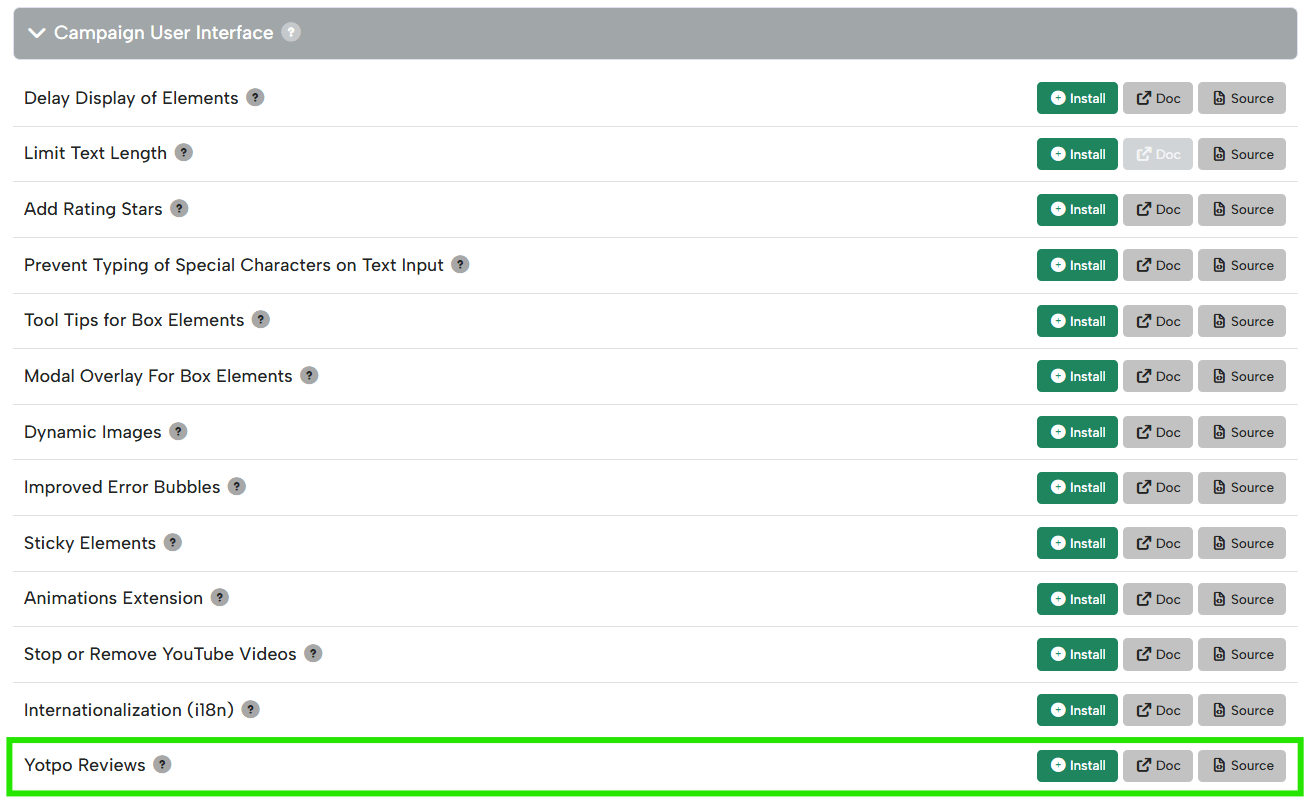
- Install Yotpo Reviews
- Click Publish to your Site

Step 2: Add Campaign-Level Metadata
The extension is controlled using campaign metadata, so this must be enabled first.
- Open the campaign editor.
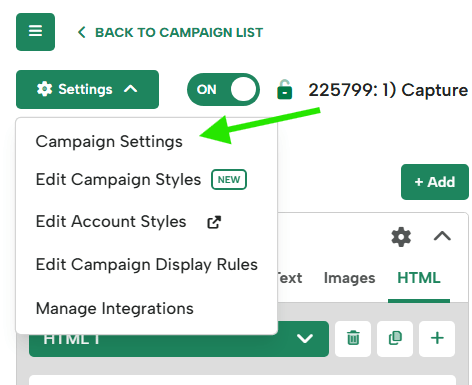
- Navigate to Settings > Campaign Settings
- Scroll down to the Campaign Metadata section and toggle it on

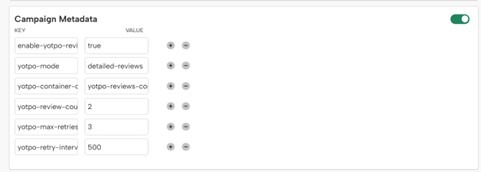
- Add the required and optional metadata keys listed below
Required Metadata Keys
enable-yotpo-reviews
Enables or disables the extension
Value: true
yotpo-mode
Display mode (ratings or detailed-reviews)
Value: ratings or detailed-reviews
Optional Metadata Keys
yotpo-container-class
CSS class used for review containers
Value: yotpo-reviews-container
yotpo-review-count
Number of detailed reviews to show (1–5)
Value: 1
yotpo-max-retries
How many times to retry detecting the Yotpo DOM
Value: 5
yotpo-retry-interval
Delay (ms) between retries
Value: 300
For example:
Step 3: Add the HTML Review Container
Next, you need to tell the extension where inside the campaign the reviews should appear. This is done by adding a simple HTML container.
- In the Campaign Editor, go to the HTML tab
- Click + HTML Block
- Paste the following HTML: <div class=”yotpo-reviews-container”></div>
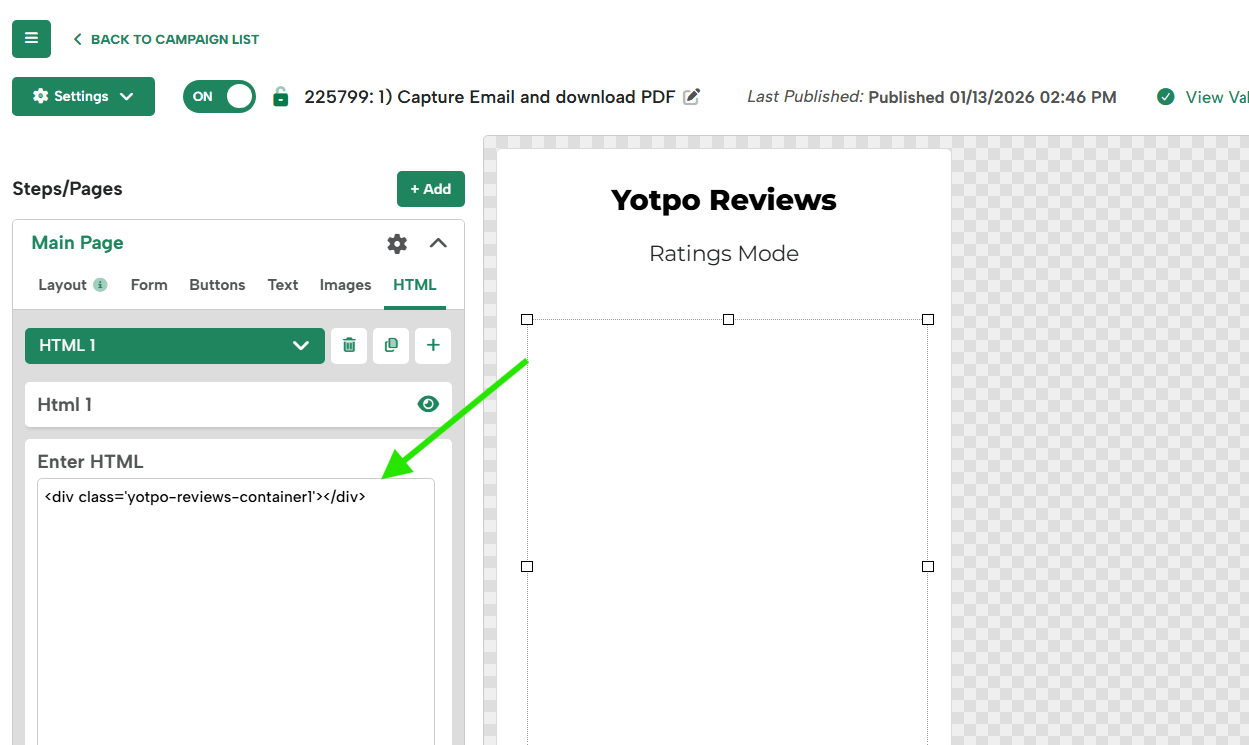
- Save your campaign
Important Notes About the HTML Container
- This container is required for the extension to render reviews
- The class name must match the value set in metadata
- By default, the extension looks for:
yotpo-reviews-container - You can add this container:
- Multiple times within the same campaign
- On different pages of the same campaign
Each container will display the same review content pulled from the current page.
Step 4: Style the Reviews (Optional)
If you want to customize how the reviews look (colors, spacing, fonts, etc.), you can add custom CSS directly inside an HTML block in your campaign. This allows you to visually match the reviews to your site’s design.
How to Add CSS in an HTML Block
- In the Campaign Editor, go to the HTML tab
- Click + HTML Block
- Paste your CSS inside a <style> tag, like this:
<style>
.yotpo-star {
fill: #FFB400;
width: 20px;
height: 20px;
} .yotpo-review-card {
background: #FAFAFA;
border-radius: 12px;
padding: 16px;
}
</style>
- Save the HTML block
Tip: The <style> tag can live in the same HTML block as your review container or in a separate HTML block; either approach works.
Common Elements You Can Style
All review elements use CSS classes, which makes customization straightforward.
- Ratings wrapper:
.digioh-yotpo-ratings - Star container:
.yotpo-stars - Individual star SVG:
.yotpo-star - Review card:
.yotpo-review-card - Reviewer name:
.yotpo-name - Review content:
.yotpo-content
Important Styling Notes
- CSS added in an HTML block applies only to that campaign
- Styling will not affect Yotpo reviews outside of Digioh
- If reviews are not visible yet, confirm:
- The page already displays Yotpo reviews
- The campaign is published
- The correct container class is being used
Troubleshooting
If reviews are not appearing:
- Confirm the page displays Yotpo reviews outside of Digioh
- Confirm the container class exists in the widget HTML
- Check Digioh notifications for extension errors
- Ensure the extension is enabled via metadata
- Avoid using the extension on pages without reviews