
Digioh supports Shopify subscriptions directly on Quiz Results Pages, allowing shoppers to choose between a one-time purchase or a subscription (for example, “Subscribe & Save”) before adding products to cart. If your ecommerce brand is using Shopify and has a subscription offering, consider following the steps below to optimize your quiz results page.
Important Prerequisite: The subscription option is only available to Digioh customers who are using Shopify, a Digioh Results Page, have the Subscription settling enabled on the Quiz Setting, and the product feed includes a PRQ:Subscription or PRQ:Subscriptions column.
This article explains:
- What shoppers see on the Results Page
- How customers select a subscription option
- How to configure the results page for subscriptions to appear
How to use Subscriptions on Quiz Results Pages
To make subscriptions available to shoppers, take the following steps.
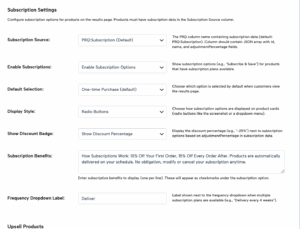
Step 1: Open Subscription Settings
Navigate to Quiz Settings → Results tab, then scroll down to the Subscription Settings section.
Step 2: Enable Subscriptions
Toggle Enable Subscriptions to Enable Subscription Options.
Step 3: Choose How Subscriptions Are Displayed
Select a Display Style:
- Radio Buttons – shoppers choose between one-time purchase and subscription
- Dropdown – shoppers select a delivery frequency from a dropdown menu
Step 4: Set the Default Selection
Choose which option is pre-selected when the Results Page loads:
- One-time Purchase, or
- Subscribe & Save
Step 5: Add Subscription Benefits (Optional)
Enter any subscription benefits you want to highlight, one per line.
Examples:
- Free shipping
- Cancel anytime
These benefits will display alongside the subscription option on the Results Page.
Step 6: Add Subscription Data to Your Product Feed
Ensure your product CSV includes a PRQ:Subscription (or PRQ:Subscriptions) column with valid JSON subscription data.
Step 7: Save and Publish
Click Save and Publish LIVE or Save and Publish QA to apply your changes.
Step 8: Review the Results Page
Open your quiz Results Page and confirm that subscription options appear on products with subscription data.
What Shoppers See on the Results Page
When subscriptions are enabled, each eligible product on your Digioh Results Page displays a subscription selector directly on the product card.
Depending on your configuration, shoppers will see either:
- Radio buttons (One-time purchase vs. Subscribe & Save), or
- A dropdown menu to choose delivery frequency (for example, every 2 weeks, every 4 weeks)
Subscription selection includes:
- Updated pricing (including any subscription discount)
- Optional discount badges (for example, “Save 20%”)
- Optional subscription benefits (such as “Free shipping” or “Cancel anytime”)
How Shoppers Select a Subscription
From the shopper’s perspective, the flow is simple:
- View recommended products on the Quiz Results Page
- Choose a purchase option:
- One-time purchase, or
A subscription option (using radio buttons or a dropdown)
- One-time purchase, or
- Review pricing and benefits, which update dynamically based on the selected option
- Add to Cart (or use Add All to Cart if enabled)
Digioh automatically passes the selected subscription plan to Shopify, ensuring the correct selling plan is added to the cart.
Supported Add-to-Cart Actions
Subscription selections are preserved for both:
- Single product Add to Cart
- Add All to Cart (each product can have a different subscription choice)
Once added, the Shopify cart reflects the correct subscription plan and pricing.