
Attentive is an SMS platform that allows you to send text messages. Digioh’s Attentive integration allows Attentive customers to easily create web forms in our drag-and-drop editor that capture emails (and pass them to your ESP) and phone numbers and pass them to Attentive. We also offer phone number validation and multilingual support.
Please Note: These steps assume that you already have an Attentive Account.
Connecting Attentive to Digioh
In Digioh, select Integrations, New Integration
Scroll down to the ‘All Integrations’ section and search for Attentive, and then select the Attentive card:
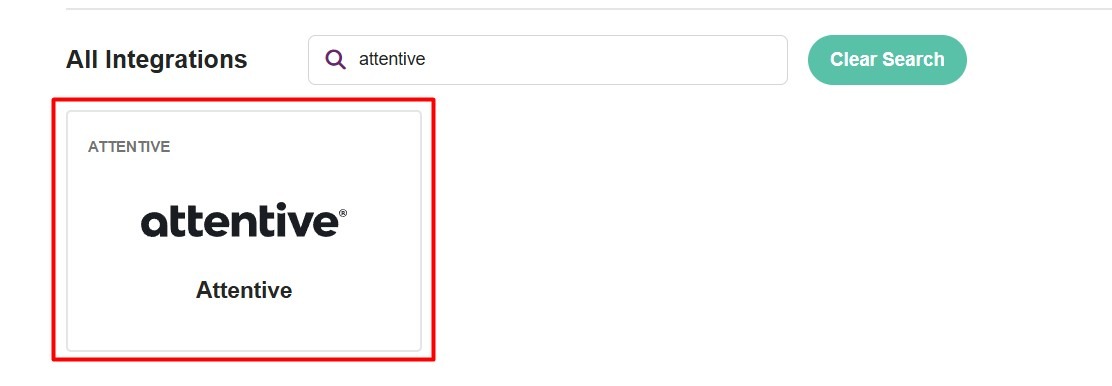
This will redirect you to our Attentive landing page. Start by adding a new connection: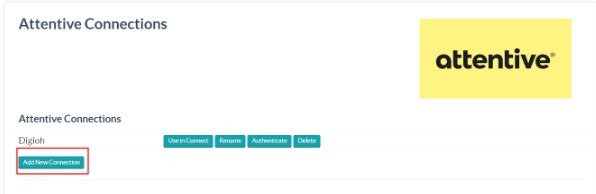
Provide a name for the new connection and select Install. This will prompt you to log in to your Attentive account and authorize access for Digioh.
Once authenticated, you’ll be redirected back to the Attentive page in Digioh.
Creating Attentive Pipelines
When creating a new Attentive pipeline, Digioh offers 4 different templates to help you get started:
- Attentive Set Custom Attributes: This pipeline handles a campaign submission and sends mapped custom attributes to update the user in Attentive.
- Attentive Subscribe: This pipeline handles a campaign submission and subscribes the user in Attentive with the configured sign up source id.
- Attentive Attributes and Subscribe: This pipeline handles a campaign submission and sends custom attributes to the Attentive subscriber, then subscribes the user in Attentive with the configured sign up source id.
- Attentive Track Quiz Submission: This pipeline processes a box submission, sends custom attributes to the Attentive subscriber, and subscribes the user to Attentive using the configured sign-up source ID. It also triggers a custom event in Attentive that passes all product recommendations to the platform.
Create Subscribers in Attentive
- Click Create Pipeline under the Attentive Subscribe template.
- Give your new pipeline a name, select the connection to use, and add a sign up source id:

- Your pipeline is now ready to be added to campaigns! You can follow this guide for adding the integration to an existing campaign.
Create a Subscriber with Custom Attributes
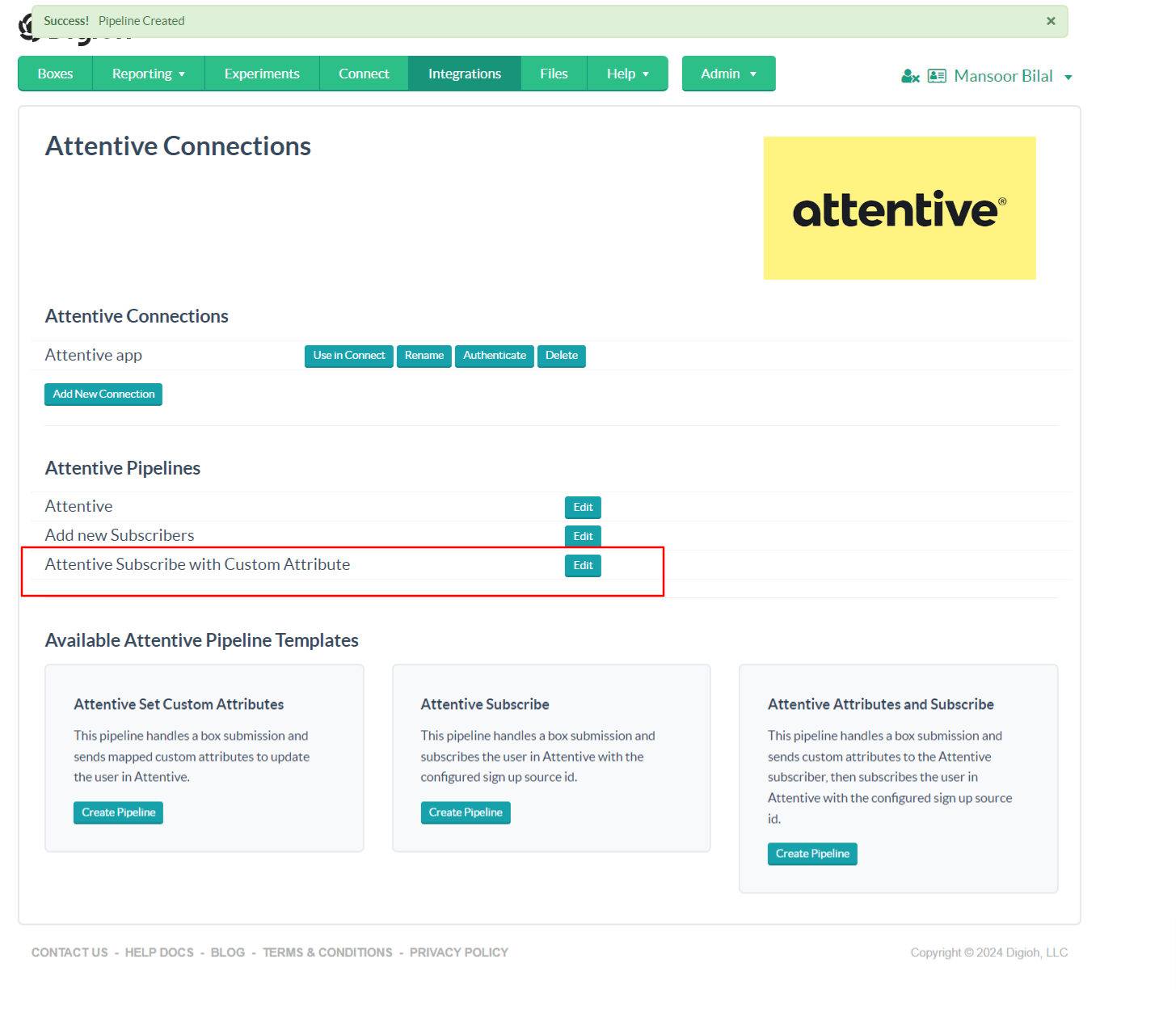
- Click Create Pipeline under the Attentive Subscribe template Attentive Set Custom Attributes.
- Give your new pipeline a name, select the connection to use, and add a sign up source id.
- Once your pipeline has been created, select ‘Edit’ to add your custom attributes
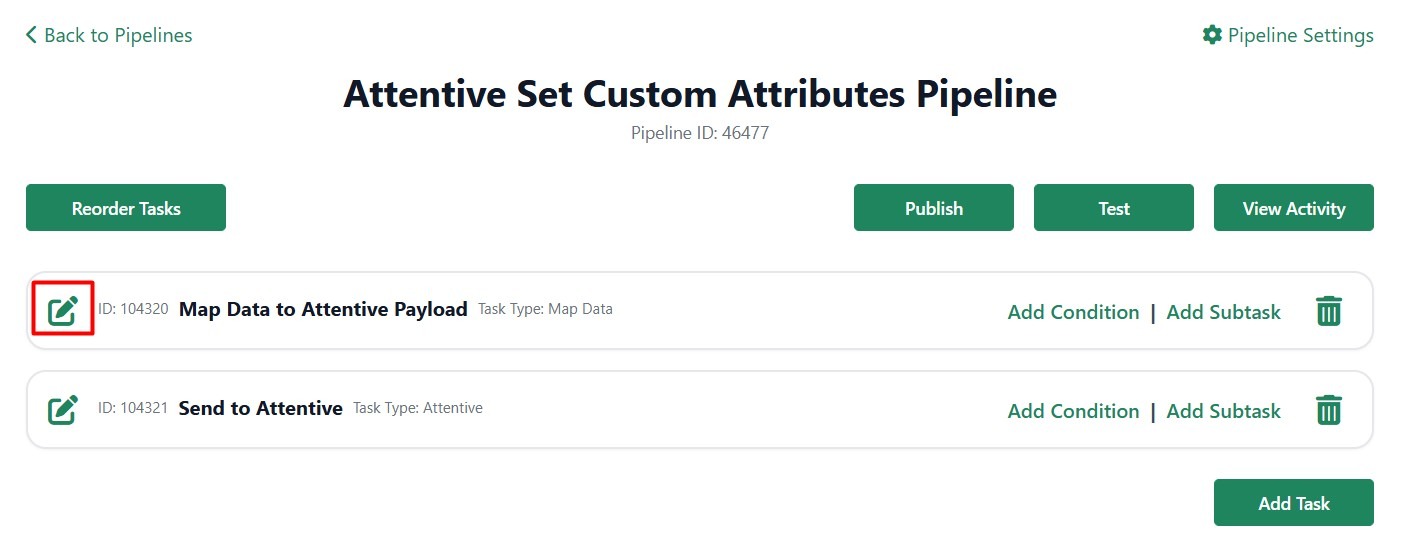
- Edit the Map Data to Attentive Payload step by selecting the edit button on the left side of the step:
- To add a new mapping, select +Mapping at the bottom of the mapping screen.
- In the new mapping, the Input Field (the left hand side) will reference the Digioh field where data is coming from – e.g., form.custom_1
- The Output Field (the right hand side) will reference the Attentive field where the data will be mapped to – e.g., properties.customAttribute
 Note: you can add the mapping named_custom_fields : properties if you’re using named custom fields.

- Once you’ve added all your mappings, select Save.
- Once you’re finished with making all of your updates to the pipeline, select Publish to push those changes live:

- Your pipeline is now ready to be added to campaigns! You can follow this guide for adding the integration to an existing campaign.